
Deployment, kiosk mode and update
Deployment
The deployment of la Vitre begins by downloading and running the installer available here 👉 https://lavitre.me/app
Running on the command line
la Vitre installer can be run on the command line and in silent mode.
Execution
Parameters:
👉 /S: silent installation
👉 /licensekey: la Vitre activation key (optional)
lavitre.exe /allusers /S /licensekey=000-000-000
Kiosk mode
In certain situations, it is sometimes necessary to have total control over a connection device like la Vitre.
The kiosk, an option in Windows settings, is designed to lock down the use of these devices, making it possible to both secure professional data and control access rights.
In order to offer a “tailor-made” user experience, you can choose to configure kiosk mode.
We provide a powershell reference script which take care of:
- creating a dedicated user account
- setting-up the the firewall
- installing la Vitre into the user account
- configuring the auto login of windows
You can use kioskInstall.ps1 as a base to develop your own custom deployment.
You can find the details of the user assigned configuration inside the following file: lavitreAssignedAccess.xml
Update
By default, la Vitre are set to the classic la Vitre update channel.
This means that when we release a new version to production, la Vitre detects it, downloads this update in the background, when the update is downloaded, la Vitre will install the new version during the night.
1. Update channel
👉 Main: Classic production of la Vitre
👉 Preview: Versions in a faster cycle, before Release for “Main”
👉 Custom: Channel personalized internally for example
2.Custom channel
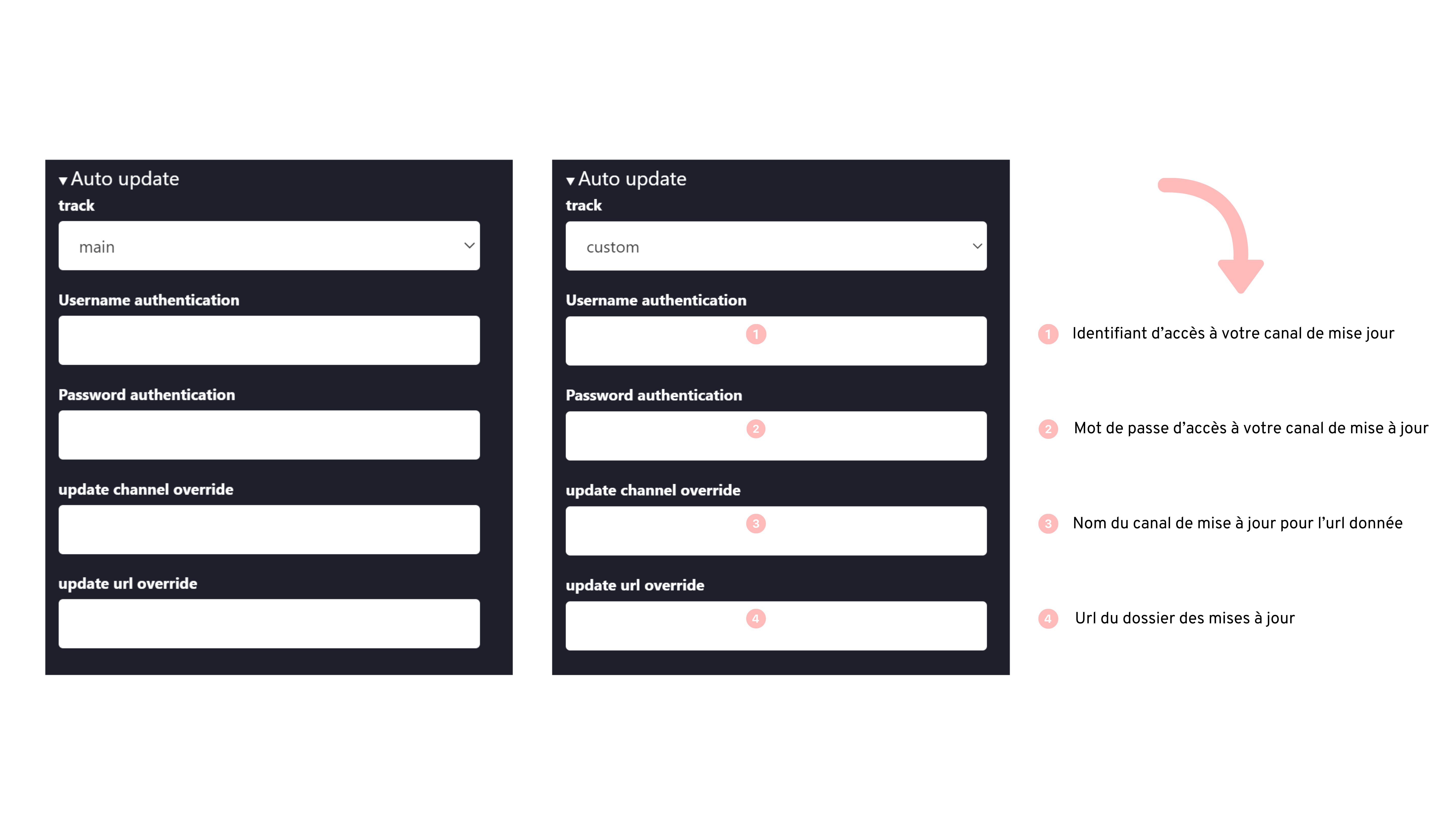
3. Silent update
You can set up silent updates for la Vitre.
For this, we provide a PowerShell script (lavitre-update.ps1), which can be run via a Windows scheduled task.
By default this script relies on the local settings of la Vitre regarding Channel, Username and Password.
You have the option to configure a different source for the script (Url, Channel, Username, Password). This allows you, for example, to choose the “Custom” Track in your la Vitre settings without specifying other information, which will have the effect of deactivating the default search for updates.
- Script PowerShell
Script : this script available here , should be saved under the name below 👇
lavitre-update.ps1
Execution
Settings :
- -force: force the download of the update
- -reboot: restarts the machine after installing the update
- -feed: url of the update folder
- -channel: name of the update channel
- -username: username for Basic authentication
- -password: password for Basic authentication
Example
- Standard update
powershell -file lavitre-update.ps1
- Forced standard update then reboot
powershell -file lavitre-update.ps1-force-reboot
- Custom update
powershell -file lavitre-update.ps1-feed https://storage.lavit.re/releases/ -channel mainX64
Custom deployment server
The deployment server is an HTTP server allowing the download of:
- The .exe installation files
- The .yml update channel definition files
To allow the download of a new version on your server, you need to :
- Download the latest definition file : https://storage.lavit.re/releases/mainX64.yml
- Download the matching installation file (to be found inside the .yml file) : ex: https://storage.lavit.re/releases/lavitre-1.1.7-mainX64.2244.exe
- Copy the files to your server