Stream external video to la Vitre
✨ Stream video from an external source to la Vitre, such as a computer, camera, or device with an HDMI output.
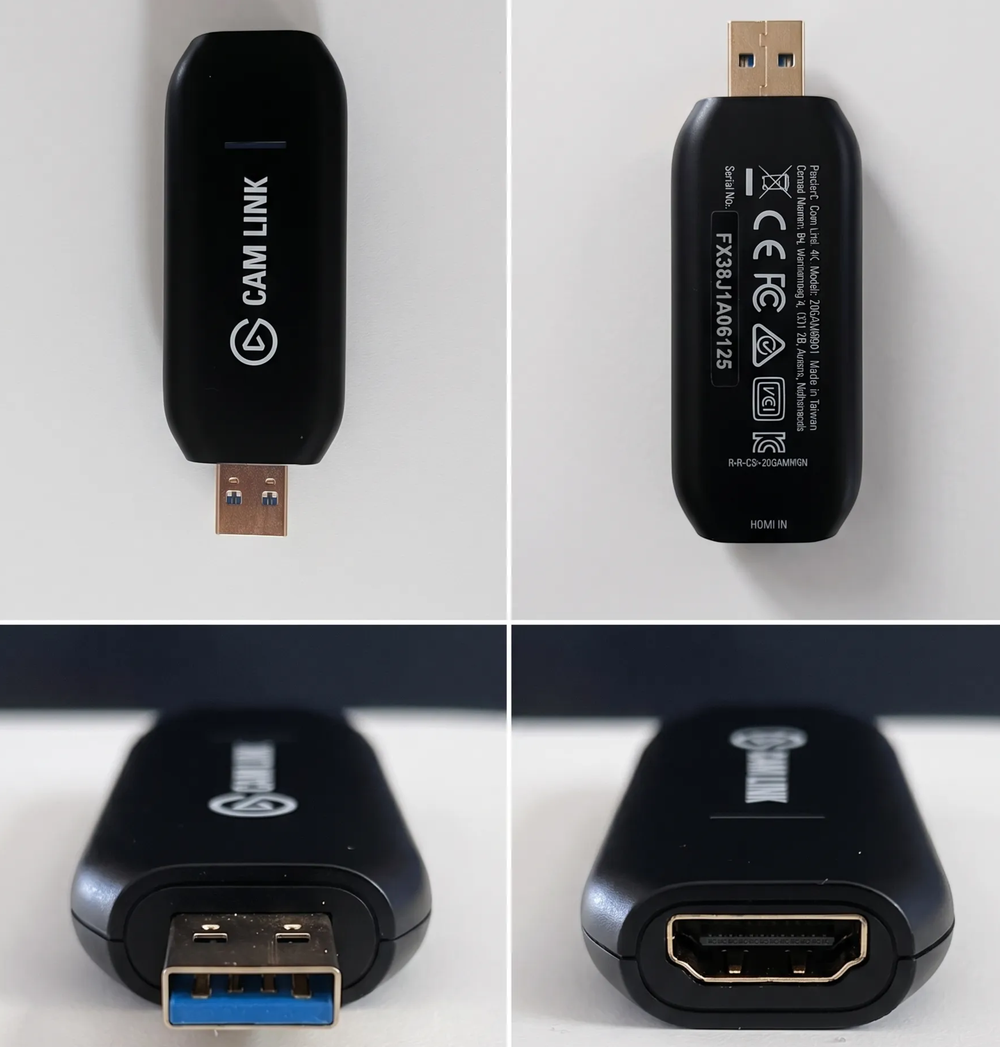
The HDMI signal is captured with an HDMI to USB capture adapter, then configured as an additional camera in la Vitre advanced settings.
This procedure makes an external video source available for sharing in la Vitre. Connecting HDMI directly to the la Vitre display only shows the source locally: to stream it in la Vitre, the source must be recognized by the mini-PC as a camera.
Connection principle
Video source → HDMI → HDMI/USB capture adapter → la Vitre mini-PC → sharing via la Vitre
Use cases
- Display video from a computer.
- Stream a camera or HDMI video source.
- Share a feed from business equipment that only has an HDMI output.
- Stream a local video source, such as a supervision or operations room feed, to several remote Vitres.
- Make a video available on several Vitres from a single input point.
💡 The setup uses an HDMI to USB capture adapter. The exact model reference is not required to follow this procedure; the adapter must be compatible with the intended use.
Requirements
- A video source with an HDMI output.
- A suitable HDMI cable.
- An HDMI to USB capture adapter.
- A la Vitre mini-PC connected to the Internet.
- Admin access to la Vitre advanced settings.
- A compatible video resolution, ideally 1920 × 1080.
Step 1: prepare the video source
On the source computer or device:
- open only the content to stream;
- make sure the screen containing the video source is sent to the HDMI output, using screen mirroring or duplicate display if needed;
- close or hide other applications;
- disable notifications;
- set the video to full screen if needed.
🔒 Anything displayed on the source screen may be captured and streamed. We recommend keeping only the content you want to share visible.
Step 2: connect the capture adapter
- Connect the HDMI cable between the video source and the HDMI input of the capture adapter.
- Connect the capture adapter via USB to the la Vitre mini-PC.
- Wait for Windows to detect the device.
Step 3: check camera detection
On the la Vitre mini-PC:
- open Settings → Privacy & security → Camera;
- check that camera access is enabled;
- allow desktop apps to access the camera;
- check that the capture adapter appears in Device Manager or in the Camera app.
These settings apply to the computer receiving the feed through the capture adapter — the la Vitre mini-PC — not to the source computer sending the video via HDMI.
Step 4: configure the adapter in the la Vitre admin portal
Once detection is confirmed in Windows, configure this new video source in la Vitre advanced settings.
- Sign in to the admin portal with your admin credentials.
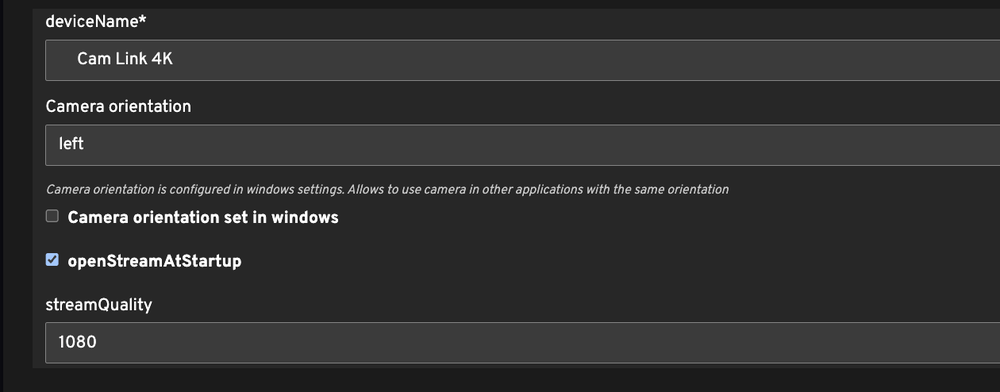
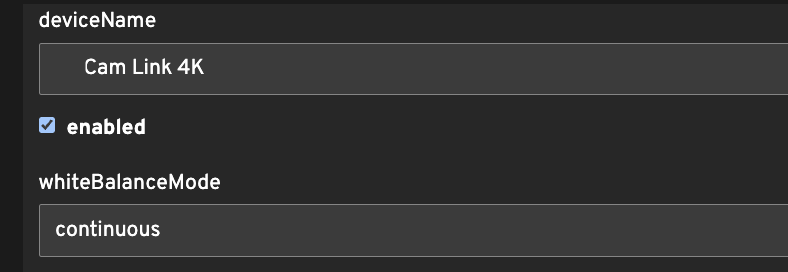
- Add the capture adapter as an additional camera.
- Select the detected source corresponding to the capture adapter.
-
Follow the configuration steps described in the dedicated documentation: Add a camera.
-
Save the configuration.
-
Start the stream or sharing action from the la Vitre screen with the dedicated “📷” button.

-
Check that the video is smooth and readable on the other Vitres.
Recommended settings
- Resolution: 1920 × 1080.
- Frame rate: 30 Hz or 60 Hz.
- Disable HDR if the feed does not open correctly.
- Avoid unusual resolutions or 4K if the feed does not open.
Troubleshooting
The message “unable to open video stream” appears
Check that:
- the screen containing the video source is sent to the HDMI output, using screen mirroring or duplicate display;
- the adapter is detected by the mini-PC;
- no other application is already using the video source;
- camera access is enabled;
- the source output resolution is compatible;
- the HDMI cable is connected to the HDMI input of the adapter;
- the HDMI source is actually sending an image.
The adapter is detected but the image is black
Check that:
- the video source is active;
- the correct display mode is selected on the source computer;
- the feed is not protected by HDCP;
- the resolution is set to 1080p.
The video is not smooth
Check:
- the quality of the Internet connection;
- the source resolution;
- the frame rate;
- the stability of the HDMI cable and USB port.
Network-based alternative
For recurring use or when the technical environment requires it, an HDMI network encoder can be considered.
Diagram:
Video source → HDMI/IP encoder → network stream → mini-PC → sharing via la Vitre
This solution can be more stable in some environments, but it depends more heavily on the client network and requires more advanced technical validation.
Best practices
- Use a simple 1080p video source.
- Avoid displaying sensitive data on the source computer.
- Plan a validation with your IT network team if the stream becomes permanent.
✨ Missing information?
This Help Center evolves with your needs.Let us know which terms, features, or use cases should be clarified, or contact support for personalized assistance.
Bringing you closer to what matters. We are enriching this resource together.