Shared contents
Shared contents
The Shared contents setting allows you to decide where and how shared content appears on your screens.
You position each application in advance so that everyone can clearly see what's being shown, without having to move windows during the meeting.
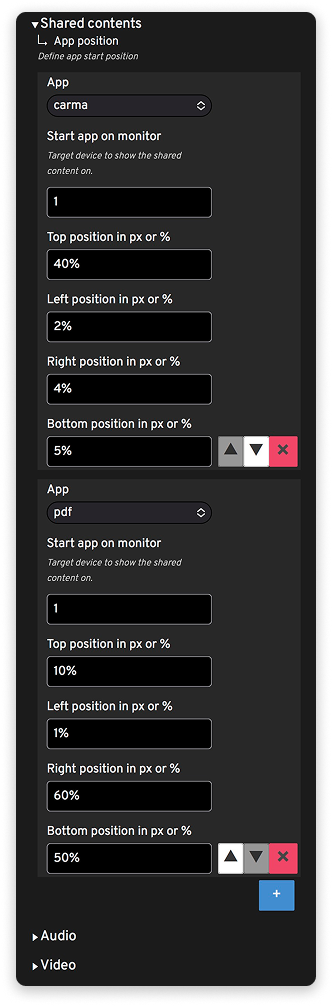
Choose the application and screen
For each line, you select:
- the application to display (for example PDFs, camera sharing, etc.)
- the screen on which you want to see it appear if you've configured several (Start app on monitor)
Position content precisely on screen
You can then define the application's position in percentage or pixels:
- Top position: distance from the top of the screen
- Left position: distance from the left edge
- Right position: distance from the right edge
- Bottom position: distance from the bottom of the screen
These four values draw the area in which the content will display.
Some usage examples:
- Center a presentation window so everyone can see the slides clearly.
- Keep an area free to let faces, eye contact, and knocks appear next to the content.
- Adapt the display to a video wall or a very wide screen.
Create multiple sharing layouts
You can add multiple lines in Shared contents:
- one layout for a videoconferencing application
- another for reading documents (PDF, images, etc.)
- possibly a specific configuration for showroom or event use
Each layout keeps the same logic: you choose the screen, then the area where the content should appear so that presence remains central and documents stay easy to read.
✨ Missing information?
This Help Center evolves with your needs.Let us know which terms, features, or use cases should be clarified, or contact support for personalized assistance.
Bringing you closer to what matters. We are enriching this resource together.