Invite a “Guest”
Easily invite a colleague, client, or partner to join you on La Vitre. From their phone, tablet, or computer, they can open the link in their browser and join your conversation.
One link is all it takes to meet and share a moment with your team, wherever everyone is.
Several ways to connect
La Vitre adapts to your conversations and is available in different situations:
- You can invite a partner to join your space or join theirs. If one of the two devices is already being used for another conversation, simply meet on the one that is available.
- You can also use La Vitre for internal conversations, even when it is not connected to a partner. All features remain available for holding remote meetings with members of your team.
- Participants who do not have La Vitre can still join the meeting easily from a phone, tablet, or computer, using the invitation link.
Step by step
- Scan the QR code at the top right of your La Vitre to connect it to the Companion app on your phone. Then choose your space for the conversation.
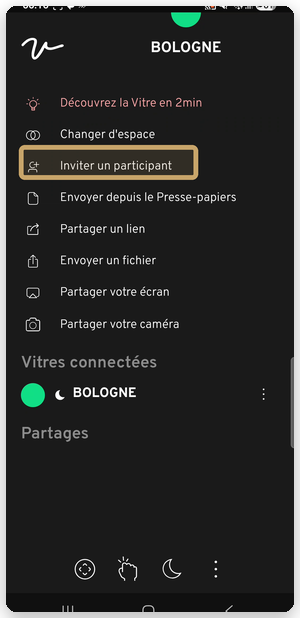
- Select “Invite a participant”.
- Select the option to copy the link.
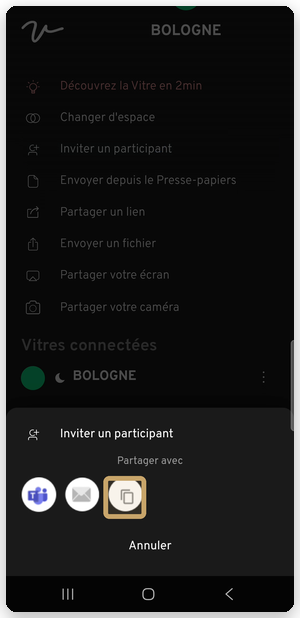
- Paste the link into the channel you normally use to contact the other person—WhatsApp, email, or your work messaging app—and send it. You can also use the email or Teams shortcuts offered in the Companion app.
- Ask the guest to:
- open the link on their phone, tablet, or computer;
- allow camera and microphone access in their browser;
- enter their name or first name, then submit their request;
- wait until their request is accepted.
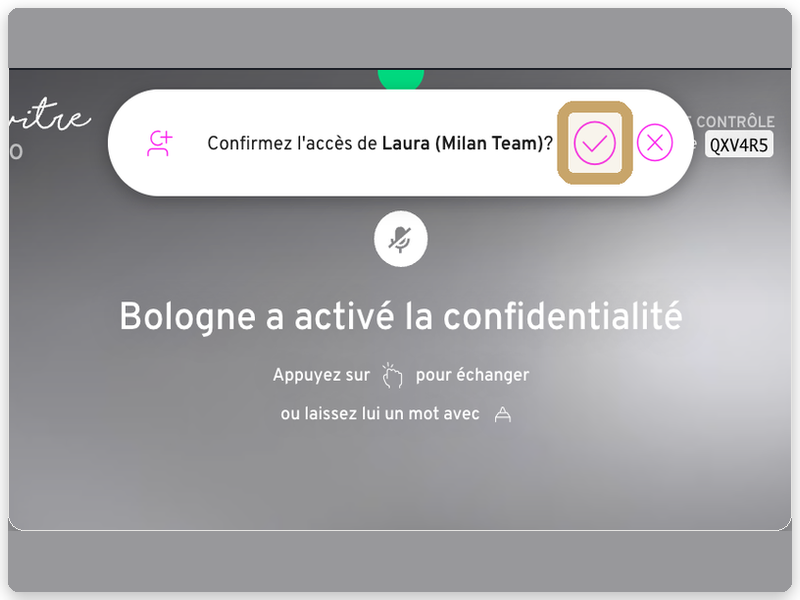
- When the guest submits their request, your La Vitre makes a “knock-knock” sound and displays a notification at the top of the screen. Tap the check mark to grant access. You can also accept the request from the Companion app.
Remember:
⇒ All La Vitre devices in the same space share the same invitation link. It remains valid as long as your La Vitre stays in that space.
⇒ The guest cannot join La Vitre without your approval, even if they have the invitation link: you can decline their request or leave it unanswered.
During the conversation
The conversation starts automatically once the request is accepted: the guest appears in a video bubble on La Vitre.
- On La Vitre's touchscreen, move the bubble wherever you like, enlarge or shrink it. Double-click it to display it full screen.
- The guest can share their screen or files from their browser. They can also see content shared on the La Vitre devices in the same space.
Frequently asked questions
How many guests can join at once?
About five guests. For a conversation with more external participants, use your usual video conferencing tools.
Do guests need an account or an app to join La Vitre?
No. The guest simply opens the link in their browser, allows camera and microphone access, then requests to join the conversation.
Which buttons are available to the guest?
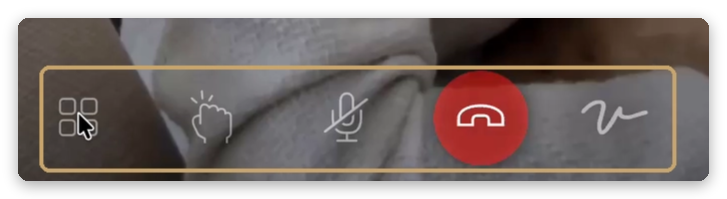
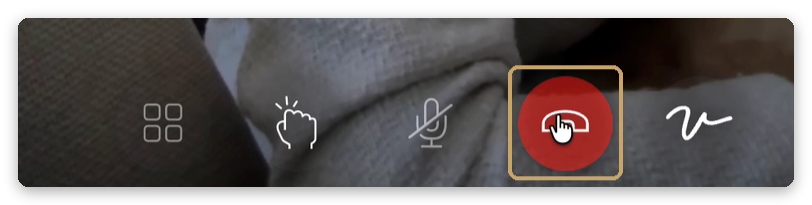
On their device, the guest has a control bar at the bottom of the video view. From left to right:
- Grid mode — display the views in a grid.
- “Knock-knock” — get the attention of people on La Vitre.
- Microphone — turn the microphone on or off. On a computer, the indicated shortcut also lets the guest press the space bar to speak.
- Red handset button — leave the conversation.
- Main menu — access the interface's main menu.
How do you end the conversation?
On their phone, tablet, or computer, the guest selects the red handset button in the control bar to leave the conversation.
Quick check
- The right space is open.
- In the Companion app, the guest appears in the participant list.
- Audio and video are checked before you begin.
✨ Is some information missing?
This help center grows with your needs.Tell us about terms, features, or use cases that need clarification, or contact support for personalized assistance.
Get closer to what matters. We build this resource together.