Touch Settings
The Touch settings parameter allows you to adjust how la Vitre responds to touch and stylus.
The default values suit most cases; you'll only need to modify them for specific needs.
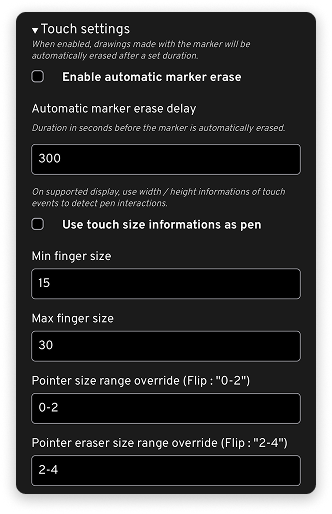
Automatic marker erasure
Enable automatic marker erase: Activates automatic erasure of lines made with the marker.
Automatic marker erase delay: Defines, in seconds, the delay before lines are erased if no one is using the marker.
Example: with 300 seconds, you have a few minutes to reread or show what was written before the surface cleans itself.
This setting is useful in heavily used spaces, so that the Vitre screen doesn't remain covered with old marks when new people arrive.
Recognize finger or stylus
Use touch size informations as pen: Uses the contact point size to distinguish a finger from a stylus, on screens that support it.
Min finger size / Max finger size: Indicate the minimum and maximum size of a contact considered a "finger".
Outside this range, la Vitre can interpret the contact as a stylus or eraser, depending on the configuration.
Size range for stylus and eraser
Pointer size range override: Defines the size range corresponding to the stylus or marker tip.
Pointer eraser size range override: Defines the size range corresponding to the eraser (for example when a marker has an "eraser side" or when a larger finger is used to erase).
These settings allow you to refine the feel: you can decide from what contact size la Vitre should interpret the gesture as a precise line or as an erasure.
✨ Missing information?
This Help Center evolves with your needs.Let us know which terms, features, or use cases should be clarified, or contact support for personalized assistance.
Bringing you closer to what matters. We are enriching this resource together.