Browse the activity log
✨ The Journal screen keeps a record of what happened in the team: settings changed, members invited, people signing in, Vitres connecting. It answers "who did this, and when?". You need the
Team.ActivityLogs.Readpermission.
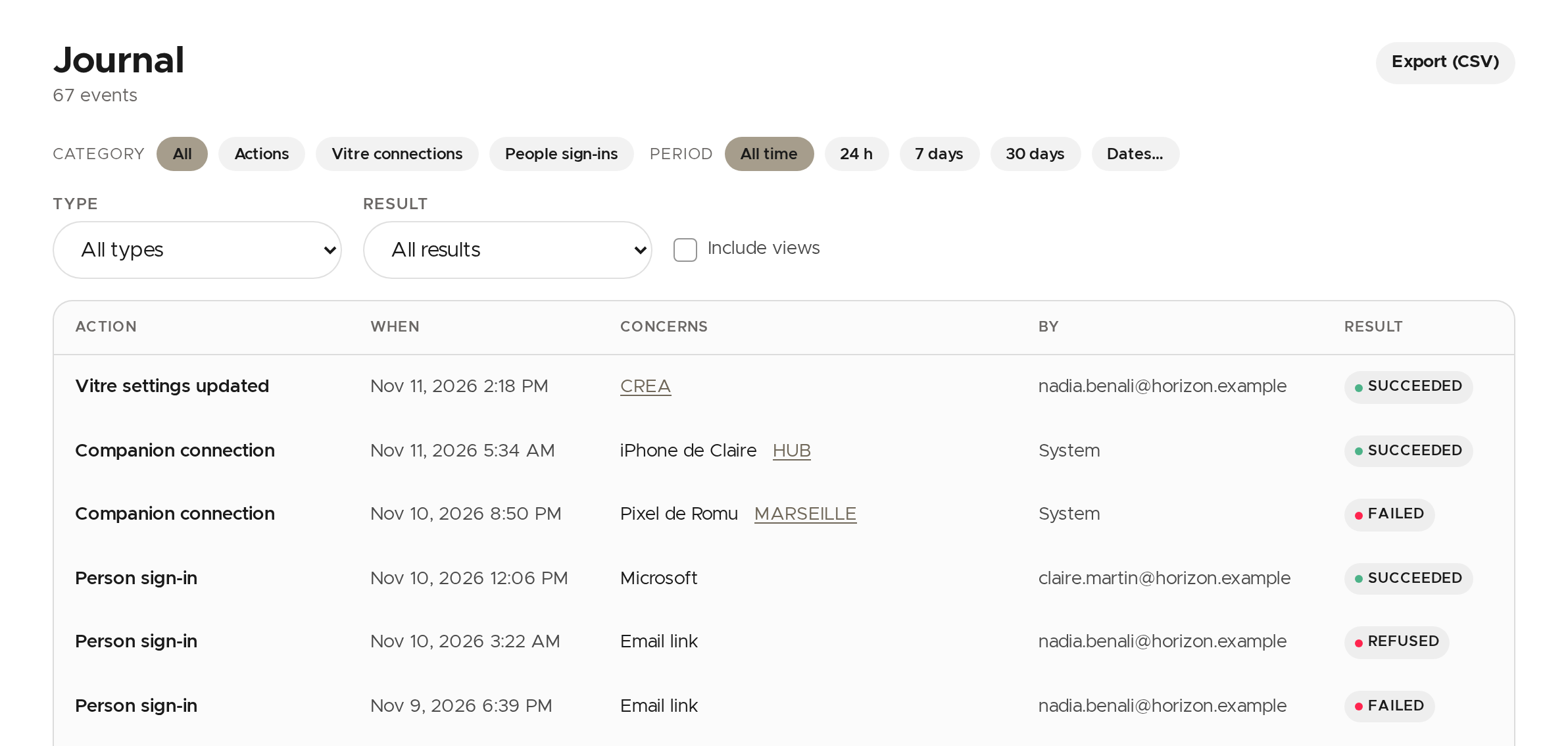
Each row shows the Action, When, what it Concerns (a Vitre, a person…), the author (By) and the Result. The author can be a member, the System, an API key or la Vitre support.
Filter the log
- Pick a Category: Actions (what members do in the portal), Vitre connections or People sign-ins.
- Set the Period: all time, 24 h, 7 days, 30 days, or Dates… for two exact dates.
- If needed, narrow with Type (team, members, licences, apps…) and Result.
Views (reads of the log, of the keys, of Vitres' companion codes, of support lists) are hidden by default: tick Include views to see them. Clear filters removes the filters.
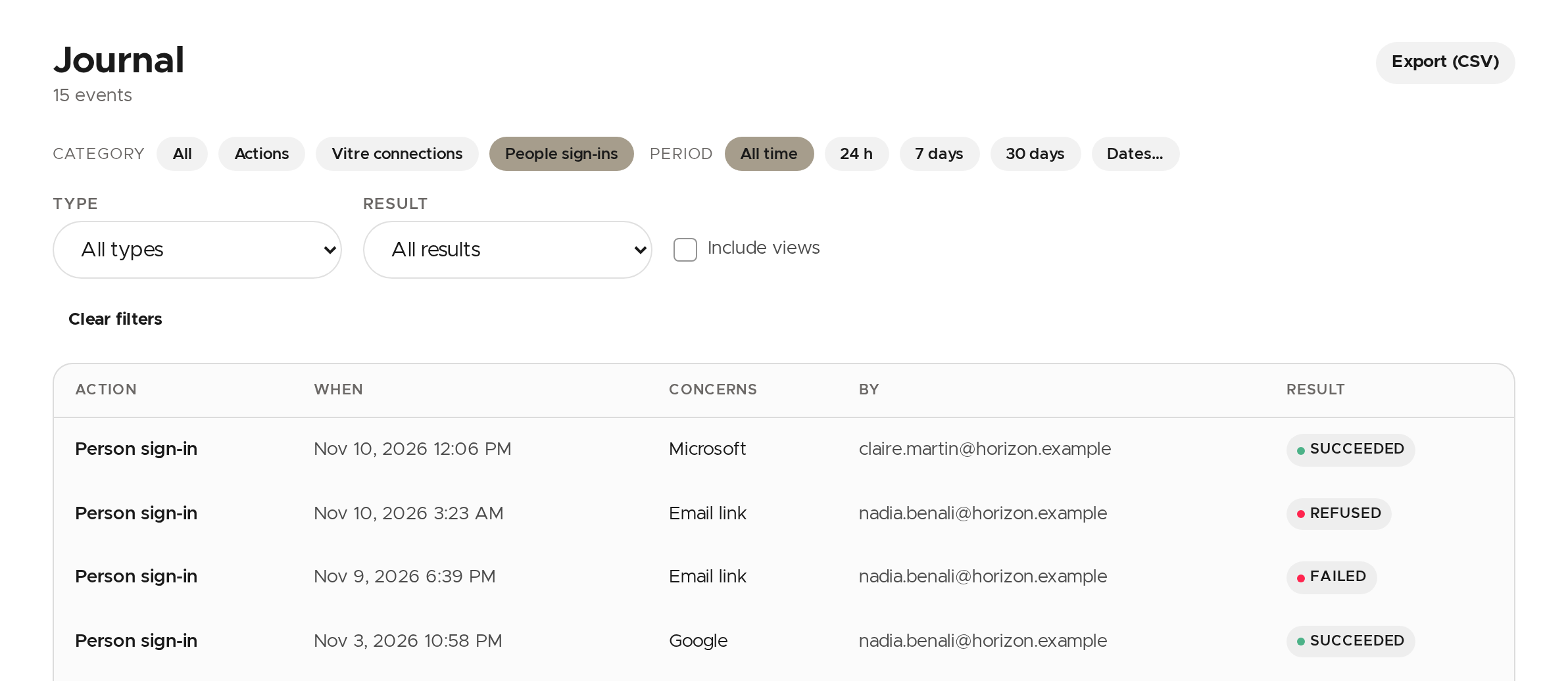
The log is browsed page by page, with the number of rows per page at the bottom.
See an entry in detail
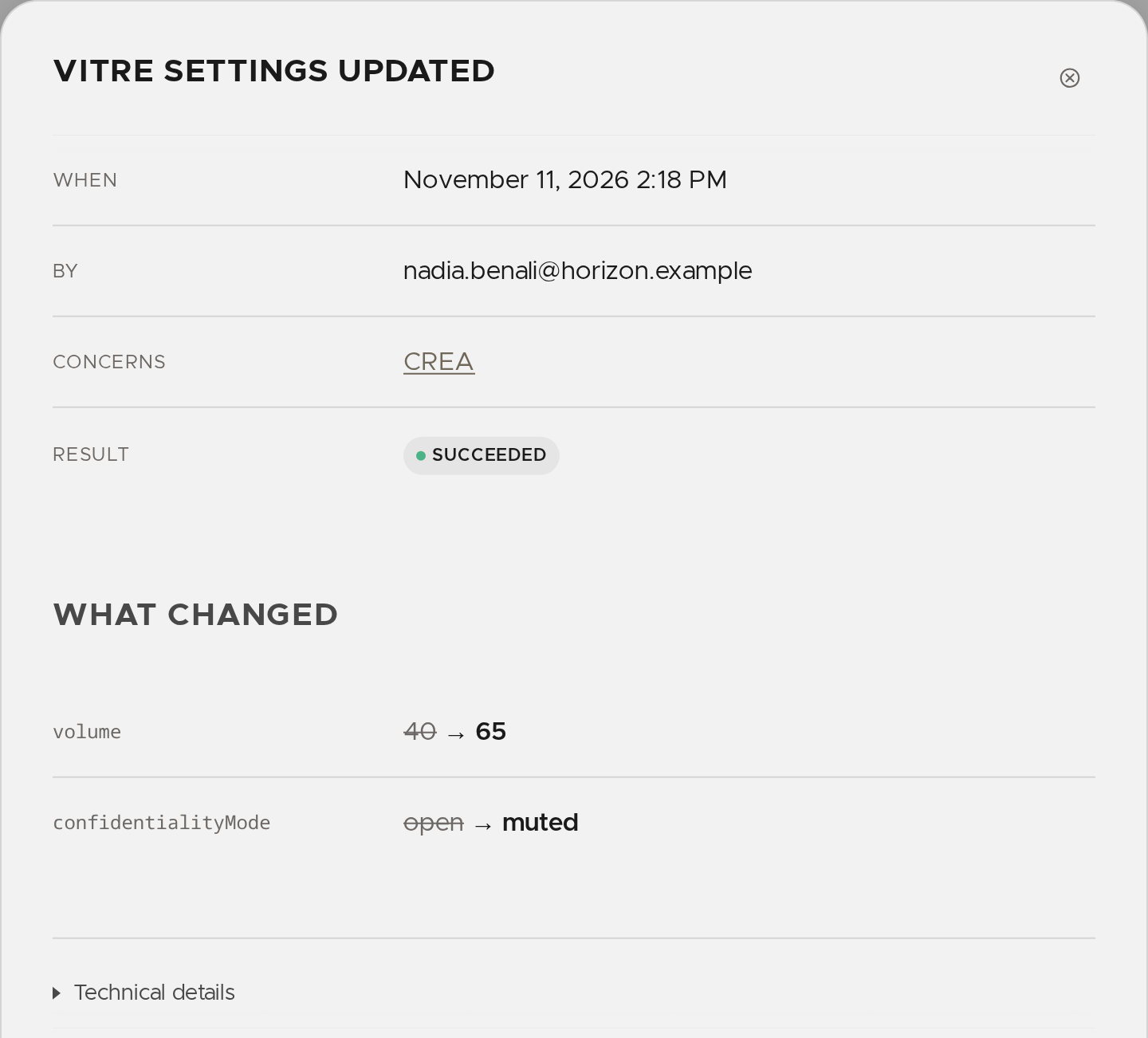
Click the row. The window recalls the date, the author, the object concerned and the result. For a change, What changed shows the values before and after; for a connection, it explains in plain words how it went. Technical details keeps the raw record, useful if you need to pass it to support.
Export
Export (CSV) downloads every row matching the chosen filters, not only the page on screen. If the file would be too long, it is limited to the most recent events and a message says so: shorten the period then.
💡 To understand why a Vitre connection failed, Connections shows the same events with the reason in plain words.
✨ Missing information?
This Help Center evolves with your needs.Let us know which terms, features, or use cases should be clarified, or contact support for personalized assistance.
Bringing you closer to what matters. We are enriching this resource together.