Manage spaces
✨ A space is where vitres meet. The Spaces screen lists your team's spaces; each can have its own app catalog and its own app settings, applied to the vitres that join it.
The Catalog column tells whether the space has its own catalog (Adjusted catalog) or simply offers the team's apps (Inherits the team).
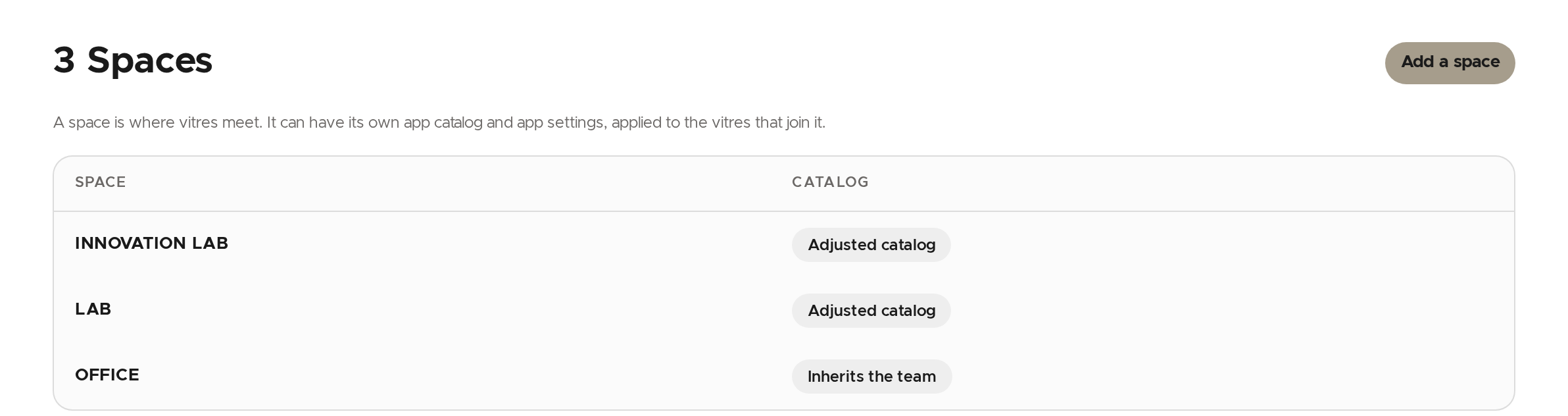
Add a space
- Click Add a space.
- Type its name. It is saved in lower case, without leading or trailing spaces; the « Saved as » line shows the result. 64 characters at most, and none of
/,\,?,#or%. - Click Add.
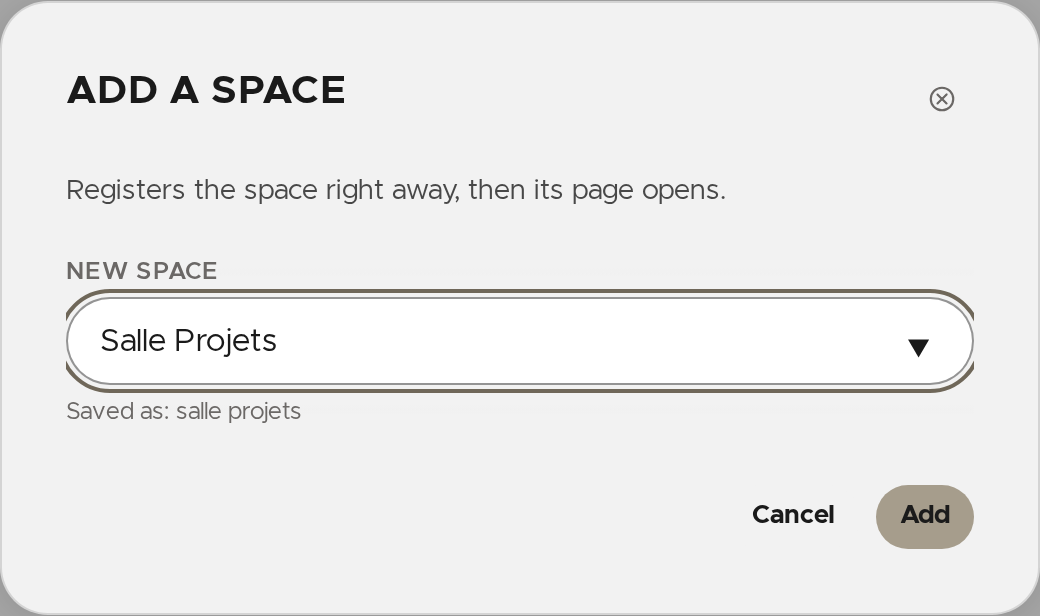
The space is registered right away and its page opens.
See a space
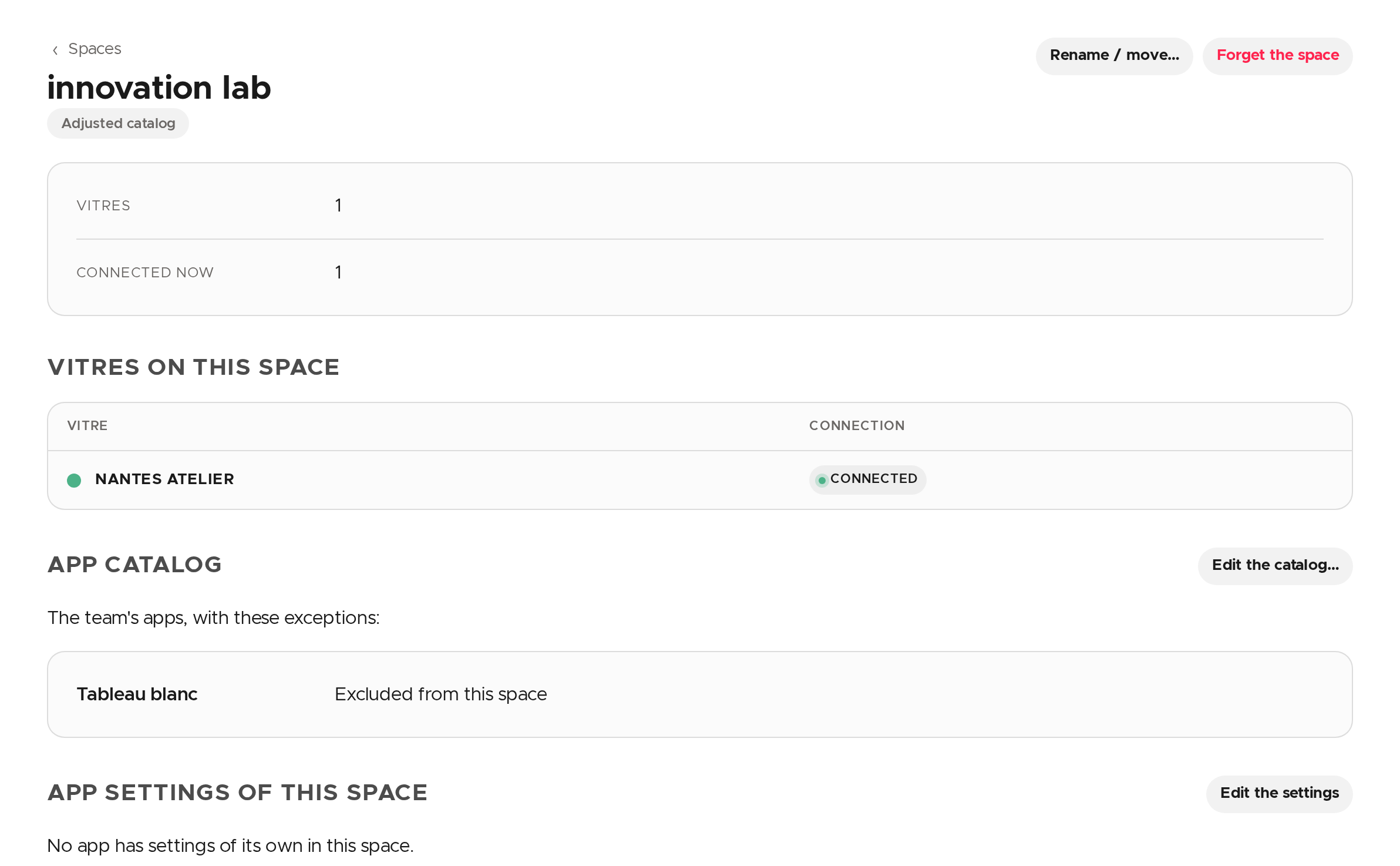
Click its name in the list. Its page shows how many vitres are configured on it and how many are connected, the list of those vitres, its app catalog and its app settings. A vitre lent by another team is marked « Lent by… ».
Choose a space's apps
- On the space's page, click Edit the catalog….
- Choose what the space offers:
- The team's apps, with exceptions: the space offers what the team offers, and only the apps listed as exceptions change;
- Only the chosen apps: only the listed apps are offered.
- To add an app to the list, search for it under Add an app and click its name. For each listed app, use the drop-down: exclude it from the space, make it follow a channel, or tick the versions offered. The cross removes it from the list.
- Click Save.
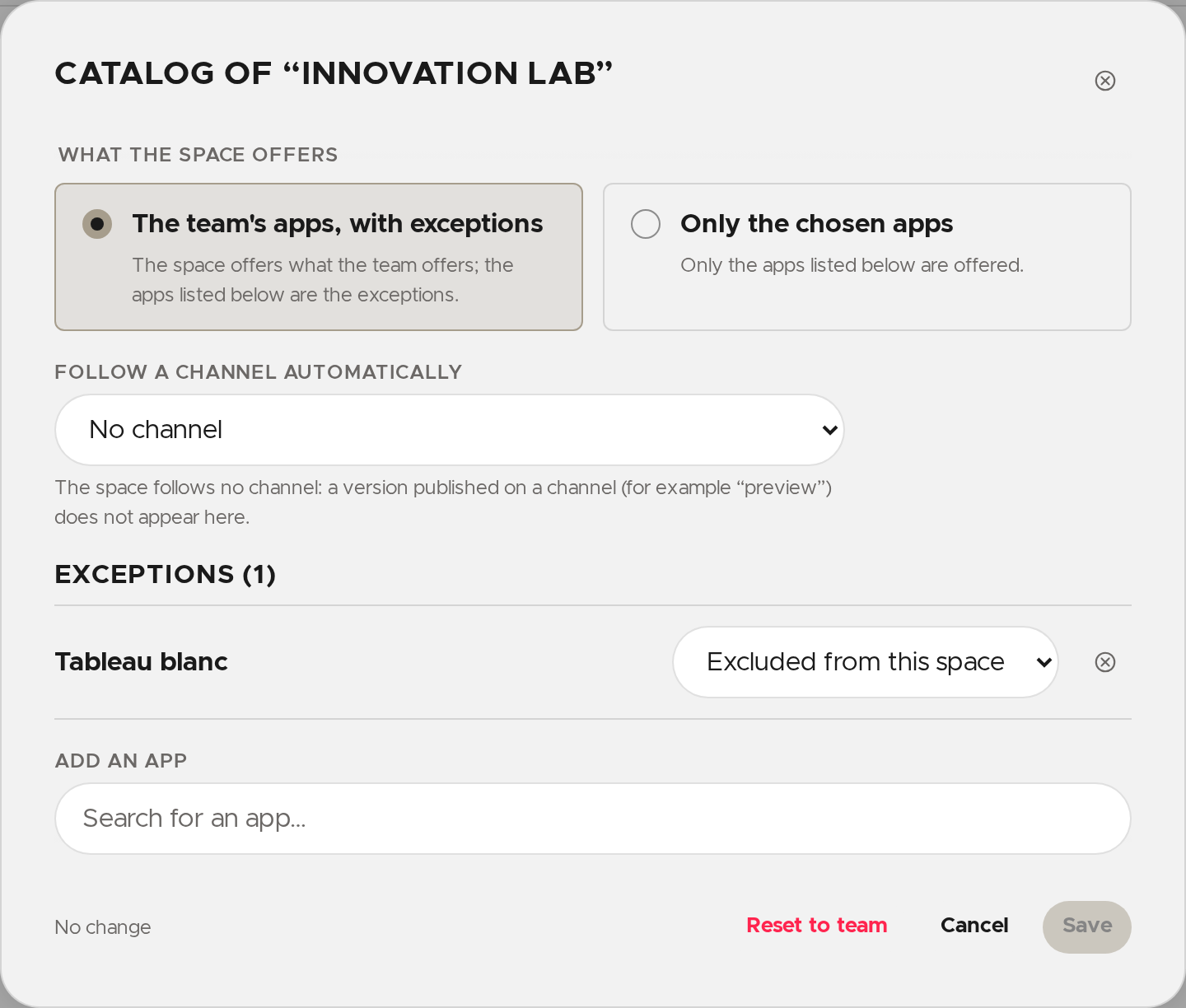
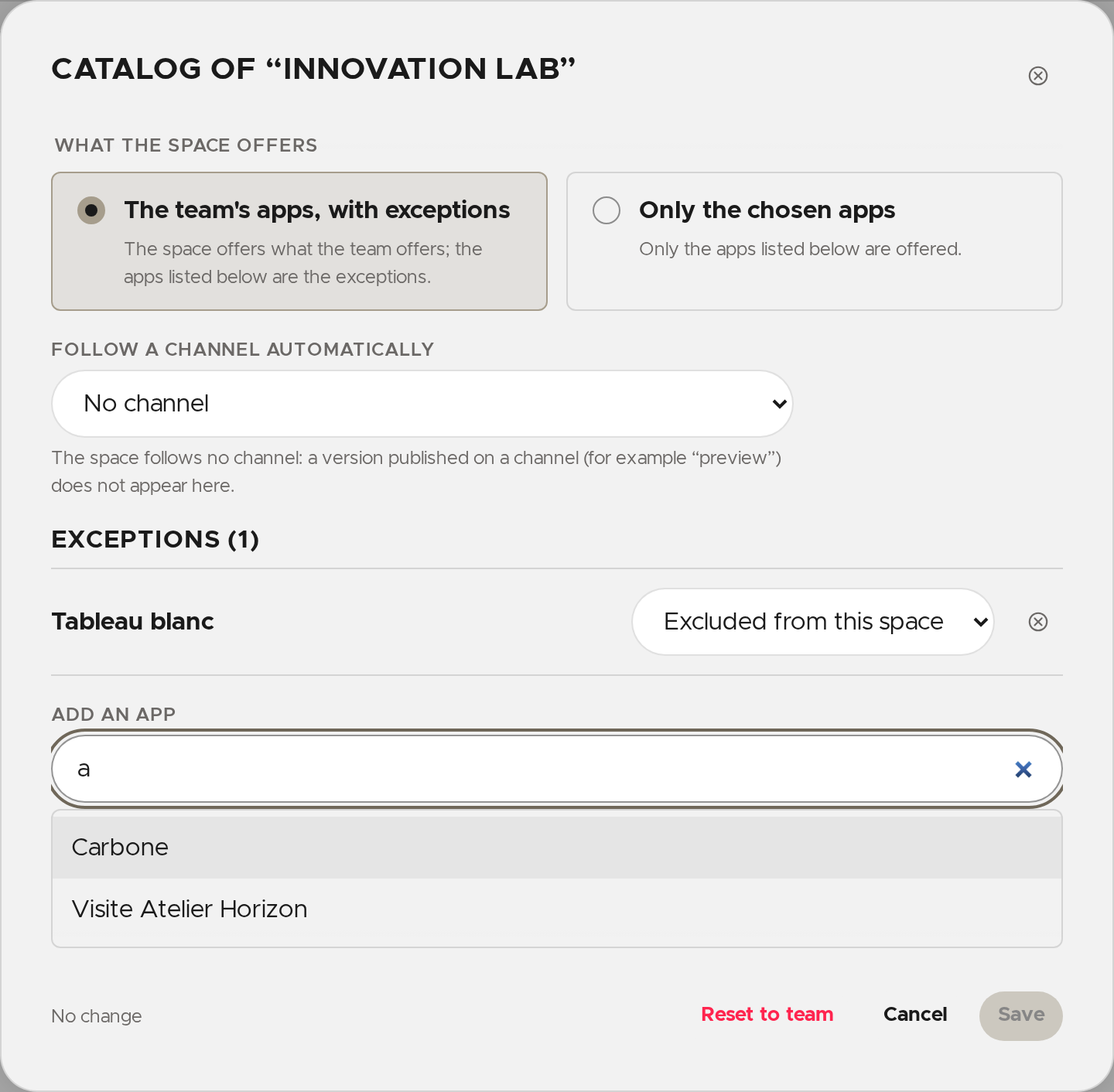
💡 Follow a channel automatically makes every app published on the chosen channel appear in the space, a new app included, except those you set line by line.
Version offered then picks the version: by default, the newer of the channel's and the team's; or always the channel's, to hold the space on a test version for instance.
Reset to team drops the space's own selection (after a confirmation).
Set up a space's apps
Some apps declare settings. The ones you set here apply to the vitres of this space.
- On the space's page, click Edit the settings.
- Pick the app in the list on the left, then edit its fields. A field left empty takes the app's default, shown under the field.
- Click Save.
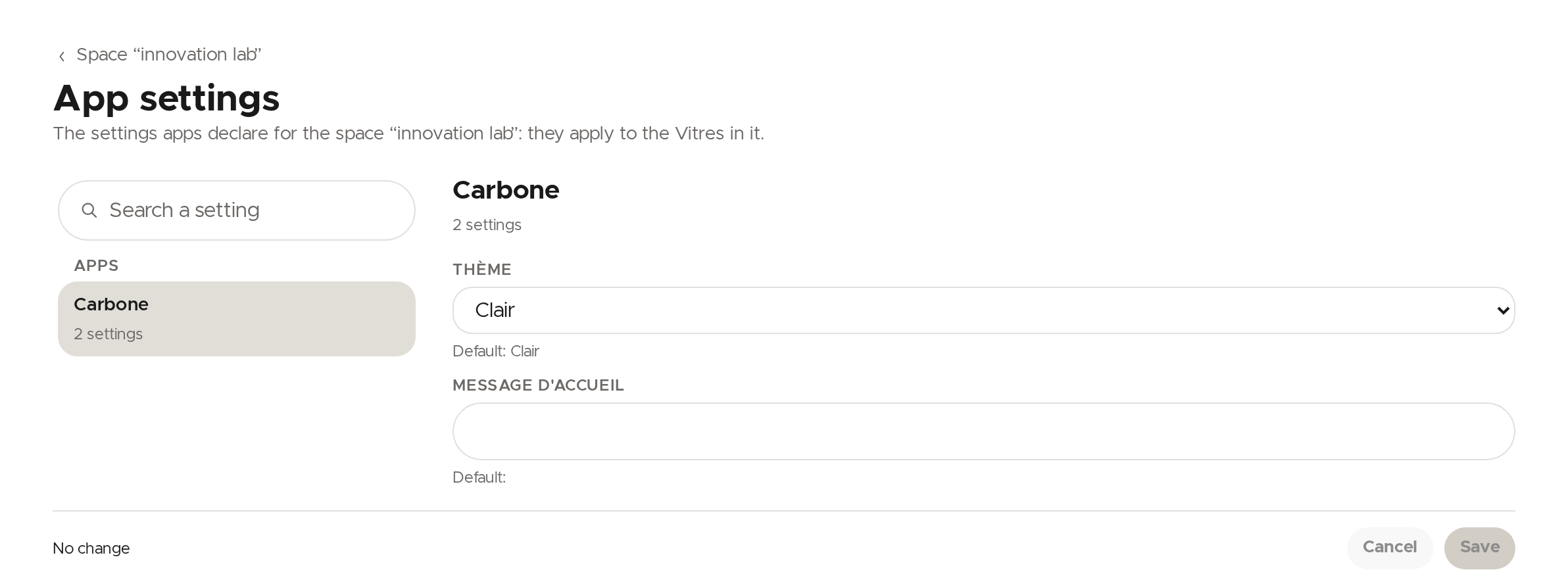
If no app declares settings, the page says so. Without the right to change them, you can read them but not save.
Rename or move a space
- On the space's page, click Rename / move….
- Type the new name, then click Continue. If you pick the name of an existing space, this one is merged into it.
- Read the consequence, then click Move.
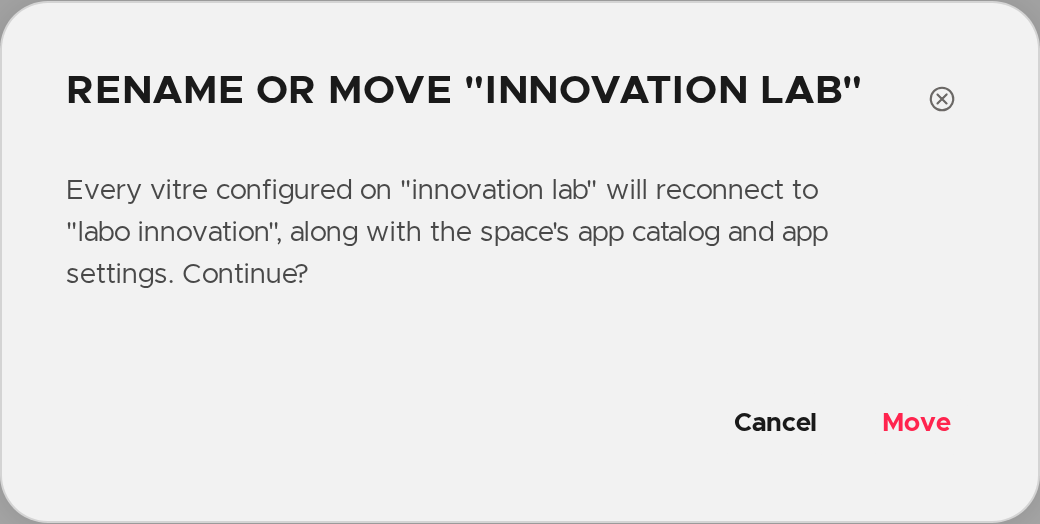
The vitres configured on the old name reconnect to the new one, with the space's app catalog and app settings. If both spaces have rules of their own, nothing is moved: forget the rules of one of them first.
Forget a space
Click Forget the space, then Confirm? within three seconds. The space's catalog and app settings are deleted, and the space leaves the list. Its vitres stay on it, unchanged.
⚠️ Renaming and forgetting a space require the right to configure the vitres' connection space. Without it, those two buttons do not appear.
✨ Missing information?
This Help Center evolves with your needs.Let us know which terms, features, or use cases should be clarified, or contact support for personalized assistance.
Bringing you closer to what matters. We are enriching this resource together.