Advanced settings
✨ Each Vitre has its own configuration. These settings allow you to define its name, its space, its identification color and other advanced options.
These elements can be viewed and adjusted from the Settings panel accessible via the administration interface.
Main information
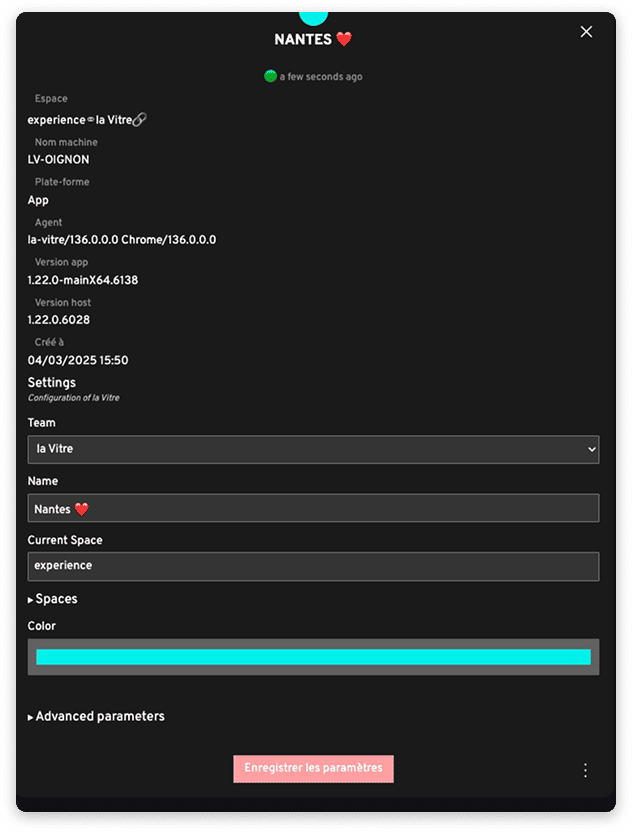
Team and space
- Team: indicates which team the Vitre belongs to, your company name.
- Name: Easily identify each Vitre. It is visible at the top of your Vitre and in the list of connected Vitres during exchanges between sites.
- Current space: corresponds to the space on which the Vitre is currently connected
- Spaces: Create or delete spaces on each Vitre. The available ones will be in the list displayed on screen by tapping the two-circle icon.
- Color: customize the color of the dot, the pencil and the tab on files shared on screen to differentiate each Vitre.
Save
Once your changes have been made, click "Save settings" to apply them immediately. A message at the top of your screen indicates that the save was successful.
The changes are taken into account, restarting the Vitre may sometimes be necessary to apply them.
Advanced parameters
The Advanced parameters section groups together additional functional technical settings.
They allow you to fine-tune your Vitre's configuration according to your needs or network environment.
Use the table below to quickly find the parameter you're interested in, understand what it does and access the detailed guide if needed.
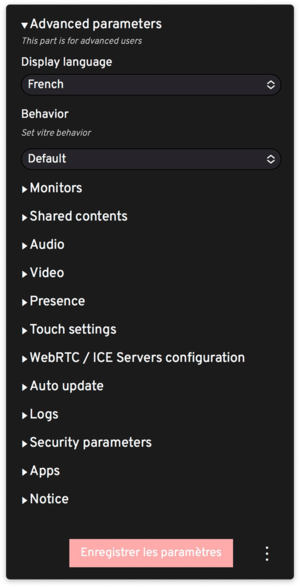
| Advanced parameter | Main role | Usage example | Link to detailed guide |
|---|---|---|---|
| Display language | You choose the language of the Vitre's interface and menus. | Adapt the Vitre's language to the on-site team: French in headquarters rooms, English or Italian to welcome visitors. | Display language and Behavior |
| Behavior | You define the Vitre's general behavior according to your usage: classic, primary, secondary. | Use a primary Vitre for an IT technician troubleshooting multiple sites on secondary Vitres. | Display language and Behavior |
| Monitors | You add other screens and organize how they display content and people. | Keep the Vitre near you to see your contacts, and use a second screen dedicated to shared content. | Monitors |
| Shared contents | You decide where shared content appears on your screens. | Plan in advance where PDFs and documents display to leave room for faces and knocks. | Shared contents |
| Audio | You adjust audio filters, how you hear and make voices heard. Add audio equipment and its own settings. | Choose the right microphone and speakers so everyone can hear you clearly, whether you're in a small quiet room or a more lively space. | Audio |
| Video | You choose how the camera shows the room to others. | Check that the right camera is selected and that faces are clearly visible, even with particular room lighting. | Video |
| Presence | You let the Vitre adapt to the presence or absence of people in the room. | Dim the light and make the screen more discreet when the room empties, then wake it up as soon as someone comes back in front of the Vitre. | Presence |
| Touch settings | You adjust how the Vitre reacts to touch. | Automatically erase involuntary strokes, differentiate finger from stylus when writing together. | Touch Settings |
| WebRTC / ICE Servers configuration | You adapt how the Vitre is present on your organization's network. | Have your IT team verify the settings for specific architectures. | WebRTC / ICE Servers configuration |
| Auto update | You decide how the Vitre updates and restarts. | Let the Vitre update itself outside of usage times, or define a specific framework with your IT team. | Auto update |
| Logs | You activate logs to better understand an incident. | In case of a problem, logs are activated so support can see what happened. | Logs |
| Security parameters | You choose who can take control or see certain features. | Limit control to identified people, display specific icons. | Security parameters |
| Apps | You select the applications present on the Vitre and their behavior. | Activate only applications useful to your teams, prepare a welcome display instead of blur in confidential mode or receive knocks in your messaging apps. | Apps |
| Notice | You write a message that will be displayed in a banner at the top of your Vitre. | Display a discreet message to warn that the room is being filmed. | Notice |
✨ Missing information?
This Help Center evolves with your needs.Let us know which terms, features, or use cases should be clarified, or contact support for personalized assistance.
Bringing you closer to what matters. We are enriching this resource together.