Manage the team's apps
✨ The Apps screen is your team's app catalog. This is where you choose which apps the Vitres receive and in which versions, and where you find the apps other teams offer you.
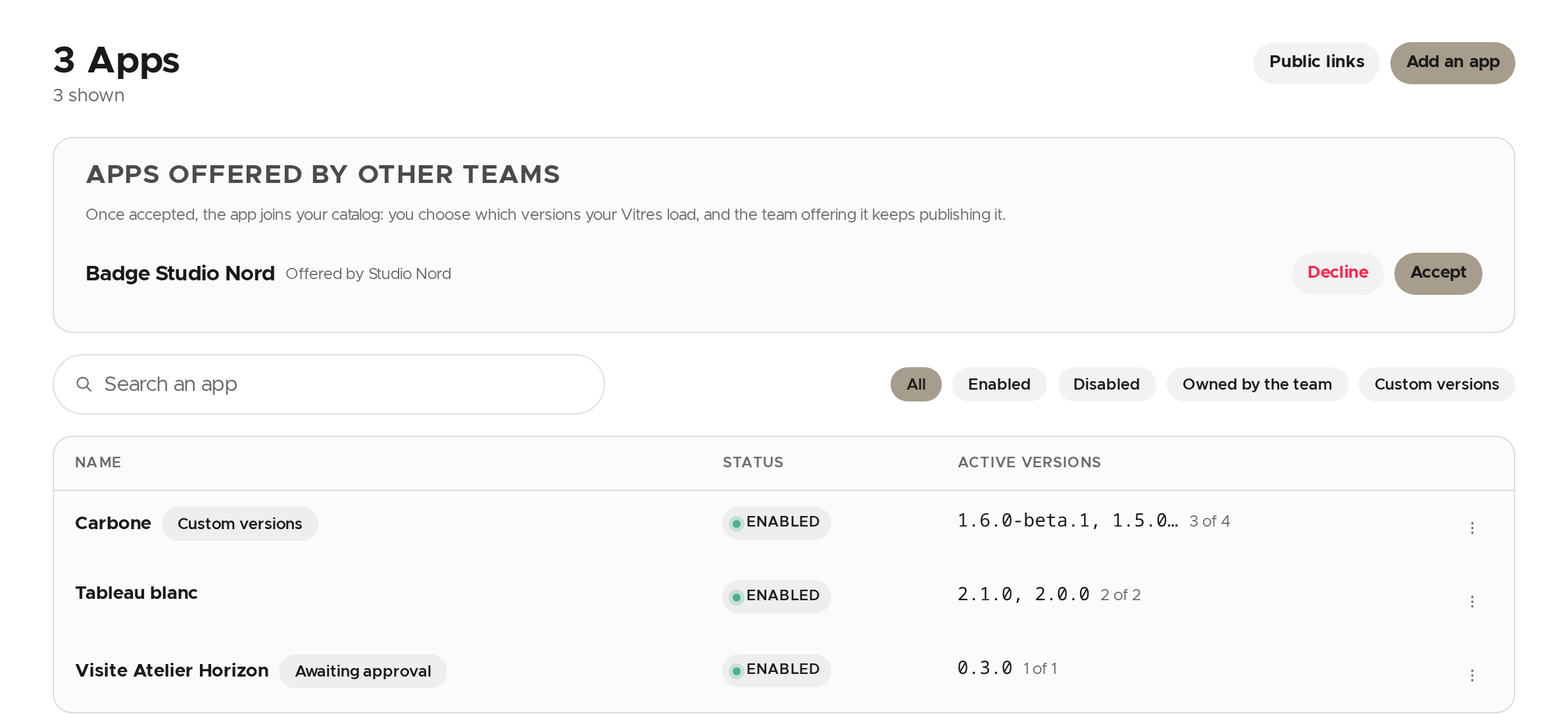
Each row shows whether the app is enabled and which versions are active. Use the search and filters above the table to find an app.
Choose what the Vitres receive
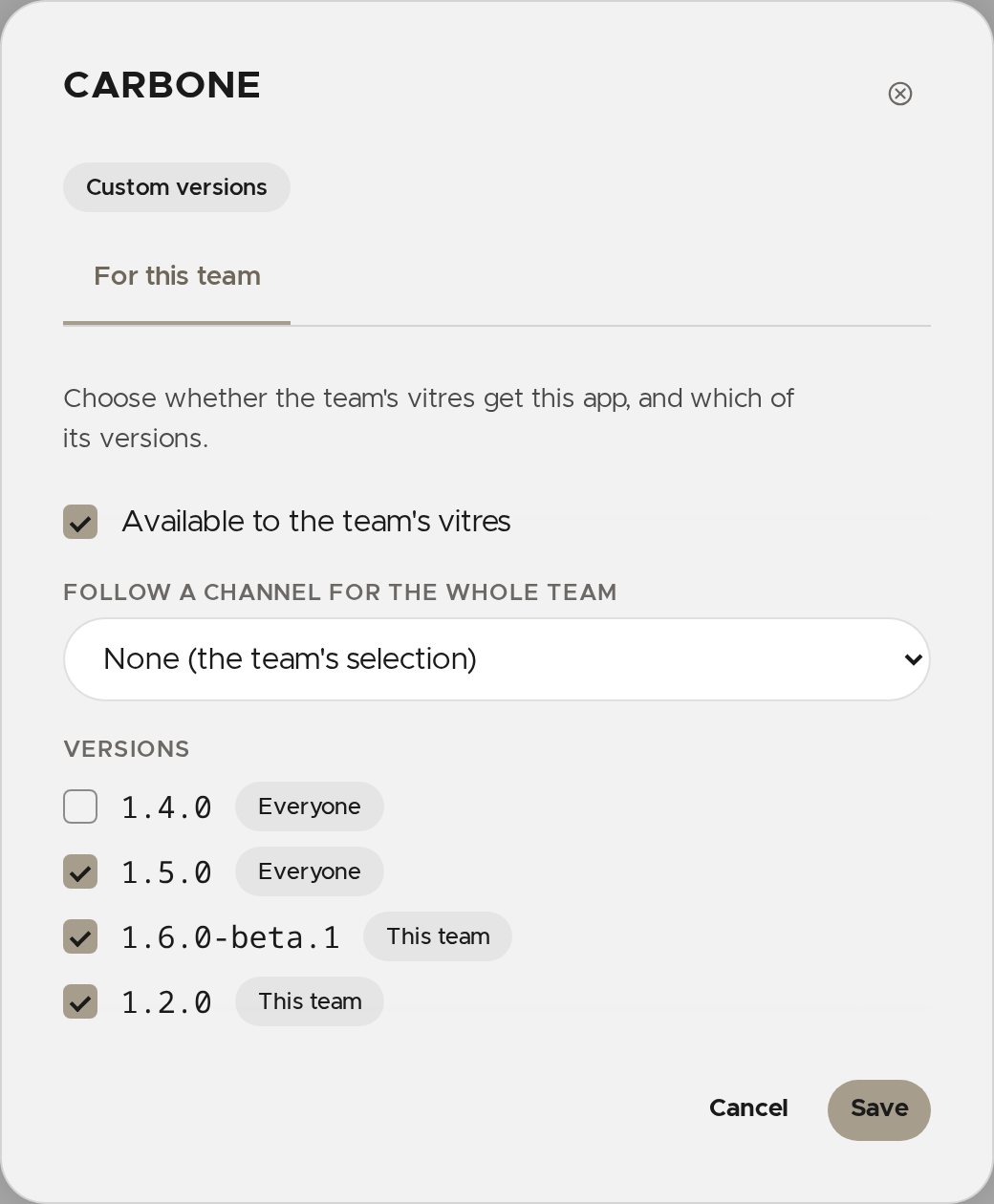
- Click the app's name (or Edit… in its row menu).
- Keep Available to the team's vitres ticked for the Vitres to receive the app, or untick it.
- Tick the versions the Vitres may load. They only see the ticked versions.
- Click Save.
Follow a channel
A channel is a name (for example preview) that points to one version of an app. Instead of ticking versions, you can have the whole team follow a channel: it receives the version the channel points to.
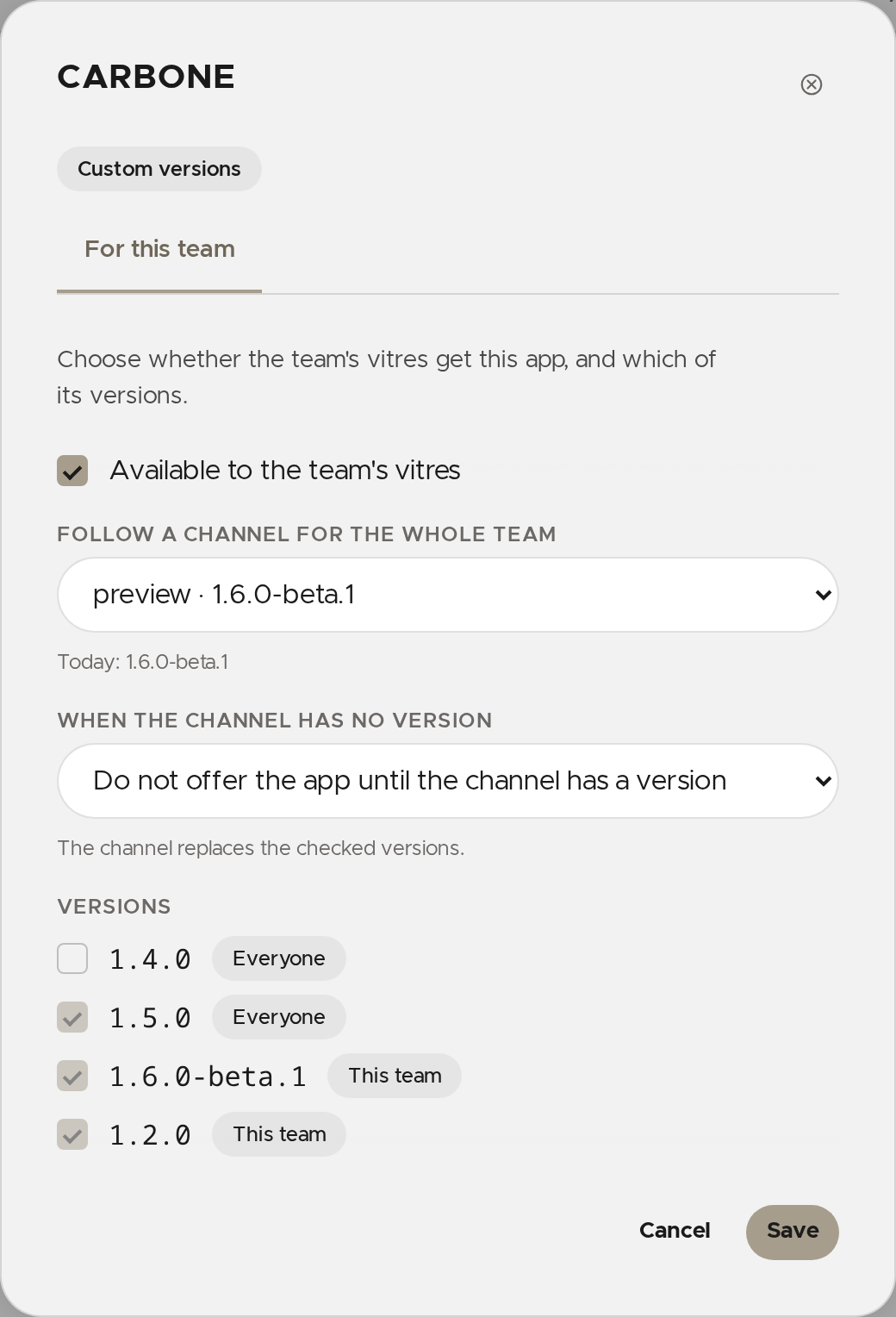
- In the app's dialog, pick a channel in Follow a channel for the whole team. Today's version shows below, and the version boxes are greyed out.
- Choose what happens when the channel has no version, in When the channel has no version.
- Click Save.
Define an app's channels
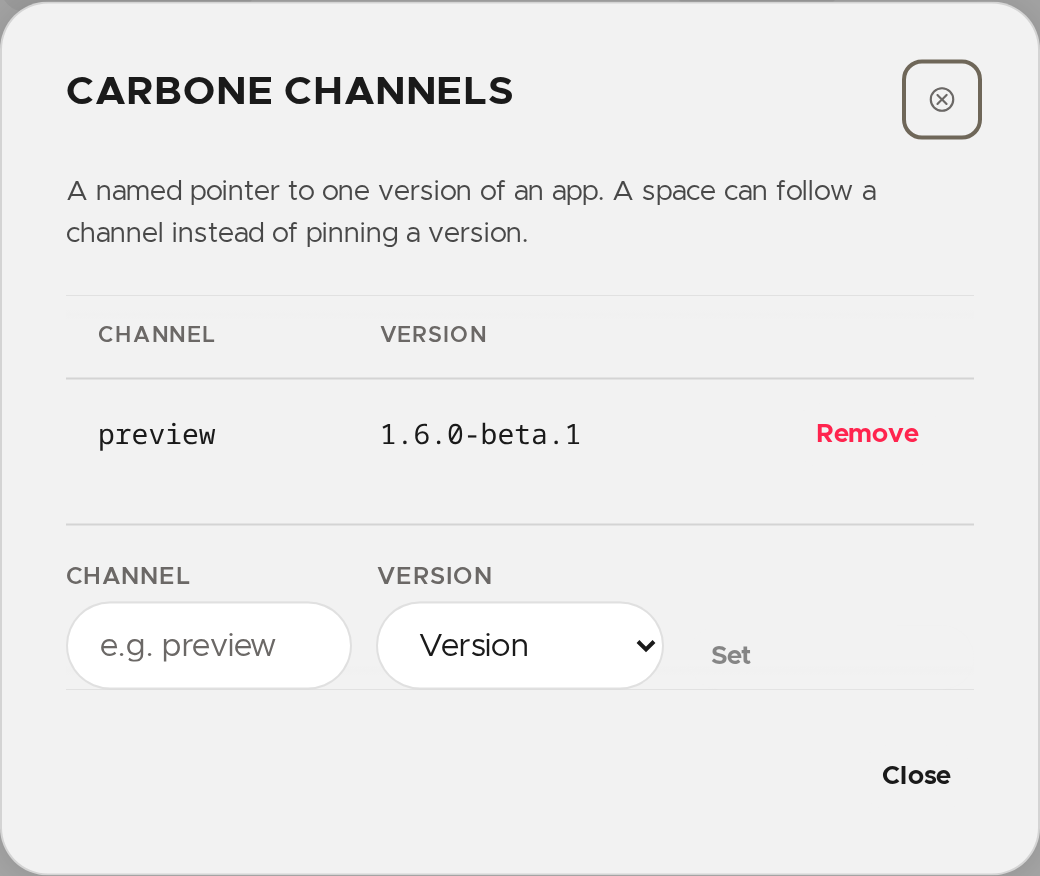
With the Team.Apps.Deploy permission, open the app's row menu and click Channels….
- Type the channel's name and pick a version.
- Click Set. If the channel already exists, it moves to the chosen version.
Channels marked "Published by the publisher" belong to the team that publishes the app: you can follow them, but not move them.
Share an app your team owns
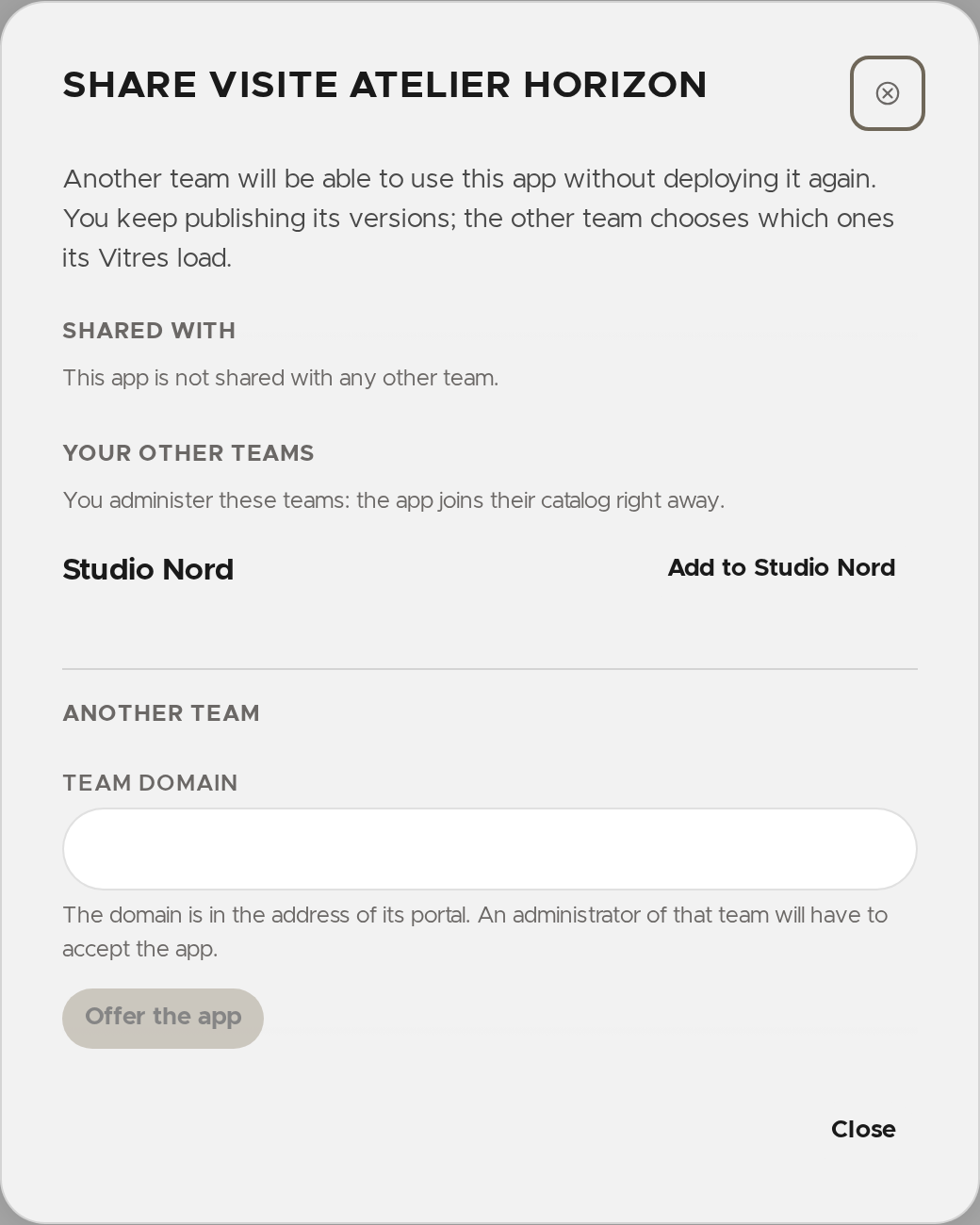
Another team can use an app you publish without deploying it again. You keep publishing its versions; the other team chooses which ones its Vitres load. This needs the Team.Apps.Share permission, and the app must belong to your team.
- In the app's row menu, click Share….
- For another team you administer, click Add to followed by its name: the app joins its catalog right away.
- For a team you do not administer, type its domain (the one in its portal's address) and click Offer the app. An administrator of that team will have to accept.
When another team offers you an app, it shows at the top of the screen: click Accept to add it to your catalog. This needs the Team.Apps.Manage permission.
Add an app
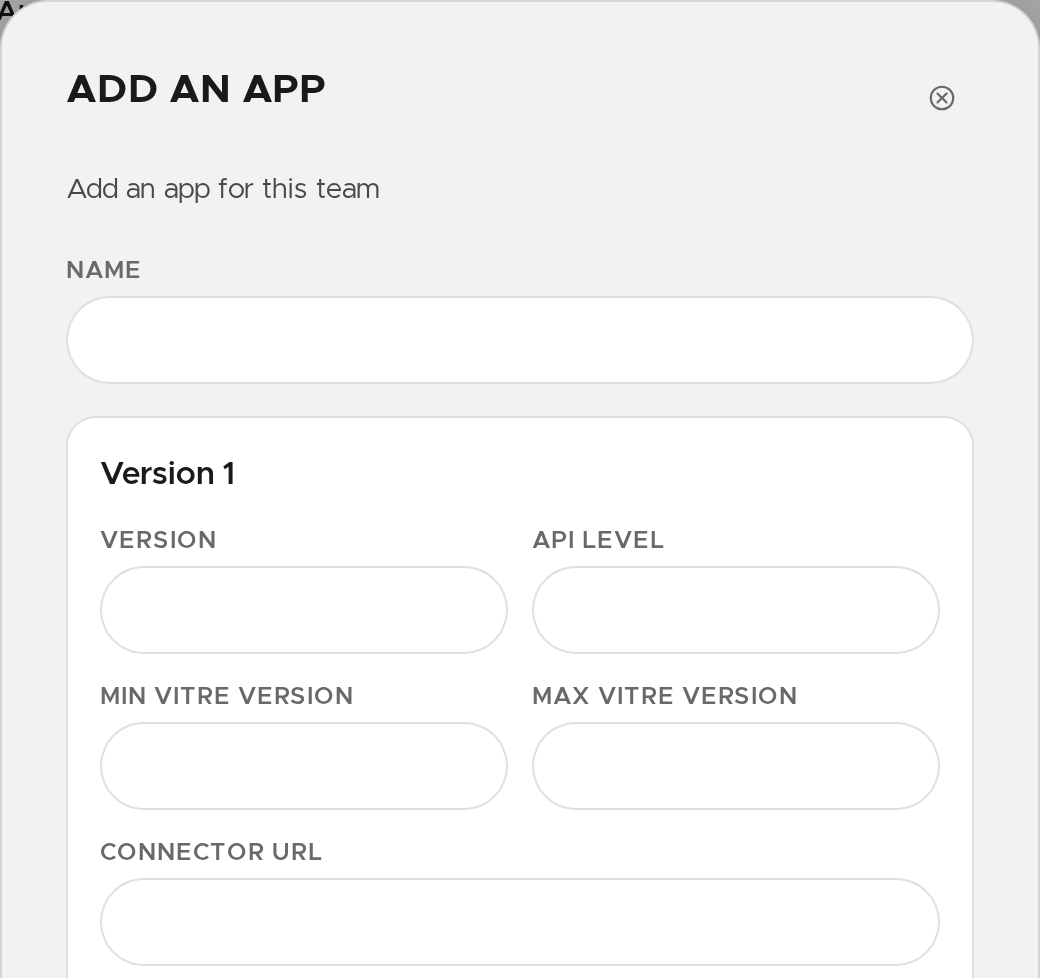
For an app of your team's own: click Add an app, give it a name and describe at least one version (number, compatible Vitre versions, connector address and requested authorizations), then click Save.
Go back to the global offer
If you customized the versions of an app from the global list (the app shows Custom versions), click Reset to global offer in its row menu, then confirm.
Get public links
With the Team.Apps.Manage permission, click Public links at the top of the screen. The page lists a folder shared by all apps, then one folder per app. Files in a folder are public: anyone with the link can read them.
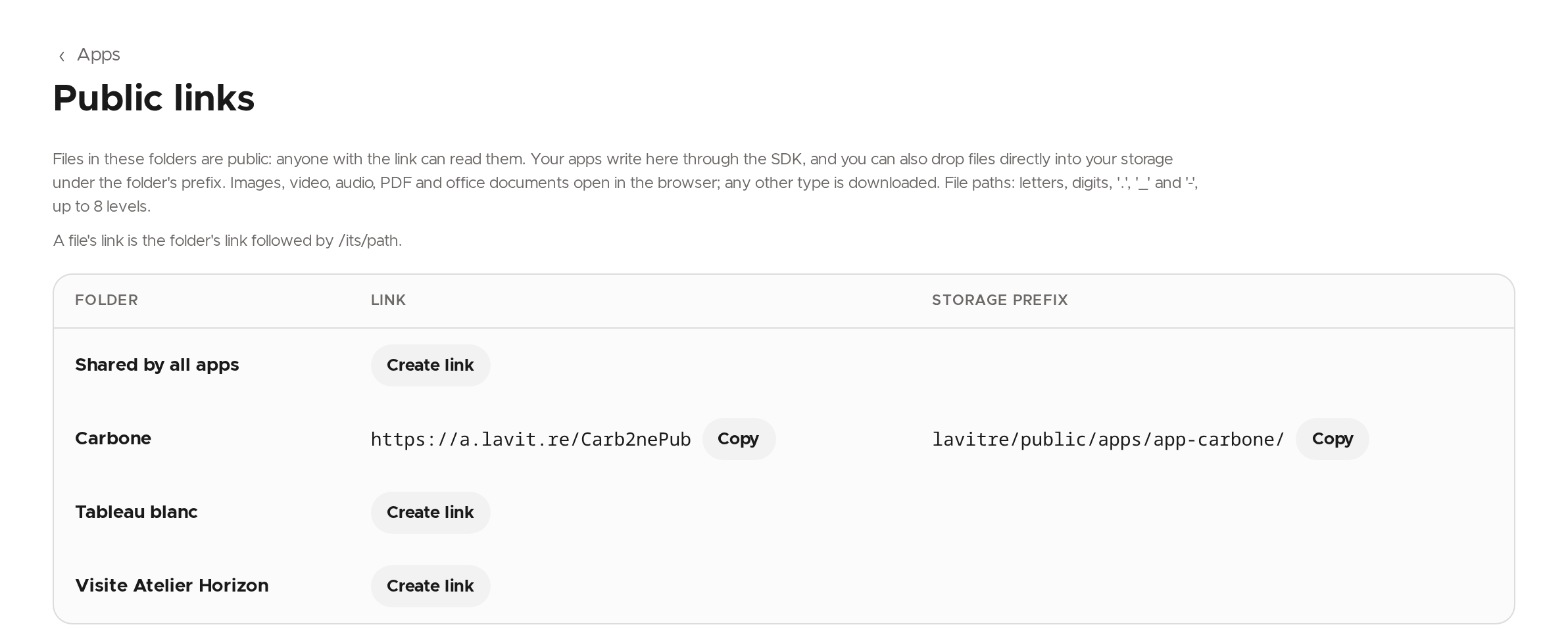
- On the folder's row, click Create link.
- Click Copy to copy the link.
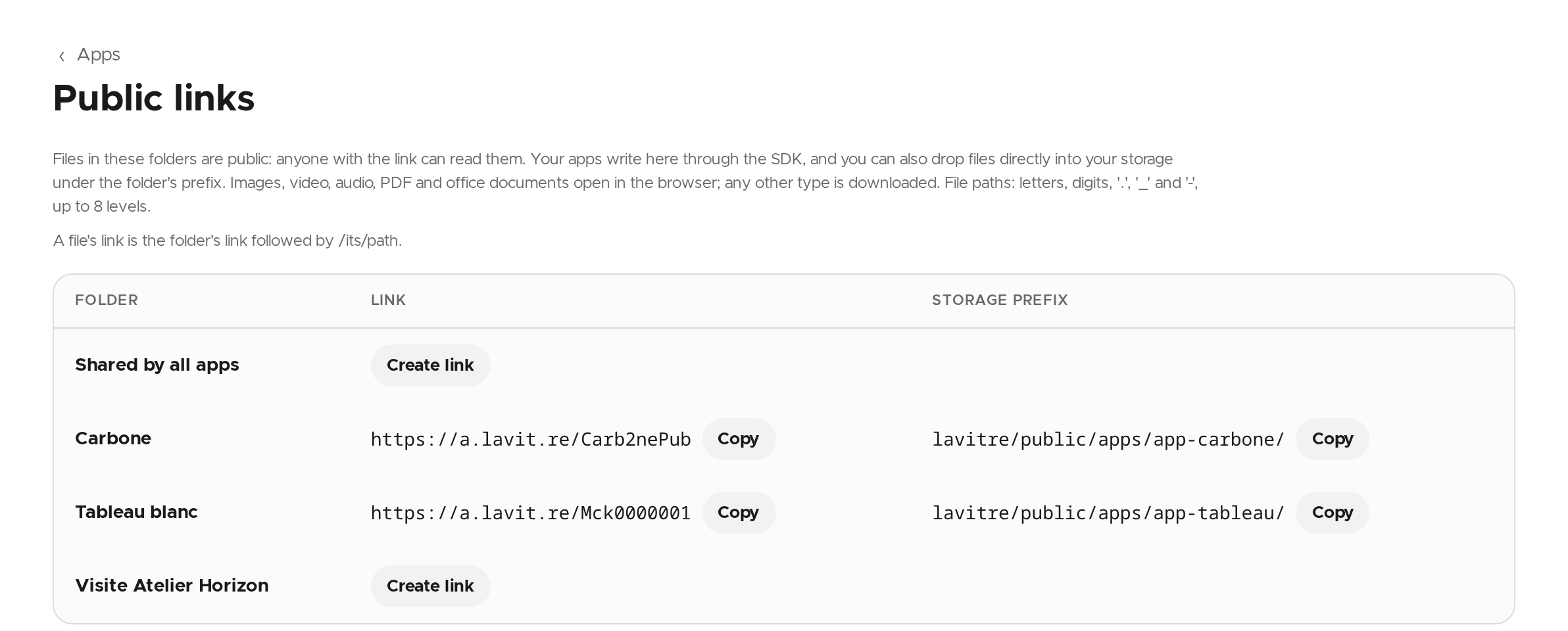
A file's link is the folder's link followed by /its/path. Apps write there through the SDK, and you can also drop files directly into the team's storage, under the prefix shown on the row. Public links are served from the team's storage: if the page asks you to set it up, do so first in Storage.
✨ Missing information?
This Help Center evolves with your needs.Let us know which terms, features, or use cases should be clarified, or contact support for personalized assistance.
Bringing you closer to what matters. We are enriching this resource together.