Add a camera
✨ On the left side of the screen, la Vitre integrates a camera.
You can add a second one to widen the field of view, for example up to 180° in a meeting room or a classroom.Goal: see better, hear better, feel together.
Connect the additional camera to a free USB or USB‑C port on the mini‑PC. Check that Windows emits the sound that confirms device detection.
Then configure the camera in la Vitre advanced settings in two steps.
Step 1:
- Open "Video > Additional cameras".
- Select " + " to add the camera. It must appear in "Device Name".
-
Check "Open stream at start up" to speed up the opening of the video stream when launching the application.
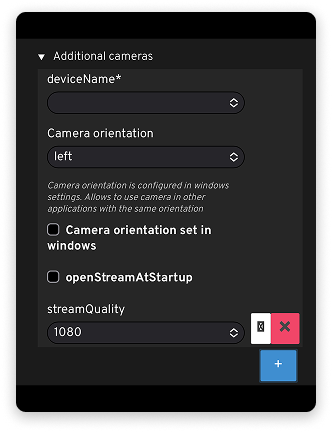
Step 2:
- Go to "Apps > Apps Settings > Camera share".
- Select " + " to add the camera, in addition to your usual camera which is detected first. It must appear in "Device Name".
-
Check " Enabled " to activate sharing.
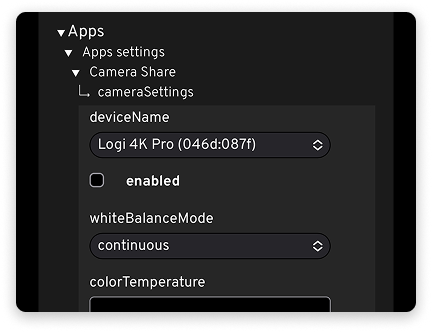
Save your settings and restart la Vitre application.
A camera icon is then added to the list of icons on the right on la Vitre: touch it to start broadcasting the stream from your additional camera in a new window on the screen.
✨ Missing information?
This Help Center evolves with your needs.Let us know which terms, features, or use cases should be clarified, or contact support for personalized assistance.
Bringing you closer to what matters. We are enriching this resource together.