The Companion
✨ Take control of la Vitre from your devices
The Companion allows you to interact with la Vitre from your computer, smartphone or tablet. Share your documents, use your mobile camera or control remotely.
What is the Companion?
The Companion is the web and mobile application that extends the capabilities of your la Vitre. From your own device, you control la Vitre, share your content and enrich your exchanges.
Why use the Companion?
- Simplified sharing: Documents, presentations, images or videos
- Mobile camera: Show a product, a space or details
- Remote control: Control la Vitre from your device
- Screen sharing: Present directly from your computer or other connected device
⚠️ Important note: Your devices on the corporate network may sometimes restrict access. Feel free to use your personal devices if necessary.
How to connect?
From a smartphone or tablet
-
QR Code
Scan the QR code at the top right of la Vitre screen with your smartphone camera.
-
Application
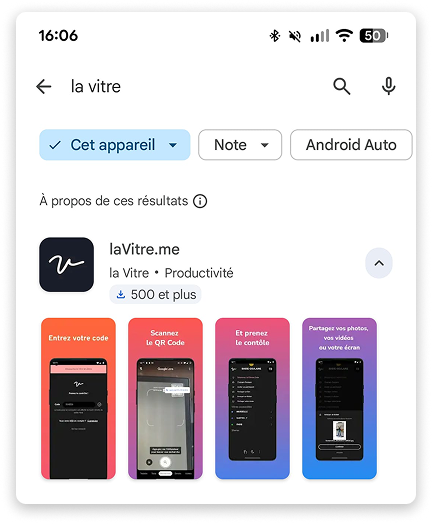
Download the Companion app from the App Store or Google Play withe the search “la Vitre”, then enter the temporary code displayed on la Vitre. If Bluetooth is enabled, the app can detect la Vitre.
From a computer
- Go to lavitre.me in your browser
- Enter the temporary code displayed at the top right of la Vitre

What can you do?
-
Documents and media
Share PDF files, JPG or PNG images, YouTube videos or even 3D models. All details on the dedicated page: Share your screen and files
-
Screen sharing
Display your screen on la Vitre to show your PowerPoint presentations, Excel or any other application.
-
Mobile camera
Use your smartphone camera to show a product, a space or details in real time. Check out our dedicated page: Share your smartphone camera
-
Remote control
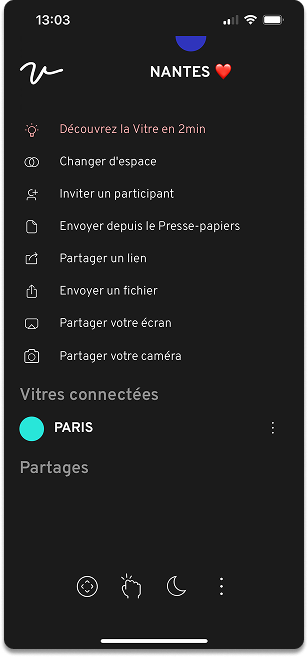
Move, resize or delete elements displayed on screen from your device.
From the Companion, you can also:
- Adjust the speaker volume from the "three dots" menu at the bottom of the screen
- Download an image or document shared on la Vitre via the "three dots" next to the shared item name
- Activate Shush or Confidential modes remotely using the Moon
- Invite an external person to your Vitre via a simple link. Consult the dedicated page about the Guest mode
The Companion enriches your experience
You now have a powerful tool to make your exchanges even richer and more natural. The more you use it, the more intuitive the gestures become.
✨ Missing information?
This Help Center evolves with your needs.Let us know which terms, features, or use cases should be clarified, or contact support for personalized assistance.
Bringing you closer to what matters. We are enriching this resource together.