Set the team's app settings
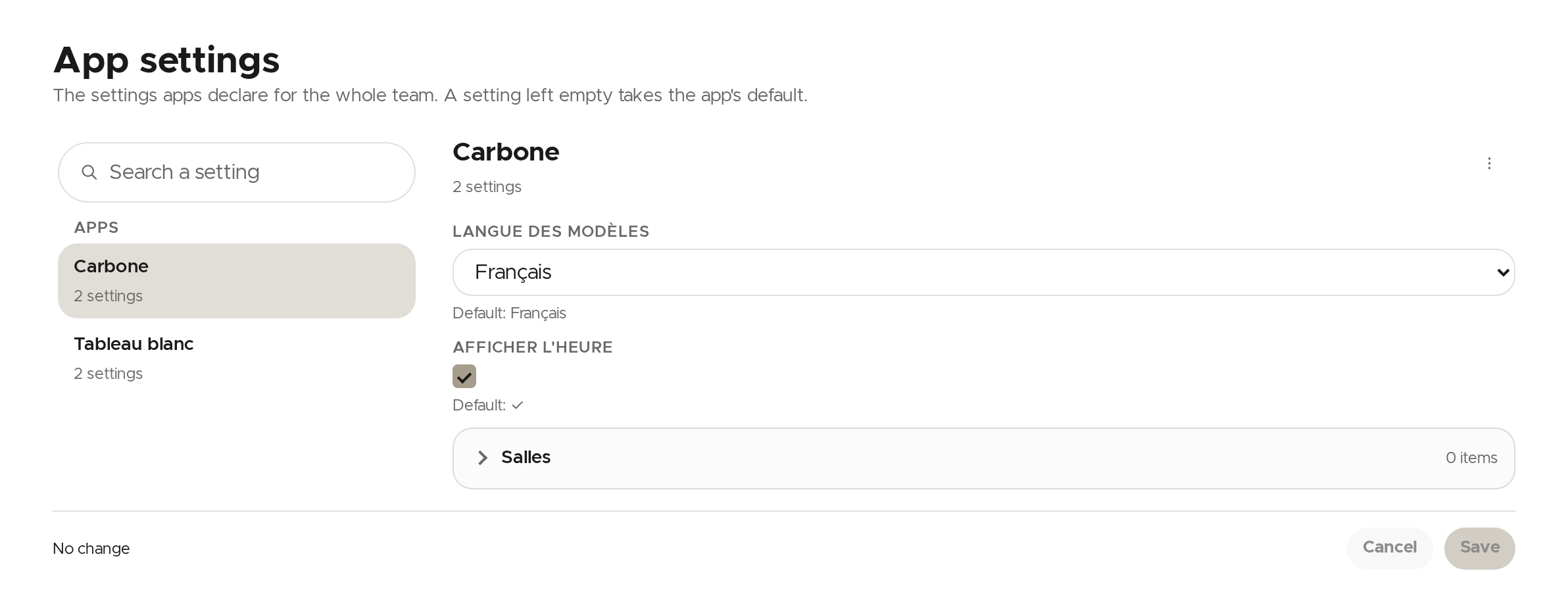
✨ The App settings screen gathers the settings your apps offer for the whole team. The forms come from the apps themselves: there is nothing for you to write.
A setting left empty takes the app's default. Only apps that declare settings appear in the list on the left.
Change a setting
- Pick an app in the list on the left. The Search a setting field helps you find a setting.
- Change the fields of its form. The default value is shown under each field.
- The app is marked as changed and the bottom of the screen counts the pending changes. You can move to another setting or app before saving.
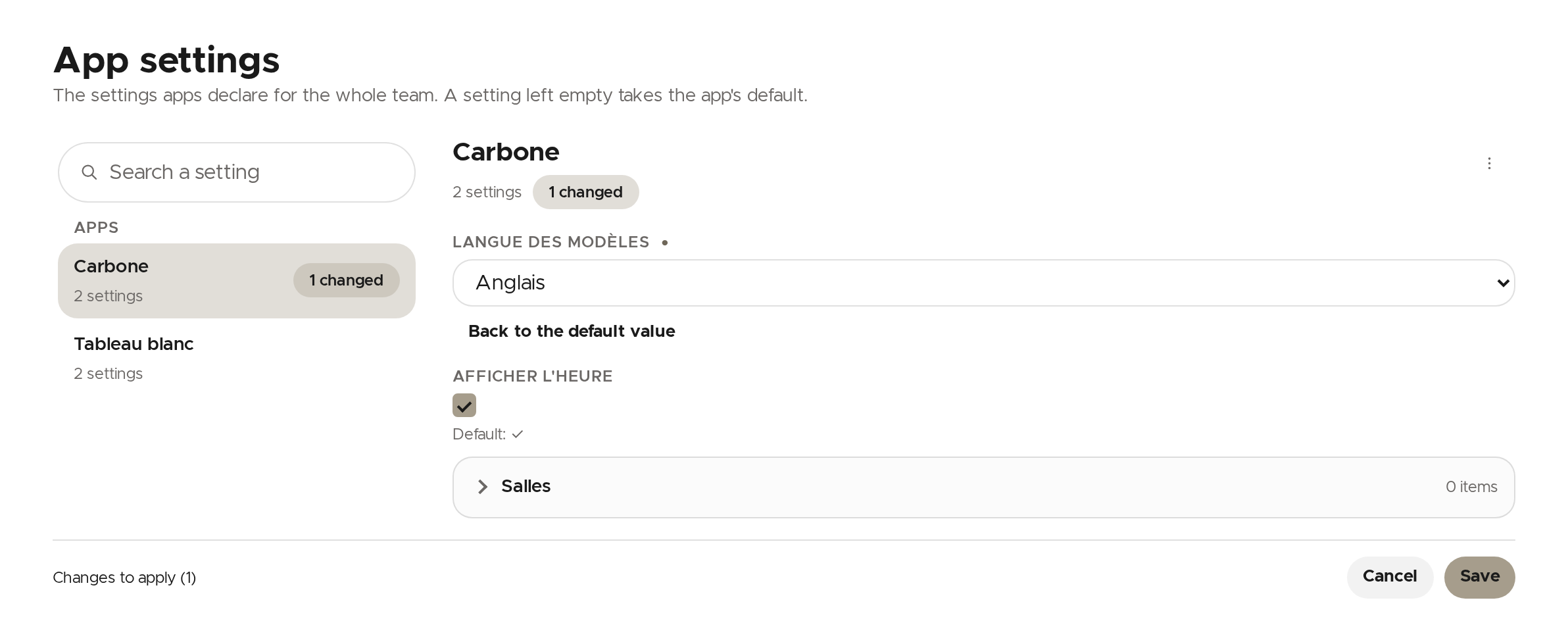
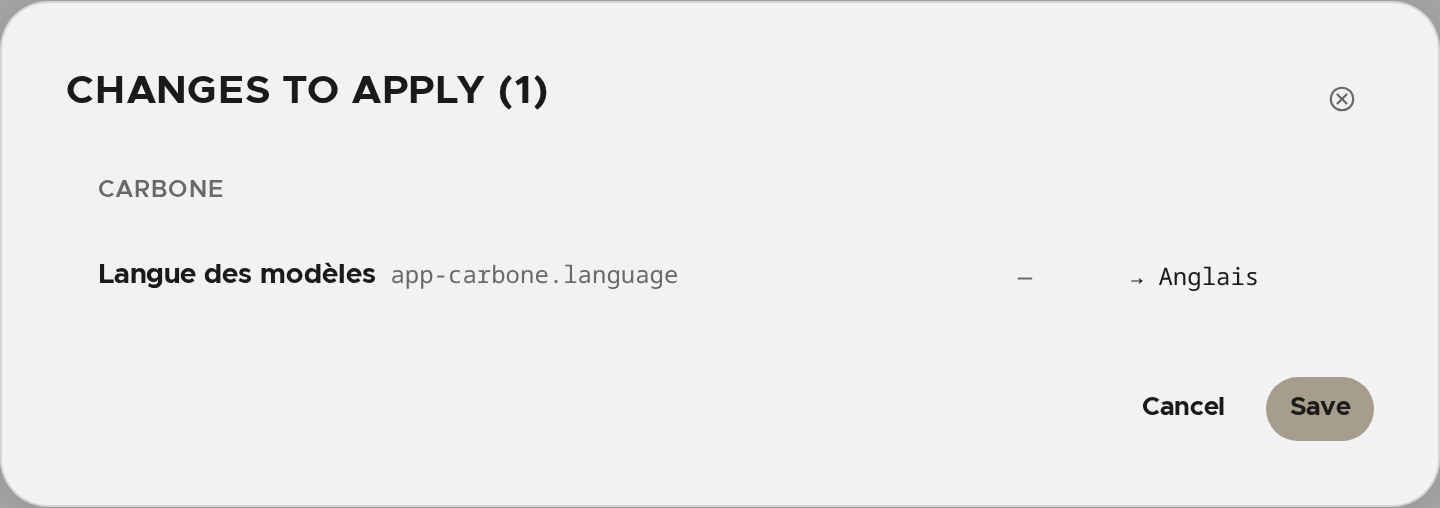
- Click Save. A window sums up what is about to be applied: check it, then click Save again.
Click Cancel at the bottom of the screen to drop unsaved changes.
Go back to the default value
Under a changed field, click Back to the default value. The setting then drops your value and takes the app's again.
Why I cannot change anything
- If a message says you can view these settings but not change them, your role lacks the
Team.Apps.Settings.Writepermission. - If the screen says no app offers settings, no app declares settings at this level. An app declares them in its
lavitre.settings.jsonfile: they will show as soon as a version declaring some is available. - If an app's settings were saved for a newer version of the app, they cannot be changed here until the team runs that version.
- If someone else changed an app's settings in the meantime, saving is refused: reload, then make your change again.
A space can have its own values for some settings: they are changed from the space's page.
✨ Missing information?
This Help Center evolves with your needs.Let us know which terms, features, or use cases should be clarified, or contact support for personalized assistance.
Bringing you closer to what matters. We are enriching this resource together.