The Page Blanche
✨ Page Blanche is la Vitre’s collaborative whiteboard. Open a blank page and, together, draw, write, and organize your ideas in real time, then download your work.
What is Page Blanche for?
Brainstorming, workshops, action plans, diagrams, visual note-taking, project reviews… Page Blanche gives your ideas a shared space that everyone can see and that you can keep at the end of the session.
| Your need | With Page Blanche |
|---|---|
| Review a product or prototype | Add the image, annotate the details, and link each comment to the right area. |
| Run a multi-site workshop | Bring everyone’s contributions together on one shared page and follow each person’s gestures live. |
| Build an action plan | Organize ideas with sticky notes, shapes, arrows, and a table. |
| Present a summary | Guide everyone’s attention with Present mode and the laser pointer. |
The essentials
- Open Page Blanche from la Vitre’s “ … ” menu. You can also start from an existing file or a camera share.
- Resize the page or display it full screen, then enable Edit mode.
- Add your content: text, image, sticky note, shape, or table, from the Companion or directly on la Vitre.
- Use the Selection tool to move, align, and organize items.
- Enable Present mode to guide the group.
- Once the work is finished, export the page from the Companion’s Page Blanche menu.
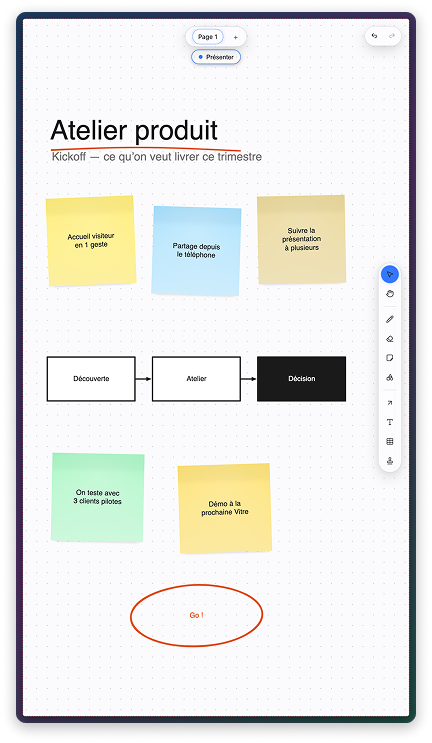
Open Page Blanche
- On la Vitre, open the “ … ” menu, then choose New Page Blanche.
- Resize the window or switch to full screen.
- Enable Edit mode to start writing and drawing by clicking the hand on the tab.
- Add content from la Vitre or from the Companion (your phone or computer).
💡 You can also start from existing content: share an image or screenshot from the Companion, and it will be placed directly on the page.
The toolbar
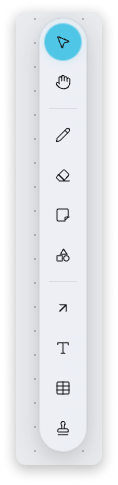
The toolbar (dock) is attached to the side of the page. It is organized into three groups: move, create, insert.
| Tool | What it does |
|---|---|
| Selection | Select, move, resize, and rotate an item. |
| Hand | Move around the page without modifying anything. |
| Pens | Draw, highlight, turn a sketch into a clean shape, add washi tape, or point with the laser. |
| Eraser | Erase a whole item, or only part of a stroke. |
| Sticky note | Place a sticky note. |
| Shapes | Add a ready-to-use shape (rectangle, circle, directional arrow, etc.). |
| Arrow | Connect two ideas, freely or by linking two items together. |
| Text | Write a text block. |
| Table | Insert a table and fill in the cells. |
| Stamp | Add an emoji sticker (⭐ ✅ 🔥 …) to vote or mark a point. |
Draw and annotate
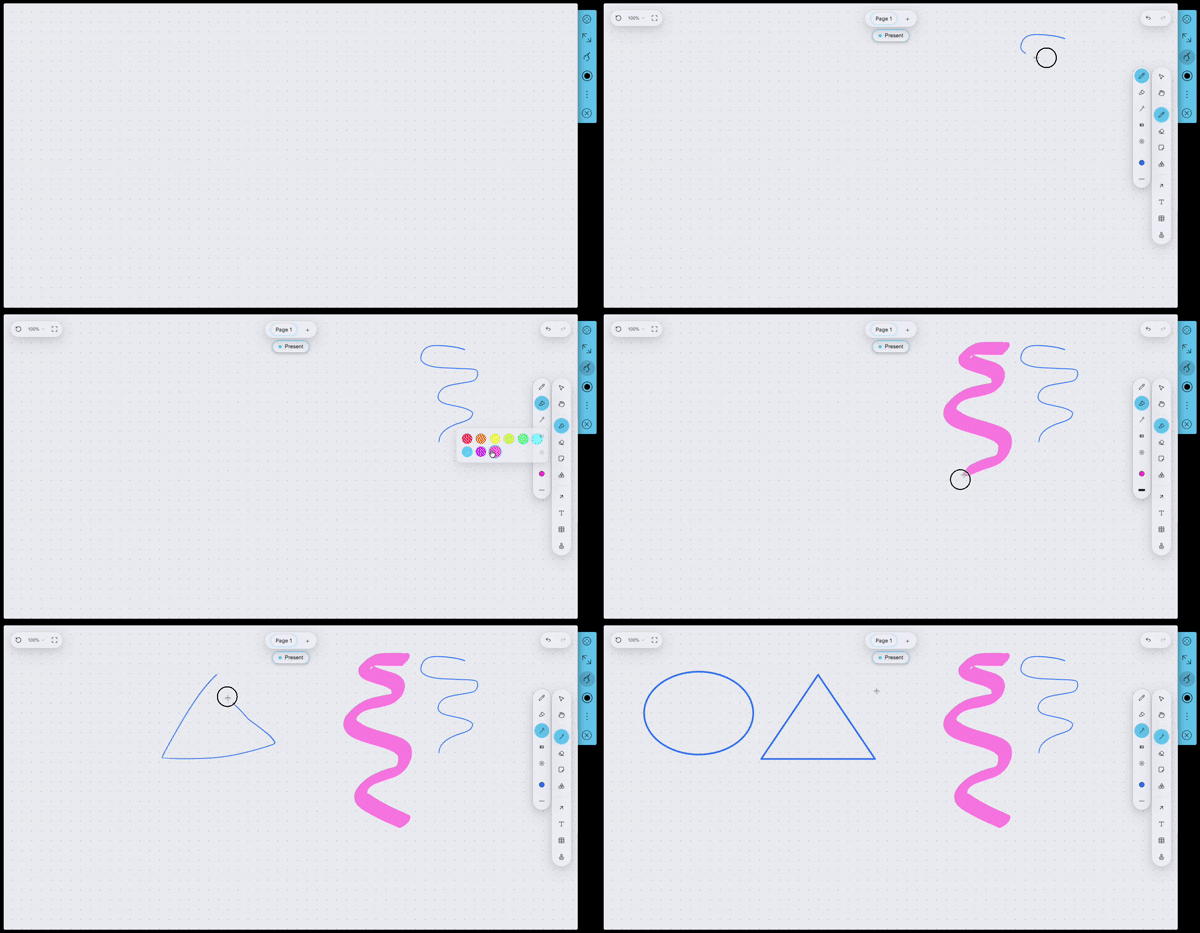
Each stroke has its own purpose:
- Pen: write and draw freehand, like with a marker.
- Highlighter: make information stand out with a translucent fluorescent highlight.
- Magic wand: draw a shape by hand, and it is recognized and transformed into a clean shape (circle, rectangle, arrow, etc.).
- Washi tape: place an adhesive strip between two points to “tape” a note or underline an area.
- Laser: a temporary light pointer to guide attention. It leaves no trace on the page.
Two erasers are available: the eraser, which removes an entire item, and the pixel eraser, which removes only part of a stroke without damaging the rest.
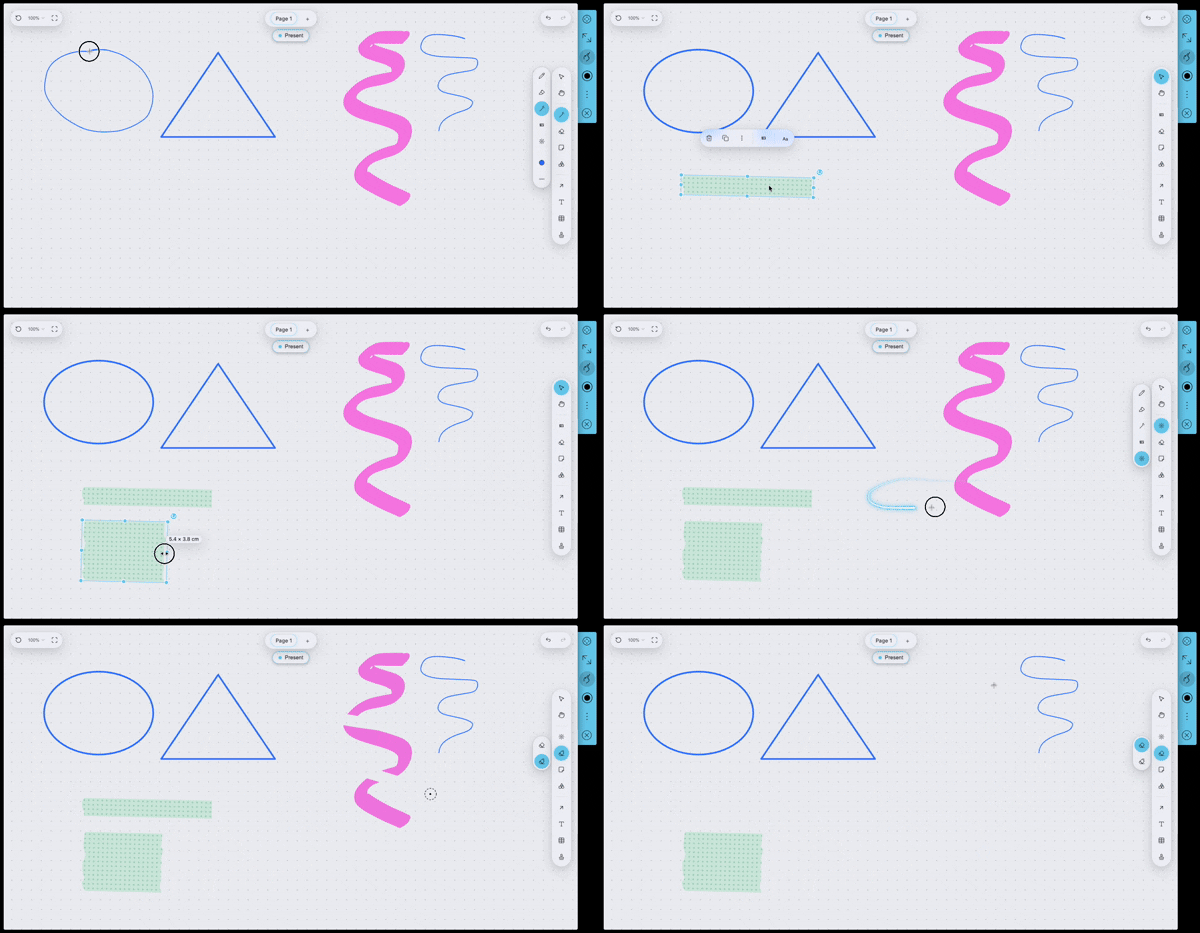
✨ In read-only mode, only the laser remains available: you can view the page and follow a presentation without any risk of modifying the content.
Structure ideas
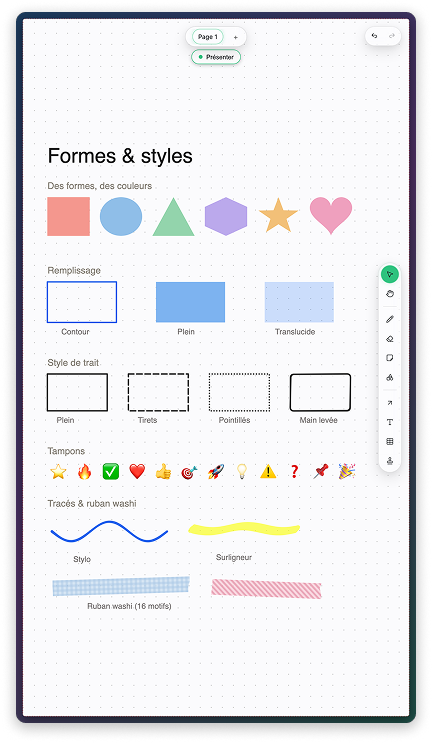
Sticky notes and shapes
Place a sticky note for an idea, a shape for a section, and use colors to create categories. Shapes can be adjusted in just a few gestures:
- Color and line thickness,
- Fill: outline only, solid, or translucent,
- Line style: solid, dashed, dotted, or “hand-drawn” look,
- Conversion: turn a rectangle into an ellipse without recreating it.
Arrows and connectors
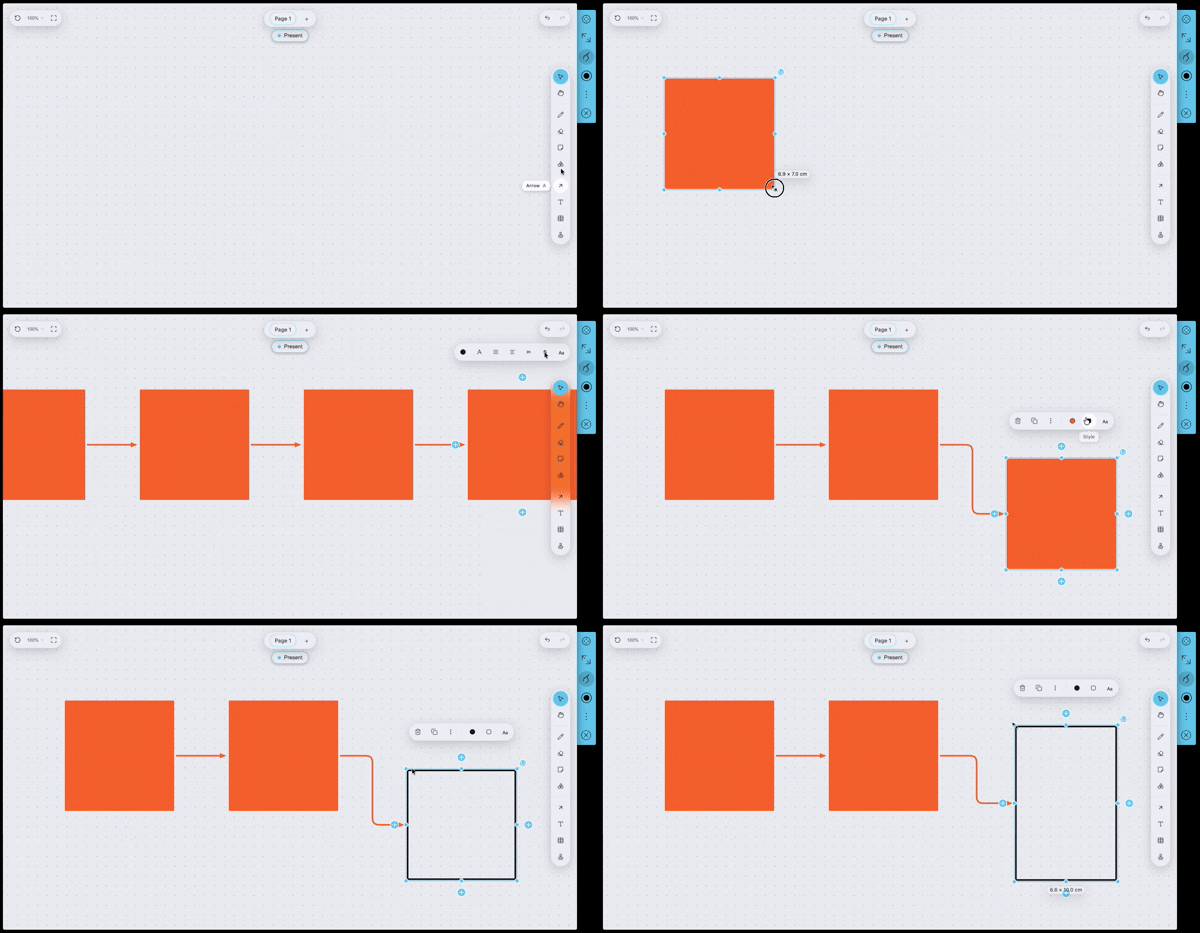
An arrow can be free (from one point to another) or connected to two items: if you move the items, the arrow follows automatically.
✨ It sticks automatically. A sticky note, washi tape, or annotation placed on an item attaches to it: move the item, and they follow.
Select and organize
As soon as you select an item, an action bar appears next to it, and a ⋮ menu groups the remaining options.
- Duplicate and delete in one gesture, directly from the action bar.
- Handles: corners resize, the top handle rotates, and the “ + ” buttons on the edges pull an arrow toward another item.
- In the ⋮ menu: lock an item so it is not moved by mistake, bring it forward or send it backward, group and ungroup, lock proportions, convert a shape into another one, or set an image as the page background.
- Selected multiple items? Two menus are added: Align (left, center, right, top, middle, bottom) and Distribute / Stack, to create even spacing without adjusting it manually.
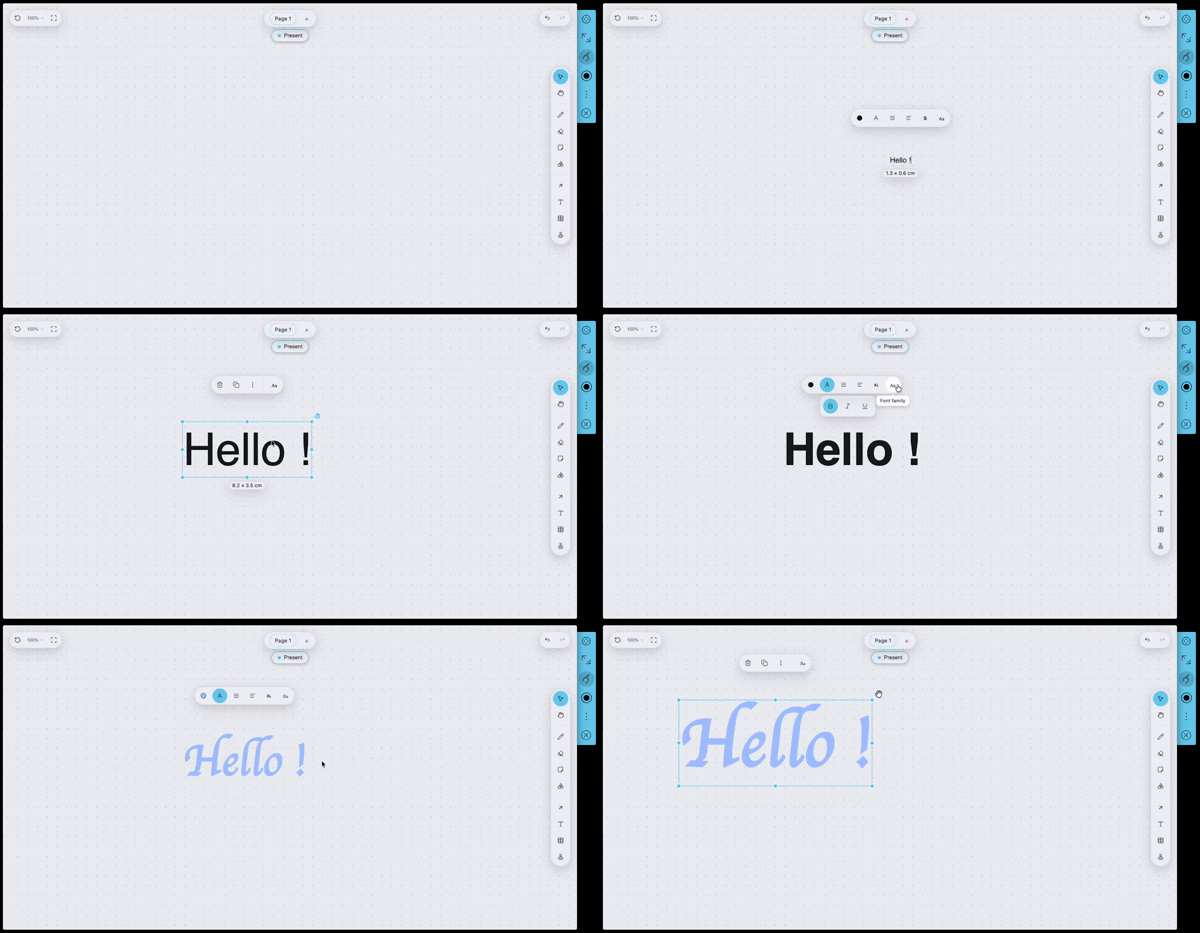
Write and format text
Add a text block, or write directly inside a sticky note or shape. The formatting menu (“ Aa ”) lets you:
- switch to bold, italic, or underline,
- change the size and font,
- choose the text color,
- adjust alignment (left, center, right),
- create bulleted, numbered, or dashed lists.
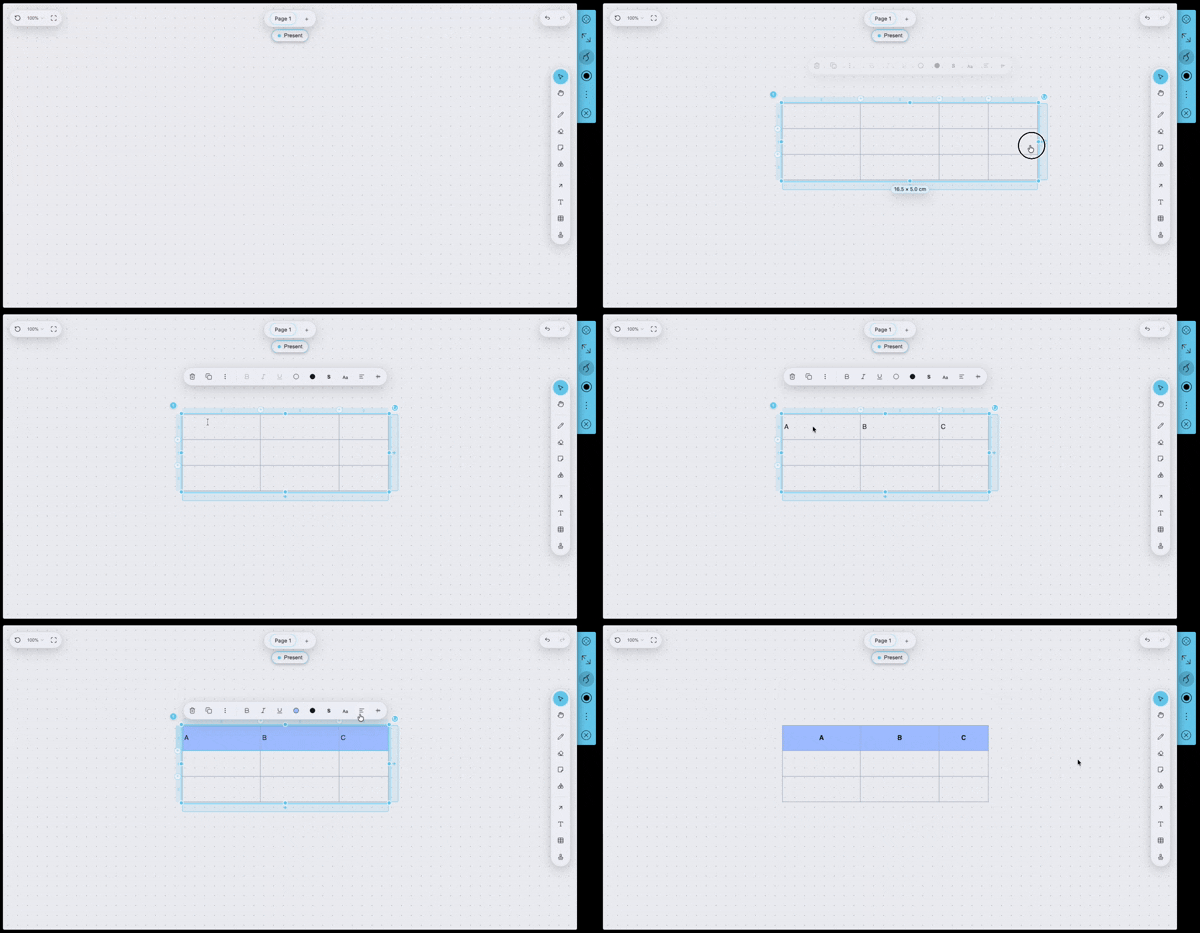
Insert a table
Insert a table, then double-click a cell to fill it in. The table remains a single object: it moves and resizes as one block.
- Add or remove rows and columns with the “ + ” handles on the edges.
- Highlight the header row and column.
- Adjust the style (background, text color, alignment) on a cell, row, column, or the whole table.
- Merge cells when useful.
Insert and annotate an image
Add a photo, screenshot, or diagram to make the discussion concrete, then:
- move and resize the image,
- crop it to keep only the useful area (free proportions, square, circle, etc.),
- rotate it or apply a mirror effect,
- set it as the page background,
- annotate it directly with the pen, highlighter, or arrows.
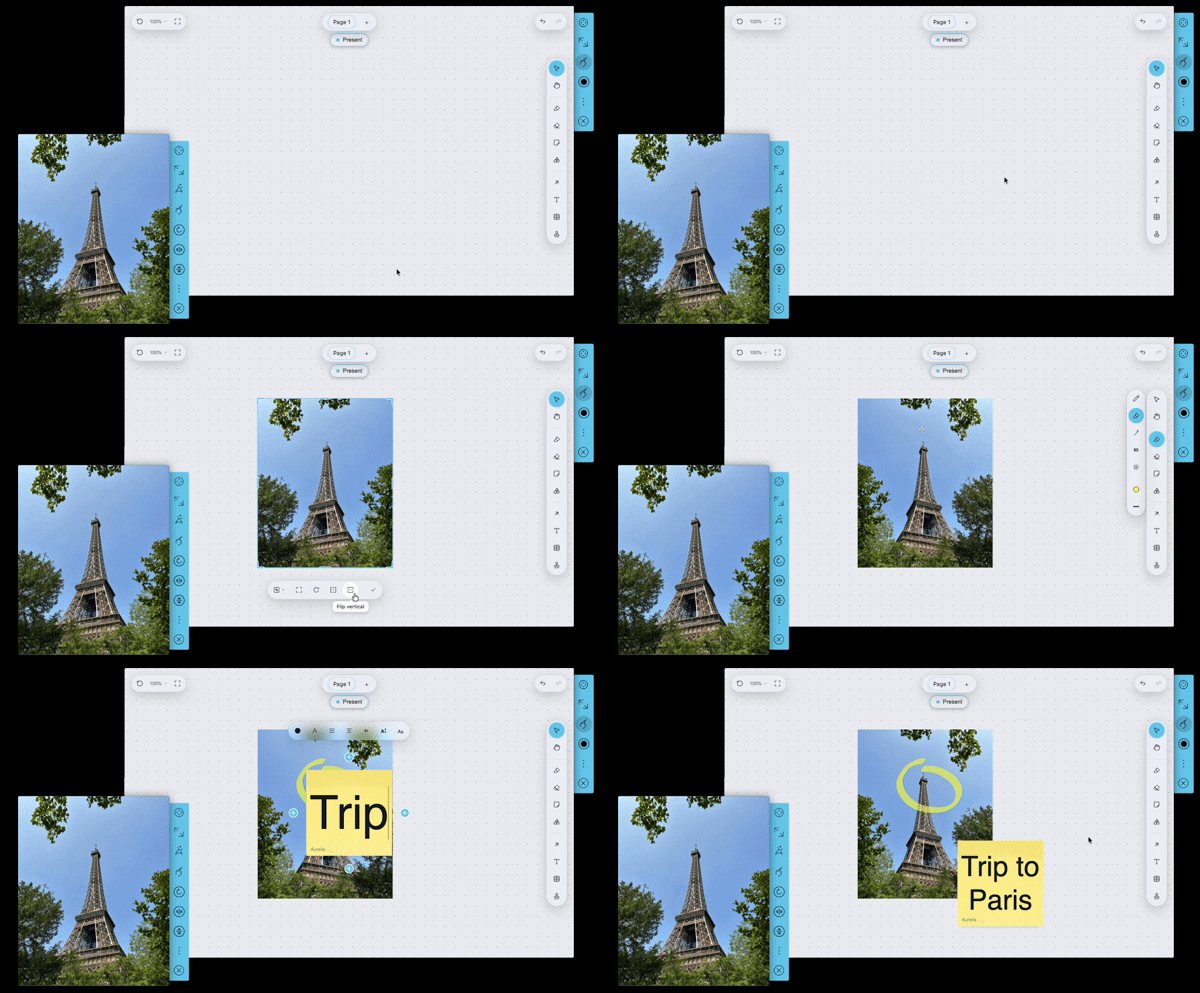
✨ From your phone, share an image via the Companion: it is placed at the center of the page, wherever you are looking.
Navigate the page
- Minimap: an overview of the board; click to go anywhere.
- Zoom: mouse wheel, pinch gesture, or the − / + buttons. The percentage opens presets.
- Fit to see everything at once, Reset to return to 100%.
- Undo / Redo at any time: a mistaken action can be fixed in one gesture.
- Multiple pages in the same board (tabs at the top): add, rename, and reorder them.
- Backgrounds to choose from: solid, grid, dots, lines, isometric, or your own image.
Work together, live
Each participant has a cursor, with their name, color, and the tool they are using. Everything is synchronized in real time.
When someone enables Present mode, others automatically follow that person’s view and page, then can take control again whenever they want.
✨ Designed for touch
Page Blanche supports several fingers at the same time: pinch to zoom, use two fingers to rotate or resize. Two people can manipulate two different items at the same time without getting in each other’s way.
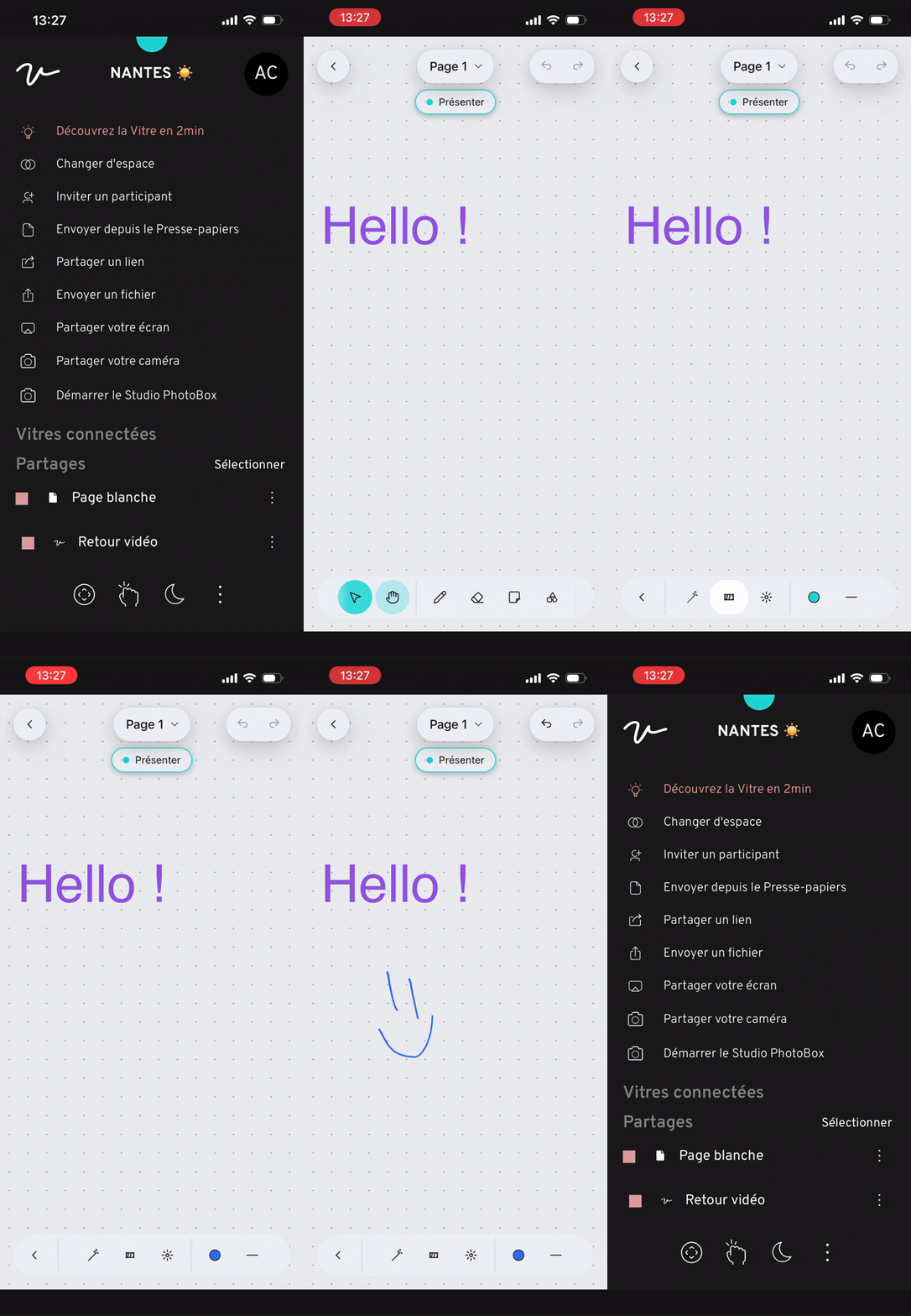
From the Companion
The Companion is the web and mobile app that extends la Vitre to your phone or computer.
With Page Blanche, you have your own view: you can navigate, annotate, and add content live on la Vitre. A “Back” button returns you to the Companion.
To connect your phone or computer to la Vitre, follow the The Companion guide.
Export and share your work
Open the Page Blanche menu in the Companion, then export to:
- a PNG image of the page, to send by email or paste into meeting notes;
- a board archive (all pages and images), to share again and re-import as-is to continue the work later.
⚠️ Export before closing the page.
Page Blanche works live: the content exists for the duration of the session, between connected participants. It is not stored anywhere. If the page is closed without being exported, the work cannot be recovered.Make it a habit: export the board archive at the end of the session, even if the meeting is meant to continue later.
Frequently asked questions
-
Is my work saved automatically?
No. Page Blanche works live, between connected participants: the content is not stored on any server. It remains in place as long as the page is open, but if you close it without exporting, the work is lost.
Make it a habit to export before closing: a PNG to keep an image of the page, and a board archive so you can re-import it and continue later.
-
How many people can write at the same time?
Everyone present on la Vitre and connected through the Companion. Each cursor is identified by a name and color, and the touchscreen supports several fingers at the same time.
-
Can I participate from my phone?
Yes, from the Companion. You have your own view of the page: you can navigate, annotate, and add content without disrupting the display on la Vitre.
-
How can I show something without modifying the page?
Use the laser pointer: it is temporary and leaves no trace. It is also the only tool available in read-only mode
-
Can I resume a board in a future session?
Yes, as long as you exported the board archive before closing the page. Re-import it next time and you will find all pages and images exactly as you left them. Without this export, the page cannot be restored.
Learn more
- The Companion : connect your phone or computer to la Vitre.
- Share your screen and files : display your documents on la Vitre.
- Applications : discover the other apps built into la Vitre.
✨ Missing information?
This Help Center evolves with your needs.Let us know which terms, features, or use cases should be clarified, or contact support for personalized assistance.
Bringing you closer to what matters. We are enriching this resource together.