Access the admin portal
✨ The administration portal allows you to manage all your Vitres from a centralized web interface. You can configure advanced settings for each Vitre, monitor their real-time status, and administer your company's users.
Prerequisites and administrator role
To access the administration portal and advanced settings, you must be an administrator of your company.
- During setup, our teams register your name and email address.
- You are then autonomous to manage your Vitres: color, icon display, restart a Vitre, add a device, etc.
- We recommend at least two administrators per company. Dedicated training is provided by the Customer Success team.
- An administrator has access to all Vitres in their group or company.
Logging in to the administration platform
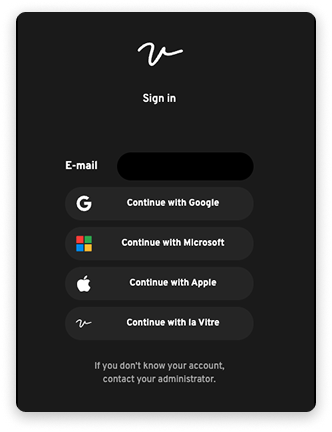
- Open your browser and go to admin.lavitre.me.
- Enter the email address registered for administration.
- Click on "Continue with la Vitre". You will receive a login link by email. Click to validate access.
- or choose your SSO provider if necessary.
Available menus
After logging in, you arrive on the dashboard. You see the list of your company's Vitres.
At the top of the screen, you manage your Vitres with these menus:
- Vitres: list and status of Vitres.
- Users: management of associated accounts.
- Usage: usage statistics (presence, knock-knock, drawings, etc.).
✨ Like la Vitre, these contents are alive and evolving. We remain attentive to your feedback to bring the tool closer to your needs.
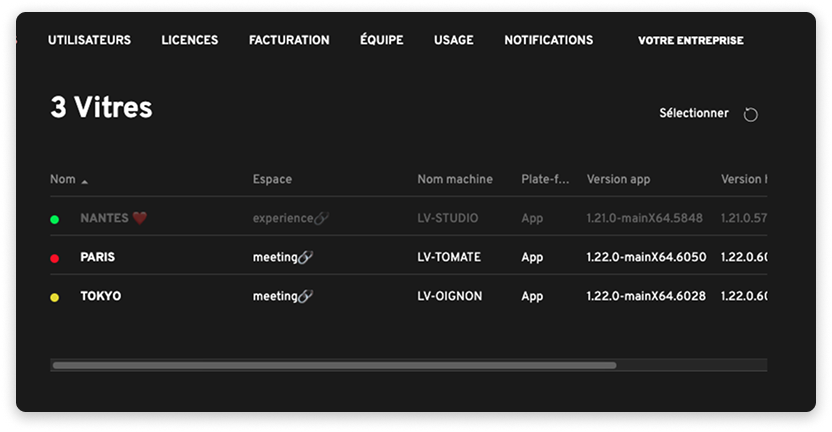
Reading information from left to right
- Color dot and Vitre name:
- Your Vitre's line is white: PC on and la Vitre application running
- Your Vitre's line is gray: Vitre offline
- Space:
- Indicates the space where the Vitre is connected.
- 🔗 The link icon copies the guest access link to the space.
- Machine name: PC identifier in your fleet.
- App / host version: allows you to check the version and anticipate an update.
- Connection: Online status or date of last connection.
- Select:
- Click to display checkboxes.
- Choose one or more Vitres to restart remotely. ⚠️ Make sure no conversation is in progress before restarting multiple applications remotely.
- Arrow icon in circle: allows you to refresh the displayed elements
Configure each Vitre
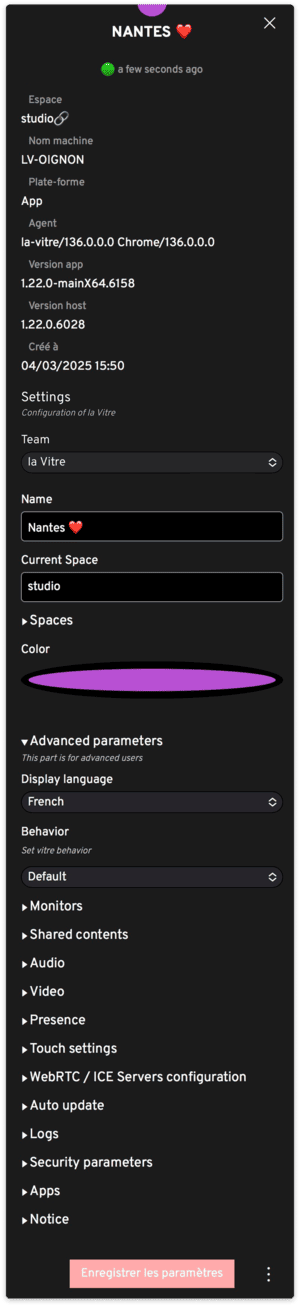
Access the advanced settings of each Vitre by simply clicking on the one you want to view or modify.
Then click on "Advanced parameters" to expand the available sections: the available settings are detailed on this Help Center page about the Advanced settings .
✨ Missing information?
This Help Center evolves with your needs.Let us know which terms, features, or use cases should be clarified, or contact support for personalized assistance.
Bringing you closer to what matters. We are enriching this resource together.