Set up your team's authentication
✨ The Authentication screen sets how your team's members sign in: your organisation's identity provider (SSO, through OpenID), and the team's sign-in policy.
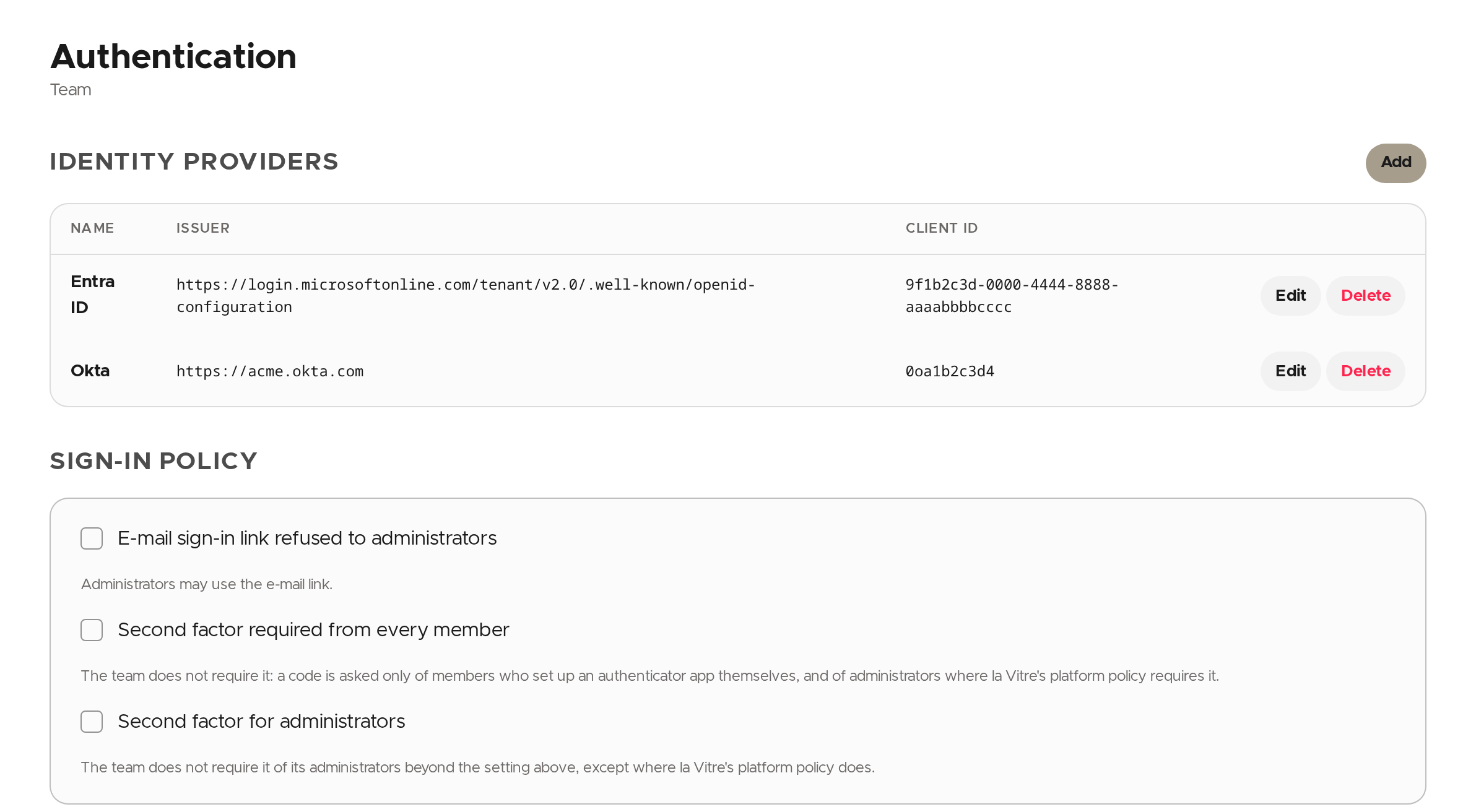
Add an identity provider
You need the OpenID settings of the application you registered with your provider (Entra ID, Google, Okta…).
- Under Identity Providers, click Add.
- Enter the application's Name, Client Id and Client secret.
- Fill in the Issuer or the Discovery URL. One of the two is required: without them, no sign-in can succeed. The "Examples by provider" link gives an example per provider.
- Click Save.
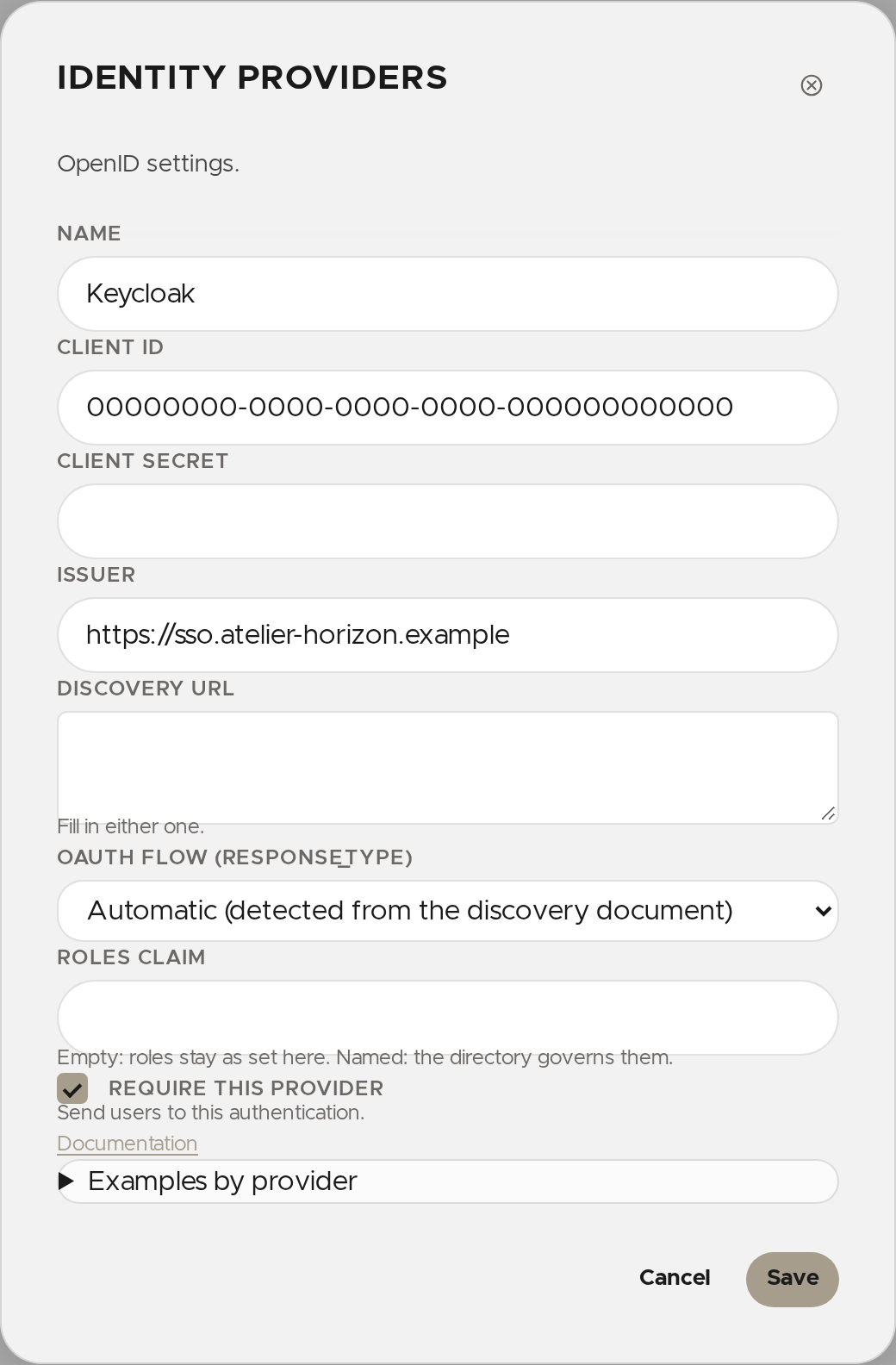
Two options deserve attention:
- Require this provider is ticked for a new provider: users are sent to this authentication. Untick it to let them choose.
- Roles claim: empty, roles stay those managed in la Vitre; filled in, your directory governs them. The name to use for each role in the directory is the identifier shown in Roles.
To change or remove a provider, use Edit or Delete on its row. The client secret is never shown again: leaving it as is in the form keeps it, emptying it erases it.
Set the sign-in policy
The Sign-in policy section is visible to people allowed to change the team's settings (Team.Settings.Write). Each switch saves as soon as you click it.
- E-mail sign-in link refused to administrators: on the portals, administrators must sign in with your organisation's identity provider or a Google/Microsoft account. On the companion, the link still signs them in, with a member's rights only. Members are not affected.
- Second factor required from every member: every member, administrators included, enters the code from their authenticator app at their next sign-in, on the portals and on the companion.
- Second factor for administrators: the same requirement, for administrators only.
💡 A member who lost their phone is unblocked from the Users screen, with Second factor.
✨ Missing information?
This Help Center evolves with your needs.Let us know which terms, features, or use cases should be clarified, or contact support for personalized assistance.
Bringing you closer to what matters. We are enriching this resource together.