Share your smartphone camera
✨ With the Companion, simply show what you see with your smartphone or tablet, directly on la Vitre.
This is useful for:
- giving a tour of a space,
- showing a detail up close,
- filming an element away from la Vitre.
The connection remains active as long as your smartphone has network coverage, via 4G, 5G, or Wi-Fi.
Enable Camera Sharing
- Connect to the Companion app on your smartphone.
- In the features list, tap "Share your camera".
- Allow access to the camera and microphone if the app requests it.
Understanding the icons
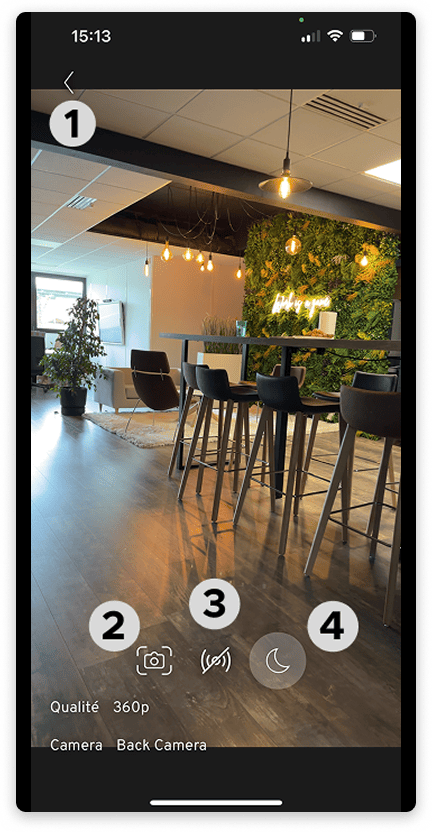
1-Stop camera sharing
2-Take a photo shared on the Vitres
3-Enable or disable the smartphone microphone
4-Mute or unmute la Vitre's sound
- When you enable your smartphone's microphone, the sound is transmitted to the Vitres. The Moon activates automatically to avoid feedback.
- When back near la Vitre, remember to disable the camera microphone and the Moon to resume a natural conversation.
Video Settings
- Quality: 360p, 720p, 1080p. Default is 360p to maintain fluidity when the network is limited.
- Camera: choose the lens to use according to your device, front, rear, or wide-angle.
✨ Missing information?
This Help Center evolves with your needs.Let us know which terms, features, or use cases should be clarified, or contact support for personalized assistance.
Bringing you closer to what matters. We are enriching this resource together.