Monitors
The Monitors setting allows you to manage your main screen ("Main") on la Vitre as well as add and adjust other screens ("Extended monitors").
You choose which screen serves as the main reference, how content is displayed, and how the screen reacts to presence.
You'll mainly use Monitors when:
- you install a new Vitre or change screens
- you add a second screen to better share what you're showing
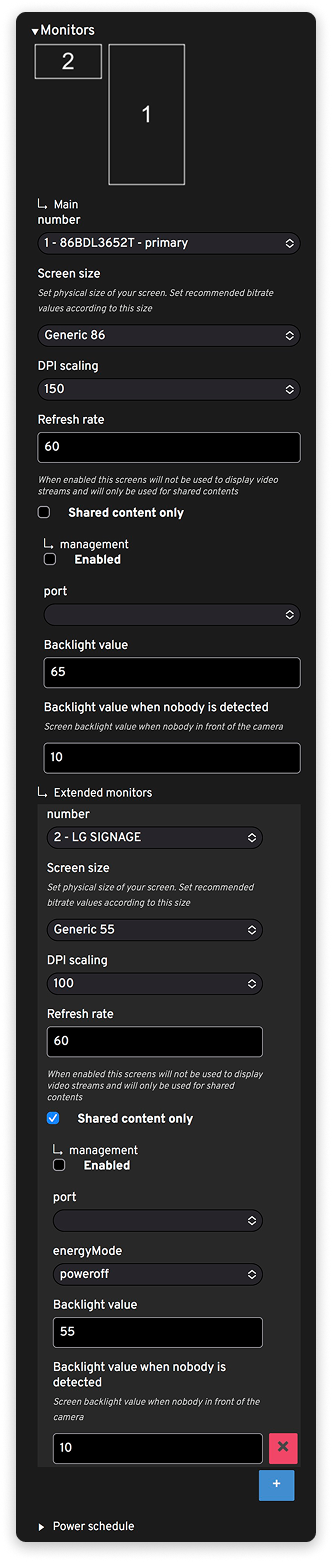
Choose the main screen
If you've added and configured your secondary screens in Windows (see our page Configure a second screen ), the other screens are detected and positioned according to the Windows configuration in the advanced settings.
- You decide on which screen you want to see the interface, faces, and eye contact.
- In a room with two screens, for example, you can keep the touch Vitre near you and reserve a second screen for the audience or to project shared content.
Adjust size and readability
For each screen, when you choose its size in "Screen size", the other settings update with default but adjusted values. You can adjust if needed:
- the screen size in the dropdown list
- the display scale (DPI scaling) to adjust the QR code size and other displayed elements
- the refresh rate
Use a screen dedicated to shared content
The "Shared content only" option allows you to reserve a screen for shared content.
- The Vitre interface stays on the main screen, with faces, presence, and knocks.
- The second screen displays only documents, videos, or shared windows.
This is useful when you're welcoming people to the room and want to clearly separate human interactions from displayed content.
Light and energy
You can also adjust the "Backlight value" of each screen, as well as the brightness when no one is detected: when the room empties, screens dim to save energy.
These settings follow the rhythm of presence in front of the Vitre and prevent a screen from staying fully on with no one facing it.
Power Schedule
Control the screen to which la Vitre is connected: turn the screen on and off at predefined times. A USB-RS232 cable is required to send commands from the PC and know if the screen is on or off. This feature is under development; it's not the final version yet.
✨ Missing information?
This Help Center evolves with your needs.Let us know which terms, features, or use cases should be clarified, or contact support for personalized assistance.
Bringing you closer to what matters. We are enriching this resource together.