Invite and manage members
✨ The Users screen shows who belongs to the team and what each person can do. This is where you invite newcomers, adjust their roles, and remove access for someone who leaves.
Every team member can use the companion. Only those with a role that opens the portal, such as Administrator, see the admin portal.
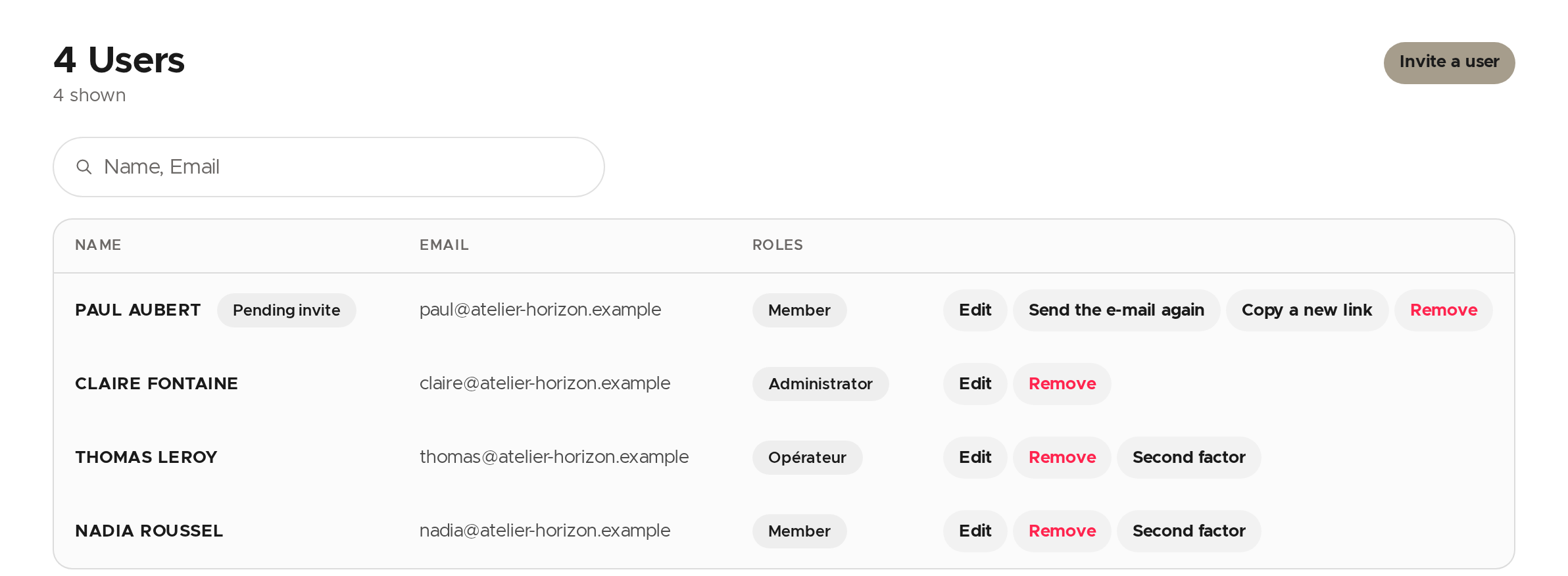
Invite someone
- Click Invite a user.
- Enter their first name, last name and e‑mail address.
- Tick their roles. Member is always given, and Administrator opens the whole portal. The other roles, such as Opérateur here, are custom roles your team created: their description lists their rights.
- Click Add.
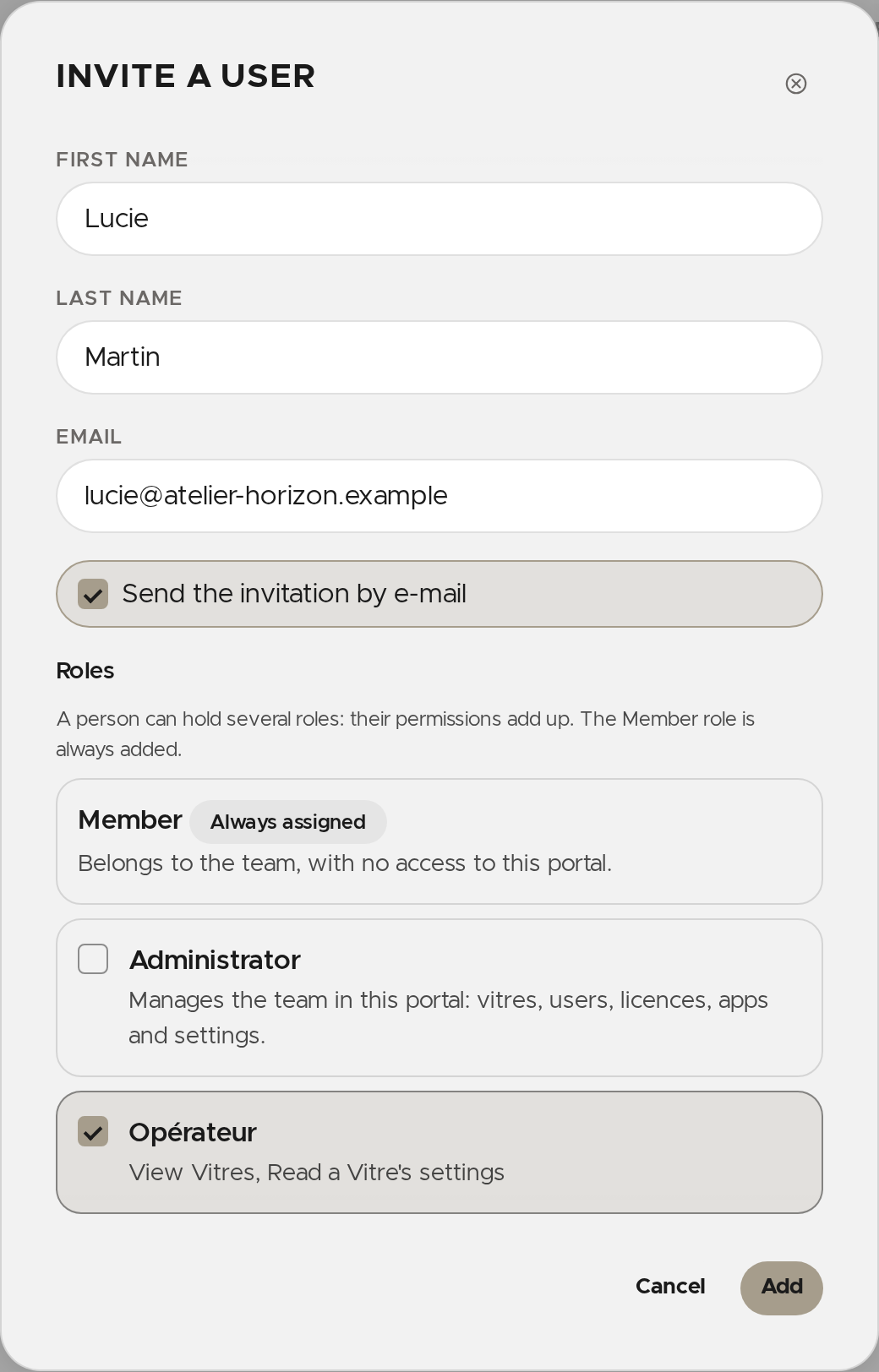
The person receives an invitation e‑mail and shows in the list as Pending invite until they first sign in.
💡 Untick Send the invitation by e-mail to get a link you pass on yourself (chat, text message).
The e‑mail did not arrive
On the invitation's row:
- Send the e-mail again sends the invitation again;
- Copy a new link creates a link to pass on. It works once, for the invited address only, and cancels the previous link.
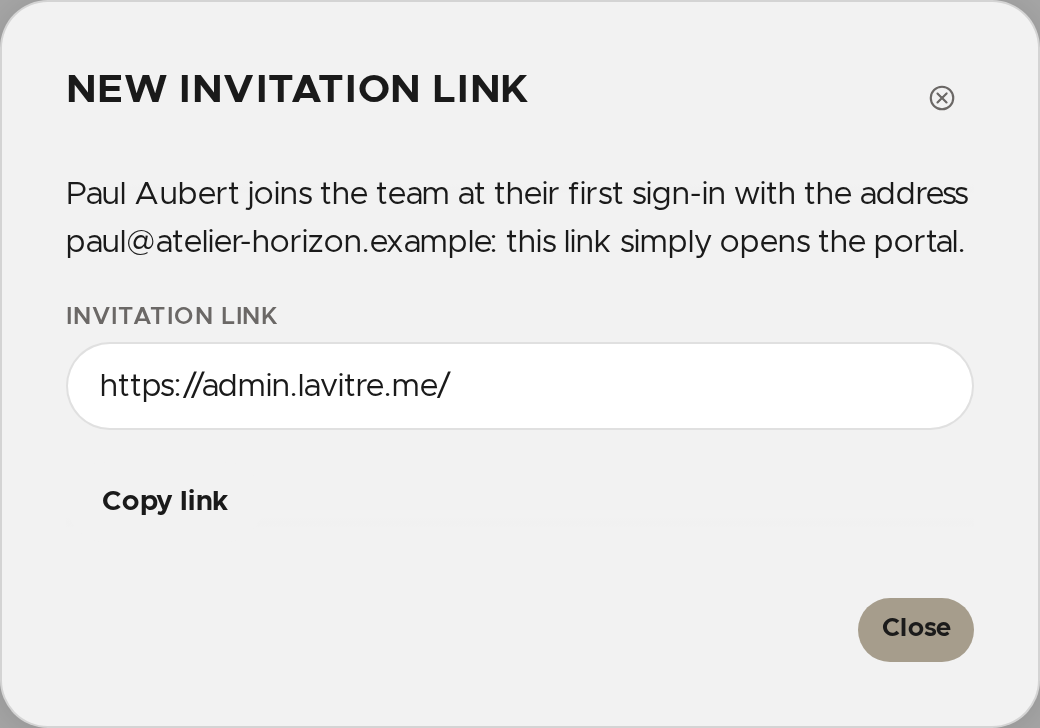
If the address belongs to your team's domain (SSO sign-in), the person joins the team when they first sign in: the link simply opens the portal.
Change a member's roles
- On their row, click Edit.
- Tick or untick their roles. A person can hold several: their permissions add up.
- Click Save.
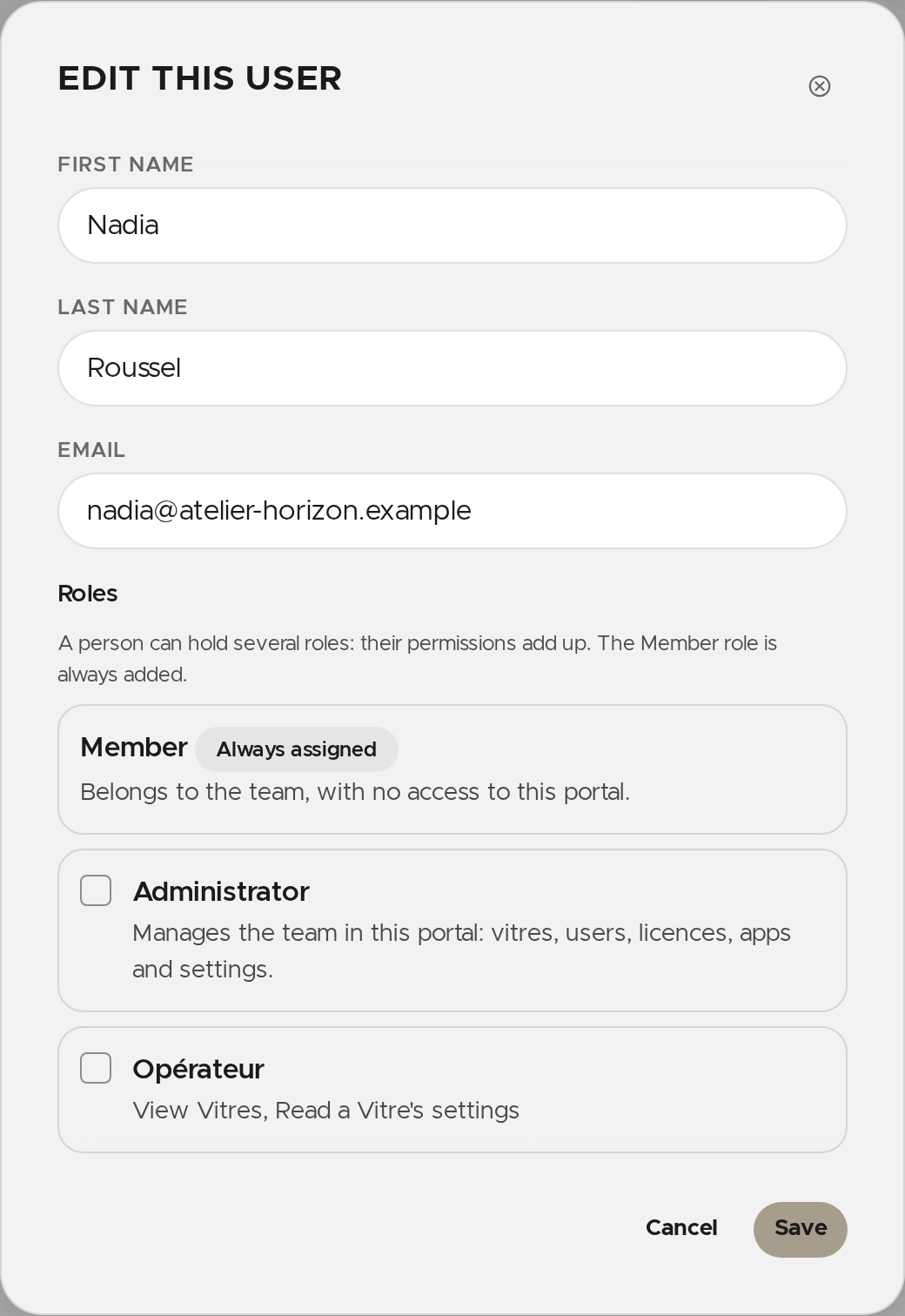
Custom roles are created and changed in Team settings → Roles.
Remove a member
Click Remove on their row, then confirm. The person no longer has access to the team, in the companion or in the portal. Removing a pending invitation cancels it.
A member lost their phone
If your team requires a second factor (a code from an authenticator app), a member without their phone or recovery codes can no longer sign in.
- On their row, click Second factor.
- Click Reset second factor.
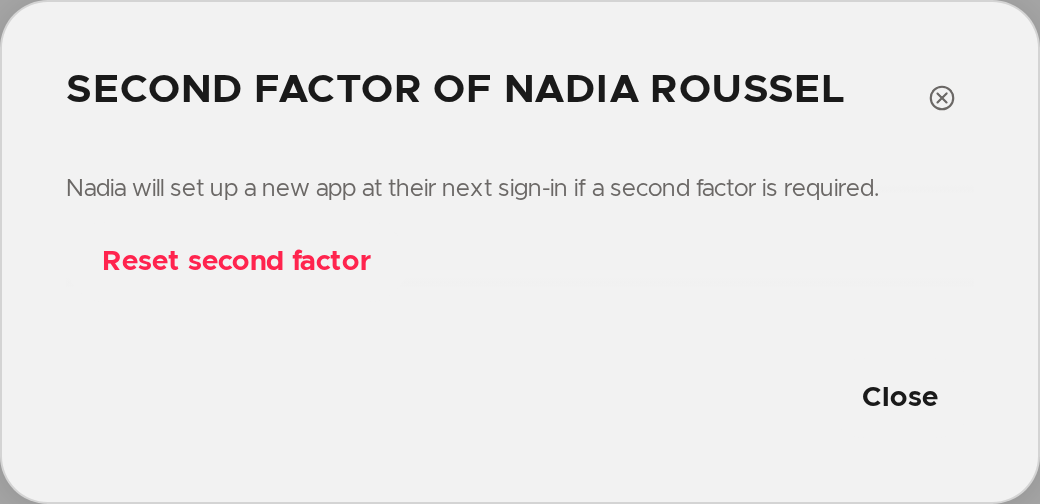
At their next sign-in, they set up a new app.
✨ Missing information?
This Help Center evolves with your needs.Let us know which terms, features, or use cases should be clarified, or contact support for personalized assistance.
Bringing you closer to what matters. We are enriching this resource together.