Recorder
✨ Recorder is an optional app that lets you record a session performed on la Vitre locally (video + audio).
Recordings are stored on la Vitre’s PC, and can then be viewed and downloaded.If Recorder isn’t available on your la Vitre, ask your admin team to enable it.
Enable Recorder (administration)
Recorder is enabled from the admin portal:
- Admin portal → Advanced parameters → Apps → Recorder
In this section:
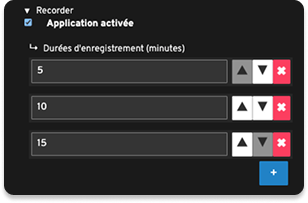
- Check “Application enabled”, then save the changes.
- Configure the suggested durations (default: 5, 10, and 15 minutes).
- You can customize these durations, add new ones, or remove some.
- These are the durations that will be displayed on la Vitre, which users can select.
- Note: the longer the duration, the larger the file, and the longer the download may take.
- Save the changes. Once enabled, a “Recorder” icon appears on la Vitre.
Start a recording (on la Vitre)
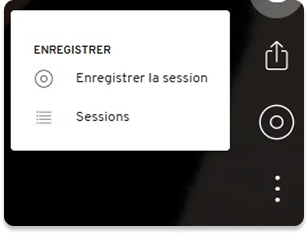
Open the Recorder app on la Vitre by tapping the two-circles icon.

Select “Record the session”, then the desired duration (durations configured on the admin side).

Start the recording.
During the recording
A yellow frame appears all around the screen, and the Recorder icon dot turns red.
A notification on all la Vitres in the same space indicates that a recording is in progress.


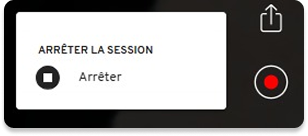
The recording stops when the selected duration ends. You can also stop it manually by tapping the Recorder icon again.
What is recorded
- The video feed.
- Audio.
- The recording is local (stored on la Vitre’s PC).
View and retrieve recordings
On la Vitre
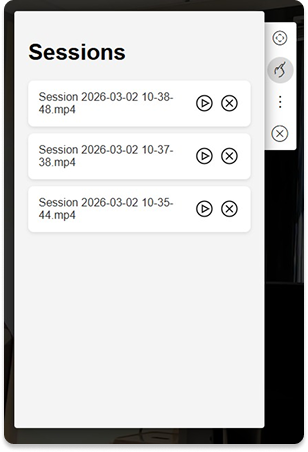
View recordings directly by displaying the list of sessions.
Select “Sessions”: all recordings will appear in a window on la Vitre. It has a white label indicating that this window is visible only on your la Vitre.
In the Companion
The “Sessions” window must be open on la Vitre to access the list of recordings in the Companion.
In the “Sessions” row, click the three dots to choose the session to play.
A new row appears in the Companion with the selected recording.
Click the three dots at the end of the row to rename if needed, then download the session to your device in MP4 format.
The video below shows these steps from the Companion on a smartphone.
ScreenRecording_03-02-2026_11-34-52_1_1.mp4
Best practices
- Inform participants that a recording is in progress.
- There is no limit on the number of recordings or their validity period.
- The limit is the available storage size on la Vitre’s PC.
- Deleting sessions once they’ve been downloaded helps free up storage.
- Use explicit names in the Companion, for example:
- Fitting – Client X – 2026-03-02
- Prototype – iteration 3 – workshop
- Speaker training – session 1
Common use cases
- Fitting / fashion: capture a remote fitting to compare multiple options and validate choices.
- Design / prototype: record a manipulation and feedback session while creating a prototype.
- Coaching / public speaking: film a speaker training, a pitch rehearsal, or a simulation for debrief.
- Support / diagnosis: keep a trace of a demo, a configuration, or an observed incident.
✨ Missing information?
This Help Center grows with your needs.Let us know which terms, features, or use cases should be clarified, or contact support for personalized help.
Bringing you closer to what matters. We’re enriching this resource together.