Find and monitor your Vitres
✨ The Vitres screen lists every Vitre of the team and shows which ones are online. Clicking a Vitre opens its page: its state, the points to check, remote actions and its settings.
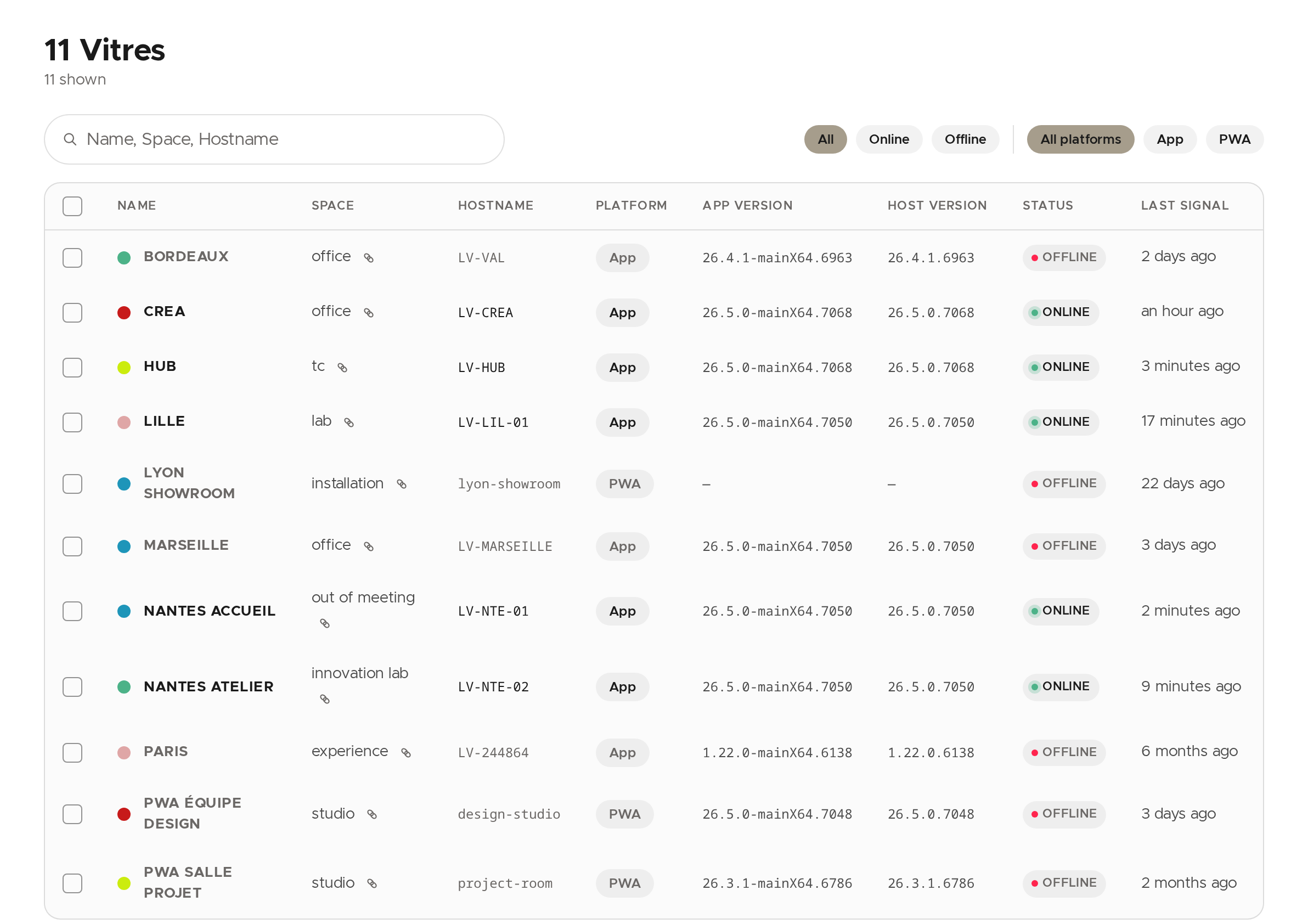
Find a Vitre
- Type part of the name, the space or the hostname in the search bar.
- Narrow the list with Online or Offline. The platform buttons (App, PWA) appear when the team has Vitres on several platforms.
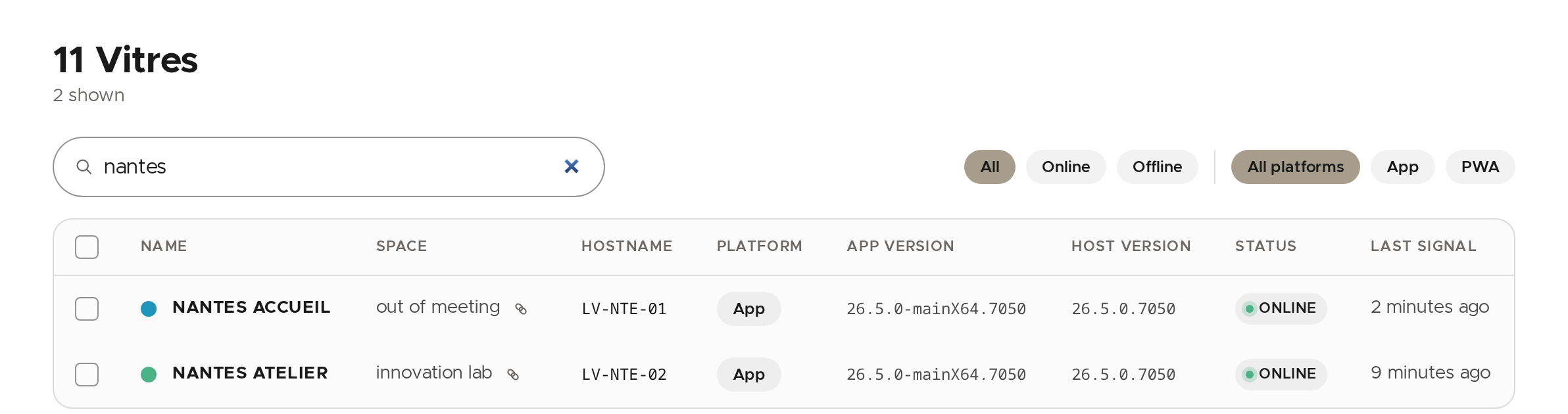
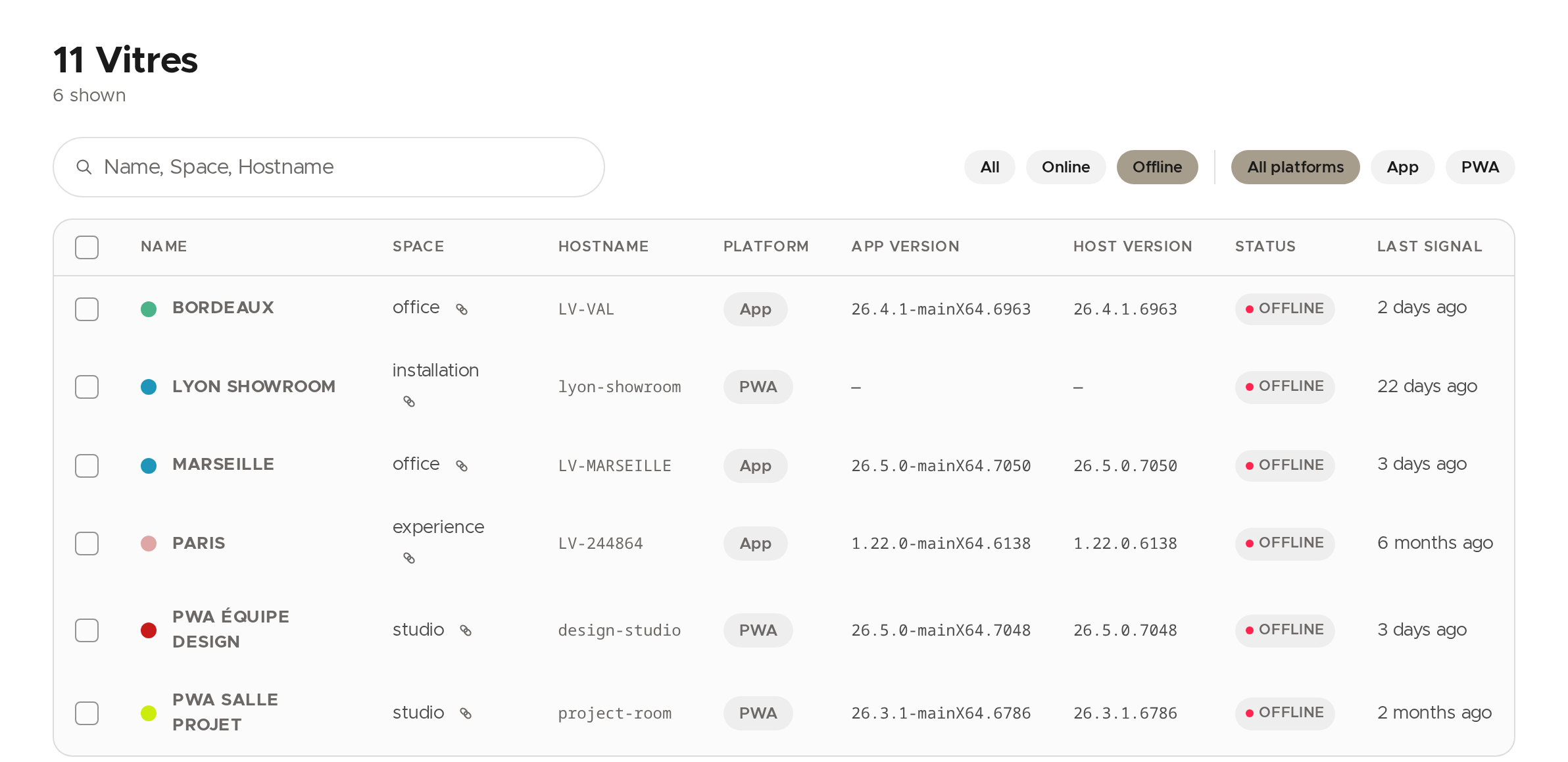
A Vitre is Online when it is connected to the service and its last signal is recent. The Last signal column tells when the service last heard from it.
Invite someone into a Vitre's space
The link icon next to the space, in the list and under the Vitre's name, copies that space's guest link. Someone outside the team opens it in their browser to show up in the space; the space's members accept them or not. If the browser refuses the copy, the message shows the link so you can copy it yourself.
💡 Tick several Vitres to Reload or Force Reinstall them in one go. Each action asks for confirmation.
Understand a Vitre's state
Click the Vitre's name. Under the title, its state is spelled out: Connected to the service, offline for some time, or never connected.
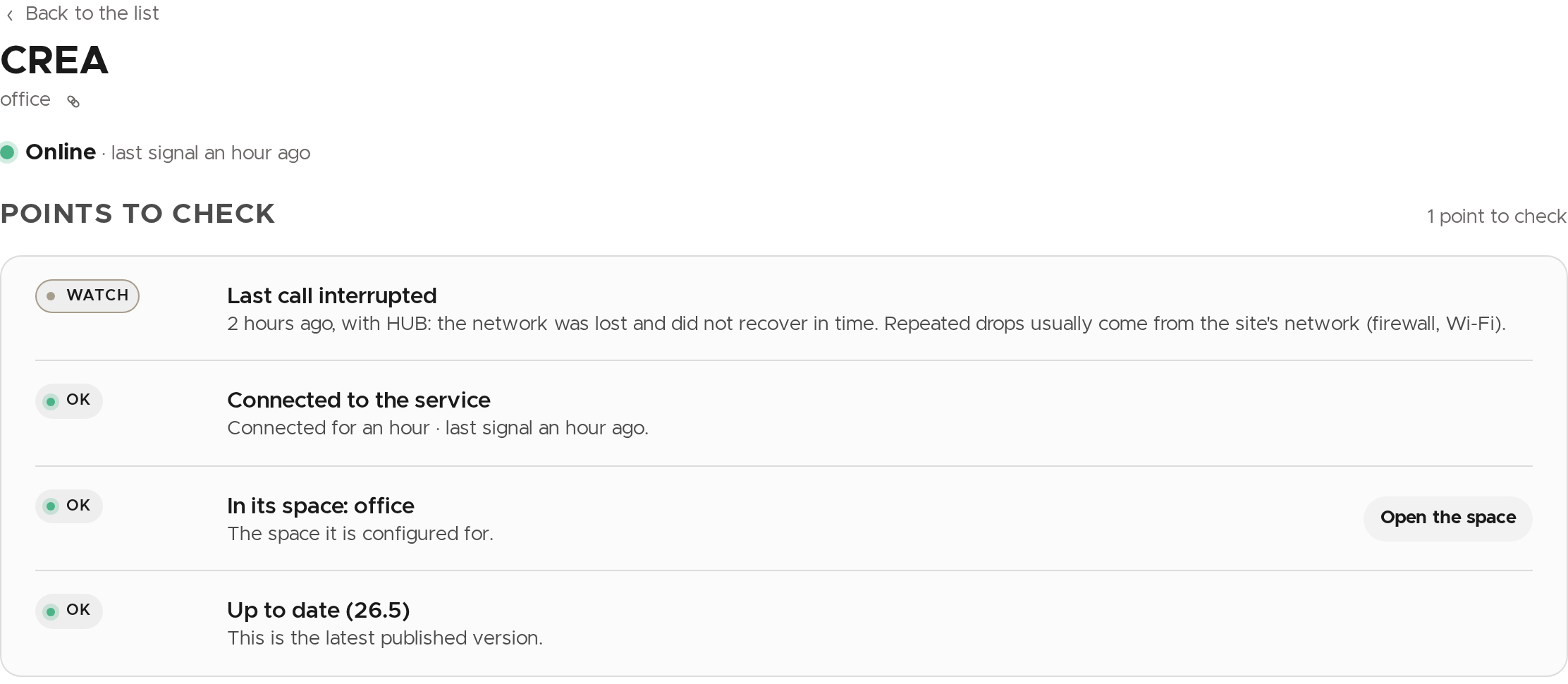
Points to check lists, point by point, what deserves a look: the connection, the space the Vitre is in, its version and how its last call ended. Each point has a level (OK, to watch, problem) and a sentence saying what to do.
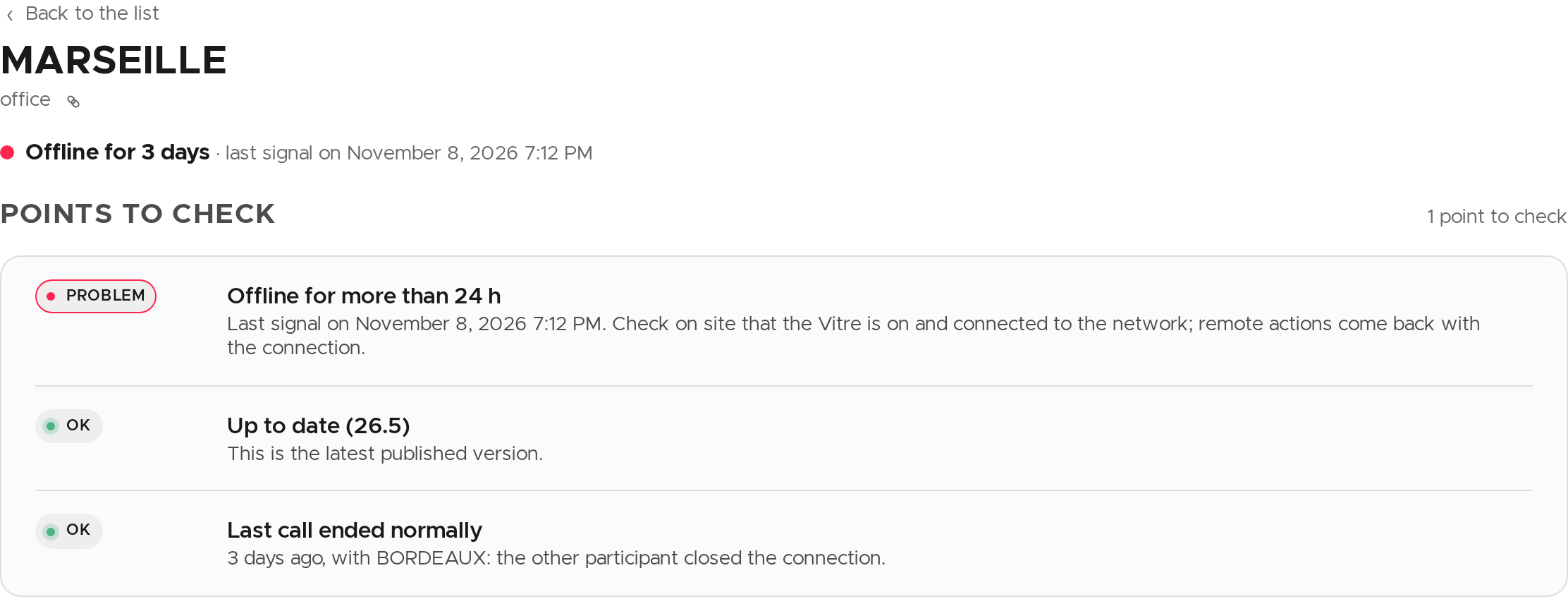
For example, a Vitre offline for more than 24 h needs a check on site: is it on and connected to the network? When a point is fixed elsewhere, a button leads straight there, for example Open the space.
Send a remote action
In Remote actions, the Common actions act on a device in service: Reload, Reboot, Save Camera focus, and the Volume setting.
- Click the action: the button turns red and asks for confirmation.
- Click a second time within 3 seconds. Without a second click, the action is cancelled.
- For the volume, move the slider (0 to 100), click Send, then confirm.
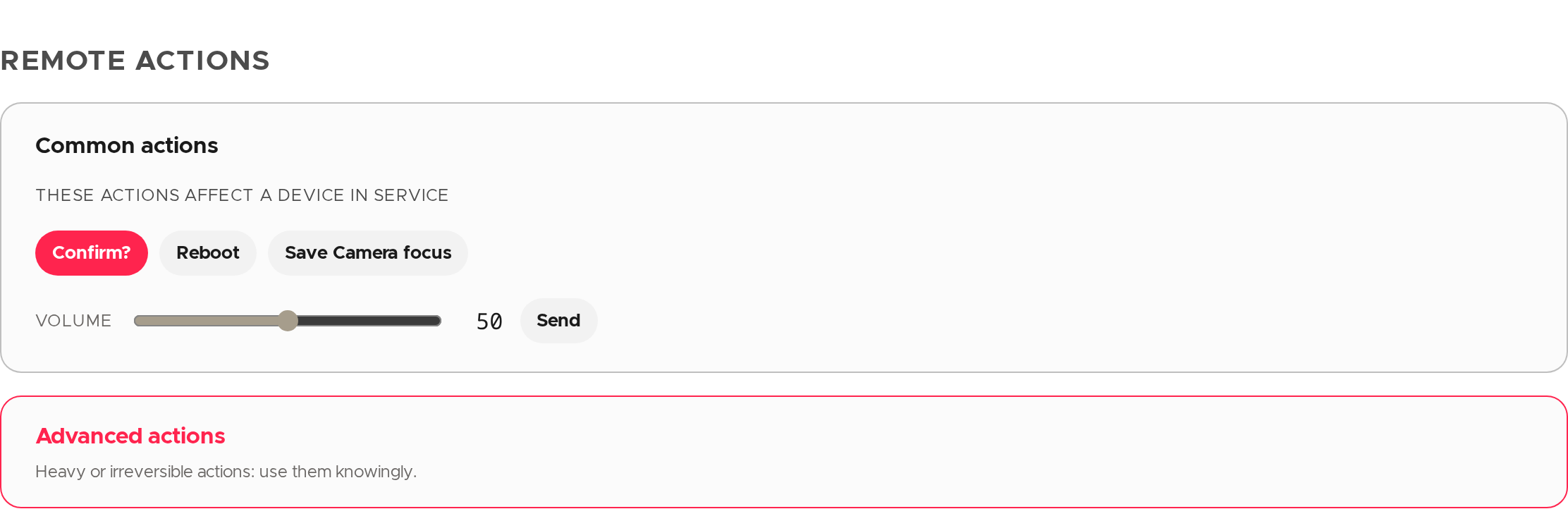
The buttons only work while the Vitre is connected; otherwise the page says Not connected. Rebooting or reinstalling interrupts a meeting in progress: pick the right moment. Force Reinstall is under Advanced actions.
Rename a Vitre or change its space
- In Settings, open Identity and connection.
- Edit Name or Space.
- Click Save in the bar that appears. Cancel drops the changes.
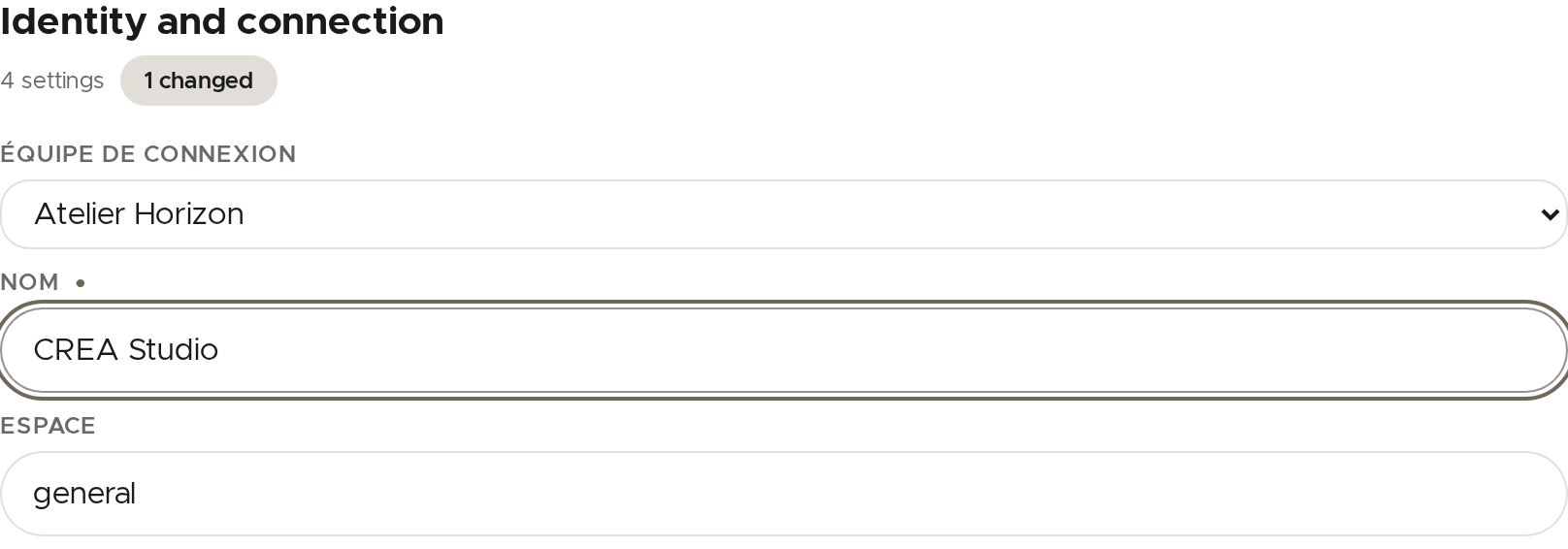
A space name is saved in lower case, without leading or trailing spaces, at most 64 characters, and without / \ ? # %.
💡 If you change the connection team, the server only accepts teams you administer. The other settings are still saved, and the page tells you so.
✨ Missing information?
This Help Center evolves with your needs.Let us know which terms, features, or use cases should be clarified, or contact support for personalized assistance.
Bringing you closer to what matters. We are enriching this resource together.