Update your billing details
✨ The Billing screen holds the team's billing details: the company name, its address and the people to contact. Use it to fix an address or add a contact.
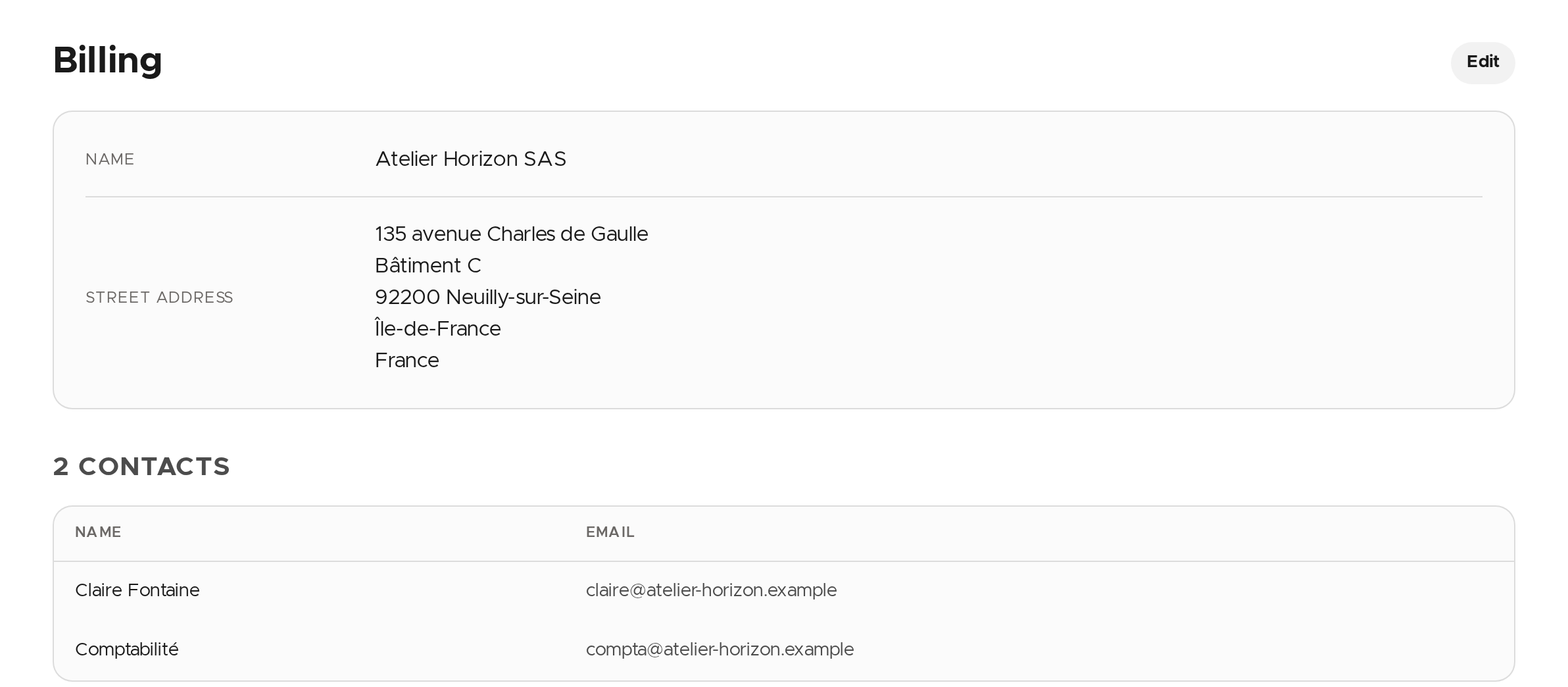
Edit the address
- Click Edit.
- Fix the fields. Name, street address, postal code, city and country are required; the address line 2, region, VAT number and notes are optional.
- Click Save. Cancel closes the window without saving anything.
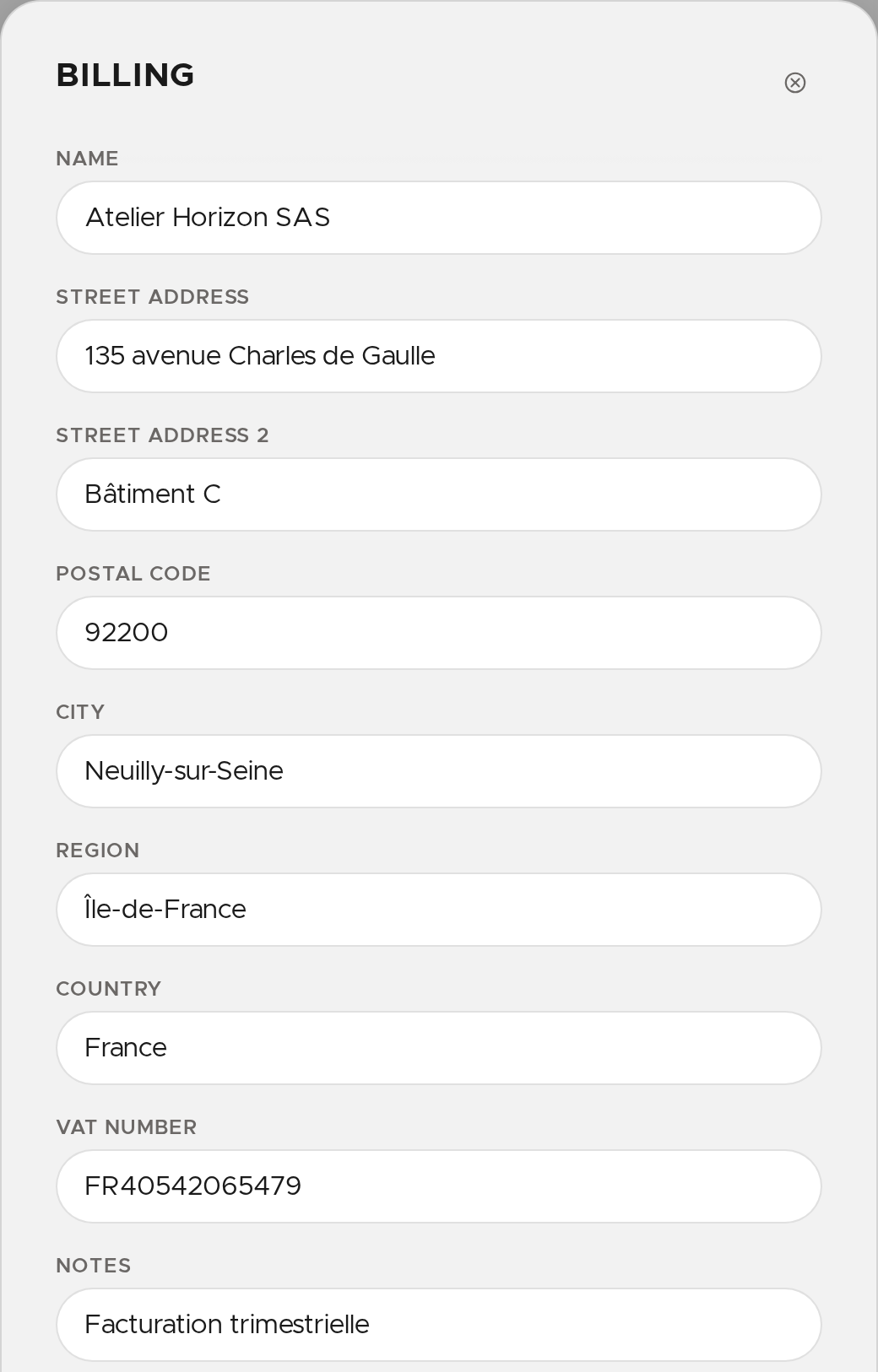
If a required field is empty, the window stays open and flags it.
Add or remove a contact
In the same window, below the address fields, the list of contacts:
- Click Add to add a row, then enter the name and e‑mail address.
- To remove a contact, use the button at the end of its row.
- Click Save.
A row left completely empty is not saved.
✨ Missing information?
This Help Center evolves with your needs.Let us know which terms, features, or use cases should be clarified, or contact support for personalized assistance.
Bringing you closer to what matters. We are enriching this resource together.