Configure a second screen
✨ With a second screen, you share your contents without hiding faces. You keep the conversation natural and gestures free.
Useful in client meetings, training, workshops, or remote assistance: simply drag and drop a share from the Companion, then place it on the second screen.
Cable connection
- If the second screen is not touch-enabled, connect an HDMI cable from la Vitre's PC to the second screen's HDMI input. Plug in and turn on the screen.
- If the second screen is touch-enabled (recommended)
- Connect an HDMI cable from la Vitre's PC to the screen.
- Plug in the touch USB cable (or "Touch") from the secondary screen to la Vitre's PC.
- Cable connectors differ depending on screen models: USB-B (Touch) → USB-A from the PC, or USB-C → USB-C if the screen supports touch feedback via USB-C.
- Use good quality adapters if needed.
- Quick checks
- The second screen displays an image when la Vitre is turned on.
-
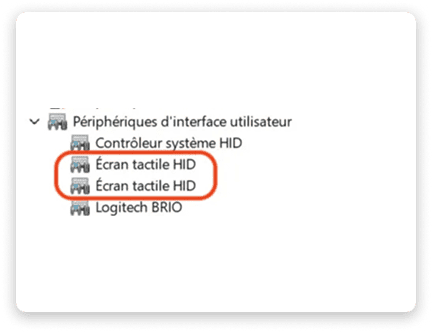
In la Vitre PC's "Device Manager", an additional HID entry appears when the touch cable is connected.
Windows settings
-
Layout and display mode
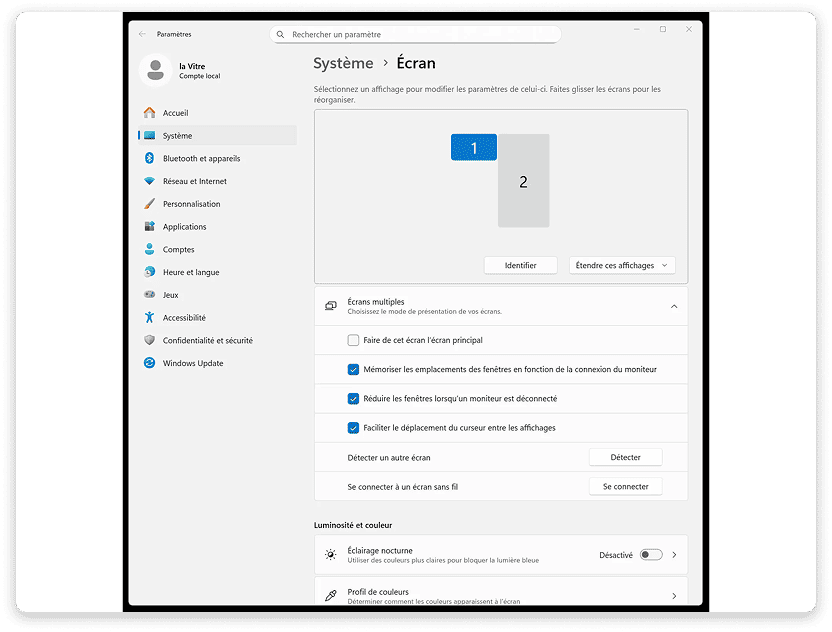
- Go to settings then "System > Display"
- In "Multiple displays", choose "Extend these displays" which will also extend touch usage. "Duplicate" mode limits touch to a single monitor.
-
Drag the screens in the diagram to reflect their actual on-site position.
-
Assign touch to each screen
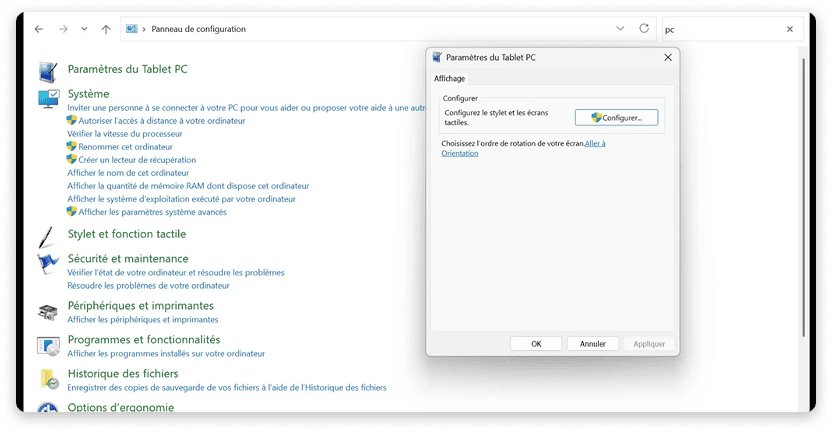
- Open the "Control Panel" then go to "Tablet PC Settings".
- Click "Setup", choose "Touch input", then follow the instructions by touching the indicated screen. Repeat for the other screen.
-
This step associates each touch layer with the correct monitor in "Extend" mode.
-
Drivers and detection
- Install or update your screen's touch driver if necessary.
- If touch doesn't appear: go to "Device Manager > Human Interface Devices (HID)", disable then re-enable the touch device.
Configuration in la Vitre administration portal
-
Add and configure the second screen
- Log in to the administration portal, then open the advanced settings for the relevant la Vitre.
- In "Monitors", the second screen is detected and positioned according to the Windows configuration.
- Enter its size in the dropdown list.
- Set the second screen as default for document sharing.
- Save, then restart la Vitre application.
-
Final test
- The second screen no longer displays video stream from la Vitre.
- Launch a document share from the Companion. Check that it displays on la Vitre, then drag it to the second screen.
- Test touch on each screen to confirm.
Quick assistance
- No image on the second screen
- Check the power supply and the correct HDMI source on the screen.
- Try another HDMI cable or another PC port if available.
- In Windows display settings, check that the mode is set to "Extend these displays".
- Touch doesn't work on the second screen or is on the wrong screen
- Connect the dedicated USB cable for touch between the screen and the PC. HDMI doesn't carry touch on most screens.
- Repeat the operations from the point above "Assign touch to each screen".
- Touch only works by swapping primary ↔ secondary
- Stay in "Extend" mode and redo the touch assignment. Avoid "Duplicate", which limits touch to a single monitor.
- USB-C connection: image OK but no touch
- Not all USB-C ports carry touch feedback. Use the touch USB-B → USB-A/C cable supplied with the screen.
- If ports are limited, use a good quality powered USB hub.
- After modifications, la Vitre application doesn't detect the second screen
- Restart la Vitre application from the menu, then check the settings in the administration portal and the default sharing screen. Restart Windows if needed.
- Reset
- Unplug and reconnect the touch cable, then restart the Tablet PC "Setup" wizard. Restart the PC if necessary.
✨ Missing information?
This Help Center evolves with your needs.Let us know which terms, features, or use cases should be clarified, or contact support for personalized assistance.
Bringing you closer to what matters. We are enriching this resource together.