Webhook for messaging apps
Receive real-time notifications in Slack, Google Chat, or Microsoft Teams for each la Vitre.
You see the knocks arrive in your channel and you are notified of access requests, in addition to the alert on la Vitre.
Convenient if you are not in front of la Vitre: you are notified and can join the conversation.
How it works
Create a webhook in your platform, copy its URL, and paste it into the advanced settings of the relevant la Vitre.
This configuration is reserved for administrators. The receiving channels can remain accessible to the entire team.
Google Chat
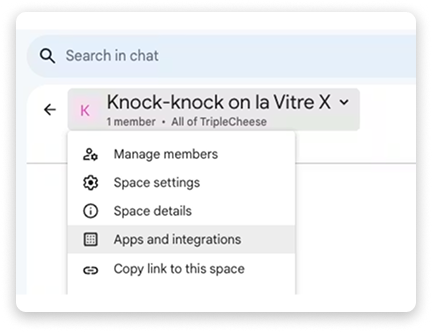
- Open Google Chat and the space dedicated to notifications.
- To the right of the space title, open "Apps & integrations".
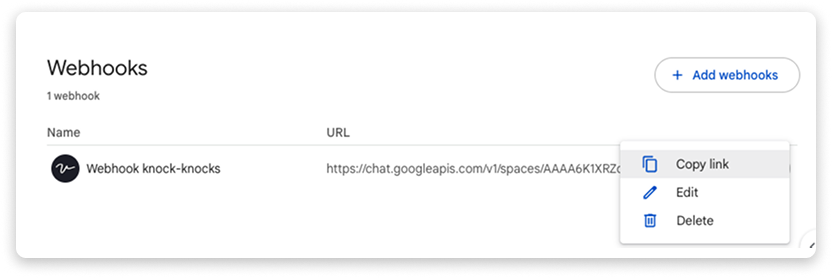
- Click on "+ Add webhooks".
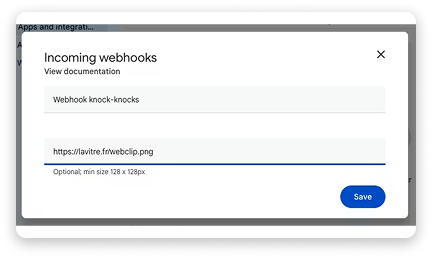
- Give it a name, for example "Knocks Webhook".
- Enter "Avatar URL" with la Vitre logo available at this address.
- Save.
- Copy the webhook URL from the "three dots" menu.

Find more information on the Google Workspace Help Center page
Microsoft Teams (workflows)
Recommended method.
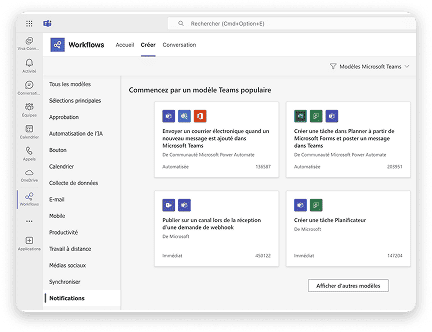
- Open "Workflows" from the "three dots" menu.
- In "All templates", open "Notifications".
- Choose "Post to a channel when a webhook request is received".
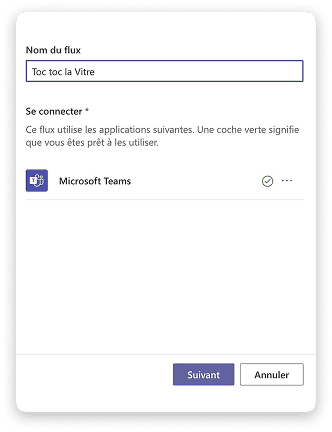
- Name the flow, then "Next".
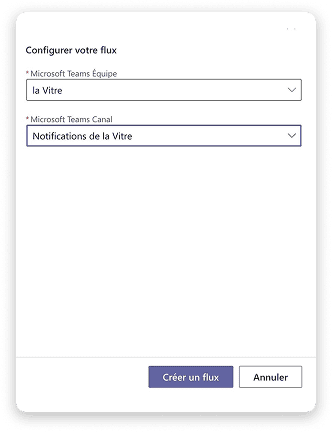
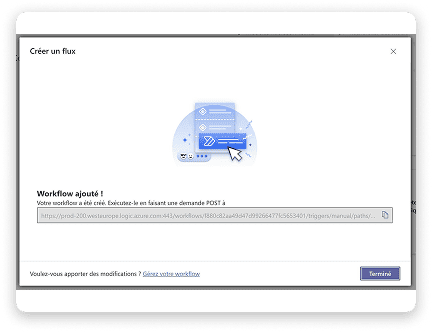
- Select the team and channel, preferably a channel dedicated to notifications. Create the flow.
- Copy the webhook URL and paste it into the advanced settings of la Vitre.
Find more information on the Microsoft Teams Help Center page.
Microsoft Teams (Microsoft 365 connectors)
Note: Microsoft 365 connectors are becoming obsolete (September 2024). Creating new connectors will soon be blocked. Prefer Teams workflows.
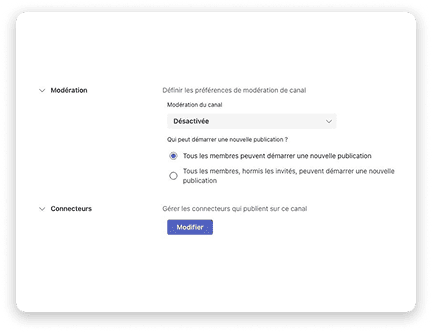
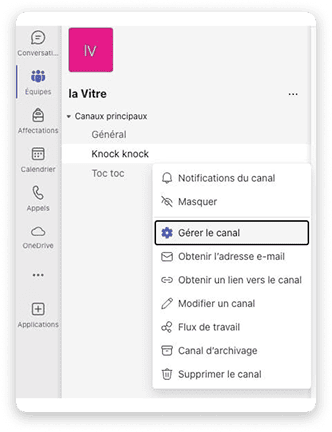
- Open the desired channel, "three dots" menu, then "Manage channel".
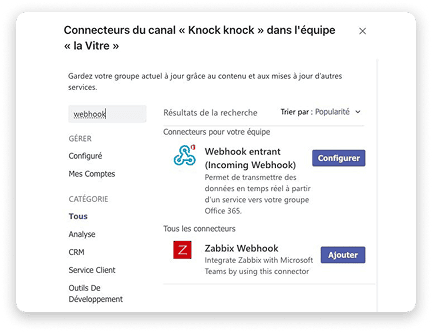
- In "Connectors", click "Edit".
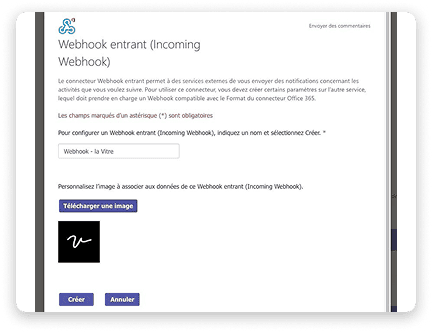
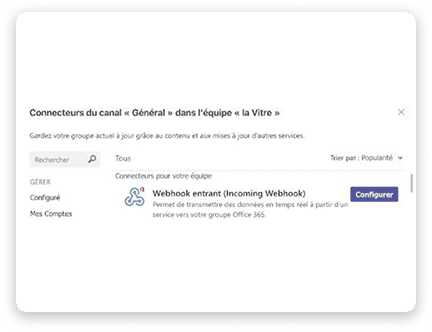
- In the list, choose "Incoming Webhook", then "Add" or "Configure".
- Name the webhook, for example "Webhook - la Vitre". The logo is available here. Click "Create".
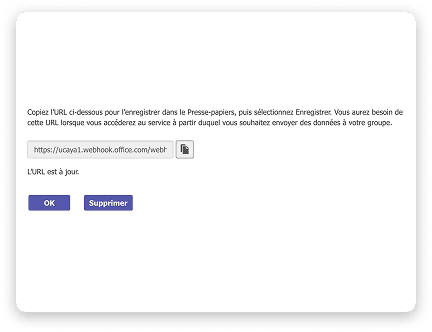
- Copy the webhook URL and paste it into the advanced settings of la Vitre.
Find more information on the Microsoft Documentation page.
Slack
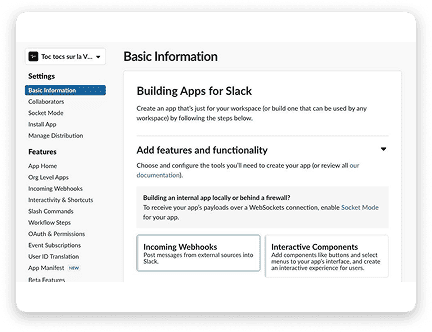
- Log in to Slack and open <https://api.slack.com>.
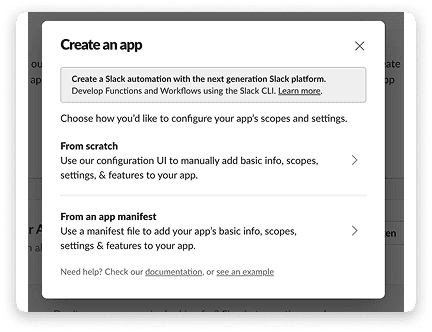
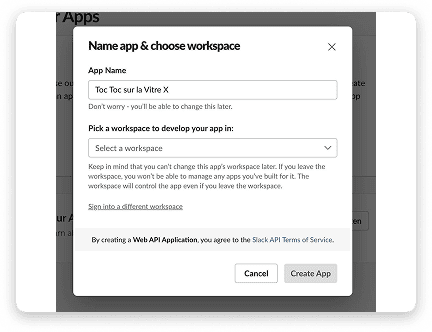
- "Create an Application" > "From scratch". Name the application and choose the workspace.
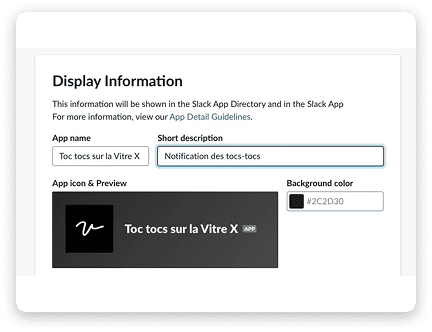
- In "Display Information", customize if needed. La Vitre logo at this address.
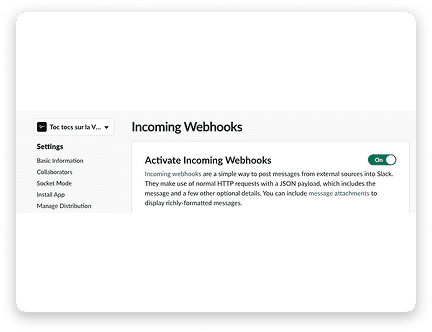
- Open "Incoming Webhooks" and activate them.
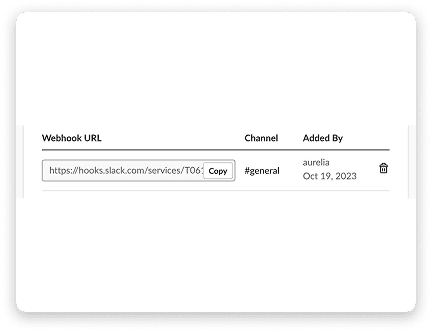
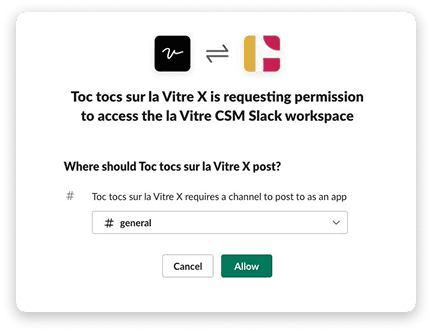
- "Add New Webhook to Workspace" > choose the dedicated channel > "Allow".
- Copy the webhook URL at the bottom of the page and paste it into the advanced settings of la Vitre.
Find more information on the Slack Help Center page.
Add the webhook URL in the advanced settings of la Vitre
- Open admin.lavitre.me and log in as administrator.
- Select the la Vitre to configure and open its advanced settings.
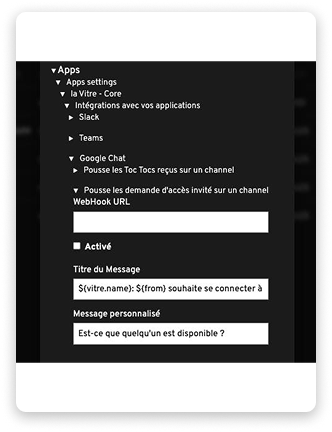
- Open "Apps > Apps settings > la Vitre Core > Integrations with your applications".
- Select the platform, then the notification (knock or access requests).
- Paste the webhook URL. Check "Enabled". The default message is ready. Customize the message if necessary.
-
Save the changes.
✨ Missing information?
This Help Center evolves with your needs.Let us know which terms, features, or use cases should be clarified, or contact support for personalized assistance.
Bringing you closer to what matters. We are enriching this resource together.