Deployment, kiosk mode and updates
Deployment
Deploying la Vitre begins with downloading and running the installer. Access the following link https://lavitre.me/app.
Command line execution
You can launch la Vitre installer from the command line, including in silent mode.
Supported parameters:
/S: silent installation


/licensekey: la Vitre activation key (optional).
Example: lavitre.exe /allusers /S /licensekey=000-000-000
Kiosk Mode
In certain situations, you need to maintain control over a device dedicated to connecting people. Windows kiosk mode locks down the device usage. It protects data and controls access.
To offer a "tailor-made" experience, you can enable and configure this mode. We provide a reference PowerShell script that handles:
- Creating a dedicated user account
- Configuring the firewall
- Installing la Vitre for this account
- Automatic login to Windows
Recommended starting point:
- Script kioskInstall.ps1
- Assigned account configuration details: lavitreAssignedAccess.xml
Since version 1.22.0-mainX64.6158, a simplified kiosk mode option is available in the advanced settings; you will find its complete description on the dedicated page Simplified kiosk mode.
Updates
By default, Vitres follow the "Main" update channel. When a version goes into production, la Vitre detects it, downloads the update in the background, then installs it overnight. You keep your presence. Without interruption.
1. Update channel
- Main: la Vitre production
- Custom: custom internal channel
2. Custom channel
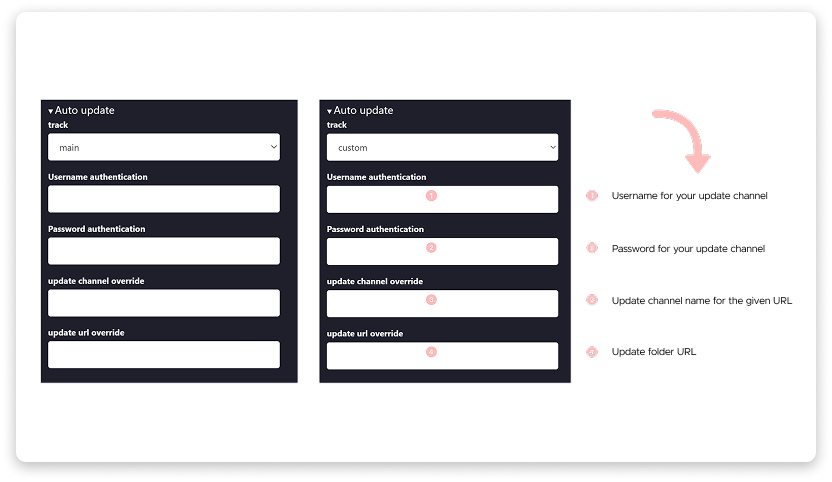
3. Silent update
You can automate silent updates. Use the PowerShell script lavitre-update.ps1 in a Windows scheduled task.
By default, the script reads your Vitre's local settings: Channel, Username, Password.
You can also specify another source: Url, Channel, Username, Password.
For example, select the "Custom" track in la Vitre without further specification to disable the default search.
PowerShell Script
Script: the script available on this page, should be saved with the name below.
lavitre-update.ps1
Execution parameters:
-force: forces the download-reboot: restarts the machine after installation-feed: URL of the update folder-channel: channel name-username: identifier for Basic authentication-password: password for Basic authentication
Example
- Standard update
powershell -file lavitre-update.ps1
- Forced standard update then restart
powershell -file lavitre-update.ps1-force-reboot
- Custom update
powershell -file lavitre-update.ps1-feed https://storage.lavit.re/releases/ -channel mainX64
Deploying an update server
The update server must be an HTTP server allowing the download of:
- .exe files of installation executables
- .yml files defining update channels
- An example for the "mainX64" channel
To make new versions available on your Update Server, you must:
- Download the latest .yml definition file: **https://storage.lavit.re/releases/mainX64.yml**
- Download the installation .exe file corresponding to the .yml (name of the .exe file in the .yml file): ex: **https://storage.lavit.re/releases/lavitre-1.1.7-mainX64.2244.exe**
- Store these files on the Update Server
✨ Missing information?
This Help Center evolves with your needs.Let us know which terms, features, or use cases should be clarified, or contact support for personalized assistance.
Bringing you closer to what matters. We are enriching this resource together.