Security parameters
The Security parameters section allows you to decide who can take control of la Vitre, what's visible on screen, and how confidentiality applies daily.
The goal is simple: keep the fluidity of exchanges while protecting people, content, and spaces.
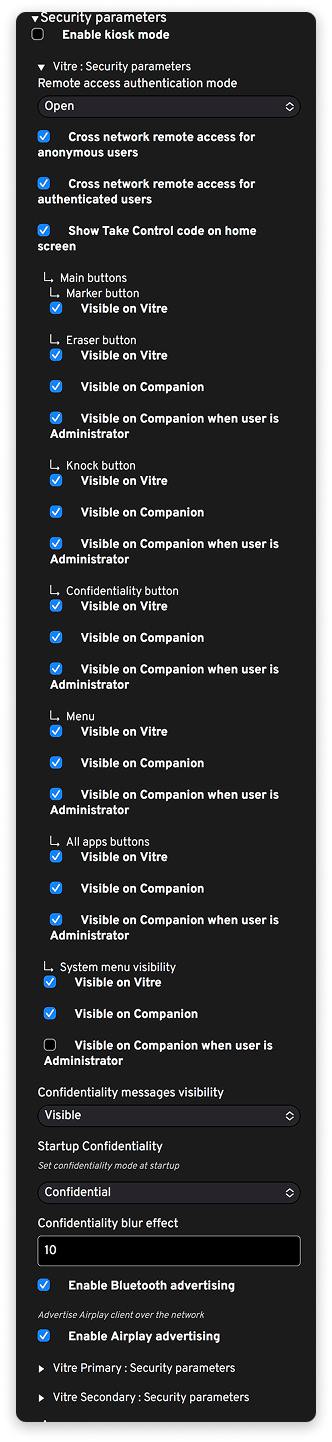
Enable or disable kiosk mode
Enable kiosk mode: This option prevents minimizing the la Vitre application window when it's open, to ensure a continuous display experience.
Warning: it doesn't replace full kiosk mode configured by PowerShell script available on this page in our help center Deployment, kiosk mode and updates.
Remote access authentication mode
This menu sets the requirement level for accessing and taking control of la Vitre ("Open" or "User Account").
- Open: anyone can scan the QR code and use Companion features.
- User Account: only users registered in advance by an administrator can access the Companion.
Choose a mode consistent with your internal policy:
- open or demo environments: more flexible mode;
- sensitive meeting rooms or spaces welcoming the public: more restrictive mode, with systematic authentication.
Manage "cross network" remote access
Two options control the ability to connect to la Vitre from a different network than the one it's connected to.
- Cross network remote access for anonymous users: allows remote access without prior identification. Anyone can scan the QR code, regardless of the network their device is connected to.
- Cross network remote access for authenticated users: allows remote access from a different network than la Vitre's only for people identified in advance by an administrator.
Display of take control code
Show Take Control code on home screen: when this option is enabled, la Vitre displays a control code to access the Companion, the QR code in the top right of the screen.
Visibility of main buttons
The following subsections control the presence of buttons on screen, both on la Vitre and on the Companion application, and sometimes only for administrators.
For each button, you'll find several checkboxes:
- Visible on Vitre: button visible on the main screen;
- Visible on Companion: button visible on the Companion application;
- Visible on Companion when user is Administrator: button visible only for users marked as administrators.
Marker button: controls the visibility of the button that allows writing or drawing on la Vitre with the marker.
Eraser button: manages the eraser button used to quickly erase what was written with the marker.
Knock button: controls the visibility of the little hand button that allows knocking on another Vitre. The knock-knock is the simple gesture that starts the encounter.
Confidentiality button: displays the Moon button that allows quickly switching to Shush or Confidential mode. In one gesture, you just mute the sound or blur the screen to protect what's audible or visible in the room.
Menu: manages the visibility of la Vitre's "three dots" menu. This is where you find, for example, access to volume, certain tools, or advanced features.
All apps buttons: controls access to the list of applications configured on your Vitre. It's important to note that volume management, video feedback display, translation, and space switching are Apps, so their buttons won't display if you disable this option.
System menu visibility: decides whether the system menu is present (advanced setting to restart the PC).
On-screen confidentiality
Confidentiality messages visibility: chooses whether messages related to confidentiality are visible or not. These messages remind everyone that you can't hear when la Vitre switches to Shush or Confidential mode.
Leaving these messages visible helps establish a clear culture: you know when the screen is more strongly protecting what's displayed, and why.
Startup Confidentiality: defines the confidentiality mode at la Vitre startup.
When the application is launched, la Vitre opens in an open, Shush, or Confidential mode: you can then exit this mode if you're present in front of the screen and your exchange begins.
Confidentiality blur effect: defines the blur intensity applied to the screen in confidential mode.
The higher the value, the harder it is for someone not standing very close to la Vitre to read what's displayed. You can thus choose the discretion level that suits your Vitre.
Enable Bluetooth advertising: allows la Vitre to announce its presence via Bluetooth. In practice, this allows certain compatible devices to more easily locate la Vitre nearby and thus connect more quickly to the Companion.
Enable Airplay advertising: allows la Vitre to present itself on the network as an AirPlay receiver. From a compatible device, your users see la Vitre appear as a screen to which they can project content.
Security parameters for Vitres in primary/secondary mode
At the bottom of the section, you'll find entries like:
- Vitre Primary: Security parameters
- Vitre Secondary: Security parameters
These subsections follow the same security principles, but adapted to each type of Vitre when your installation includes multiple Vitres in primary mode and others in secondary mode.
The idea is to let you specify, for each Vitre, what's visible, who can interact, and how confidentiality behaves.
✨ Missing information?
This Help Center evolves with your needs.Let us know which terms, features, or use cases should be clarified, or contact support for personalized assistance.
Bringing you closer to what matters. We are enriching this resource together.