The Audio Companion
✨ The Audio Companion (private audio mode) sends la Vitre's sound to your smartphone: the video stays on la Vitre, while you hear your contacts — and they hear you — through your phone.
Handy in an open space, in a noisy environment, or for a more discreet conversation.
Before you start
- A smartphone (Android or iOS) with a recent browser.
- The feature must be enabled by an administrator (la Vitre's advanced settings > Security parameters > "Allow audio companions").
- By default, the sound plays through the phone's speaker. We recommend connecting earbuds or headphones to your smartphone for a comfortable listening experience.
Step by step
- Put on your earbuds or headphones (recommended).
- On la Vitre, tap the "Headphones" icon (private audio) in the list of icons on the right.
- A QR code appears on la Vitre.
- Scan it with your smartphone: a page opens in your browser.
- Allow microphone access when prompted.
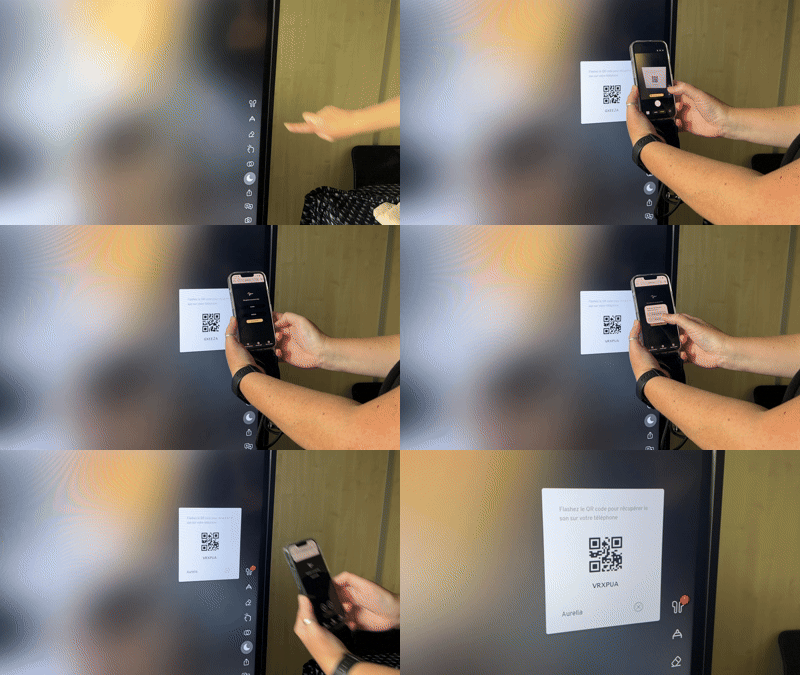
- la Vitre's audio is now sent to your smartphone. A red dot appears on the icon on la Vitre.
- To disconnect, tap "Leave" (quitter) in your browser, or tap the cross under the QR code on la Vitre.
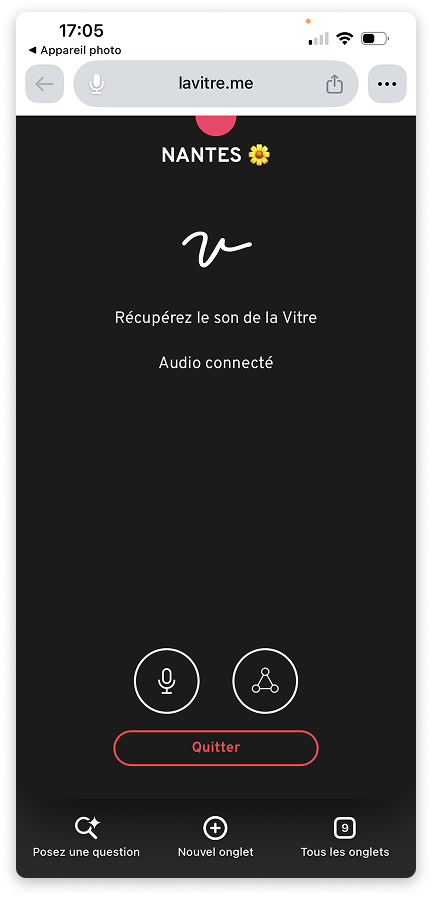
Smartphone interface view: an icon to mute your microphone on the left, and a "conference" icon on the right to also hear your colleagues on the same side, in your earbuds.
Good to know
- When you leave private audio mode, the sound automatically returns to la Vitre's speakers and microphone.
- The sound of shared videos plays through your earbuds too.
- You can use Bluetooth earbuds, AirPods, or any headphones connected to your phone.
✨ Missing information?
This Help Center evolves with your needs.Let us know which terms, features, or use cases should be clarified, or contact support for personalized assistance.
Bringing you closer to what matters. We are enriching this resource together.