Translation - Azure key
✨ Activate translation with Azure on la Vitre to better understand each other, see each other, and stay together, even when languages differ.
Find information on how to use translation on this page: Translation
Create the Azure service
- Log in to your Azure portal: portal.azure.com
- Click on "+ Create a resource"
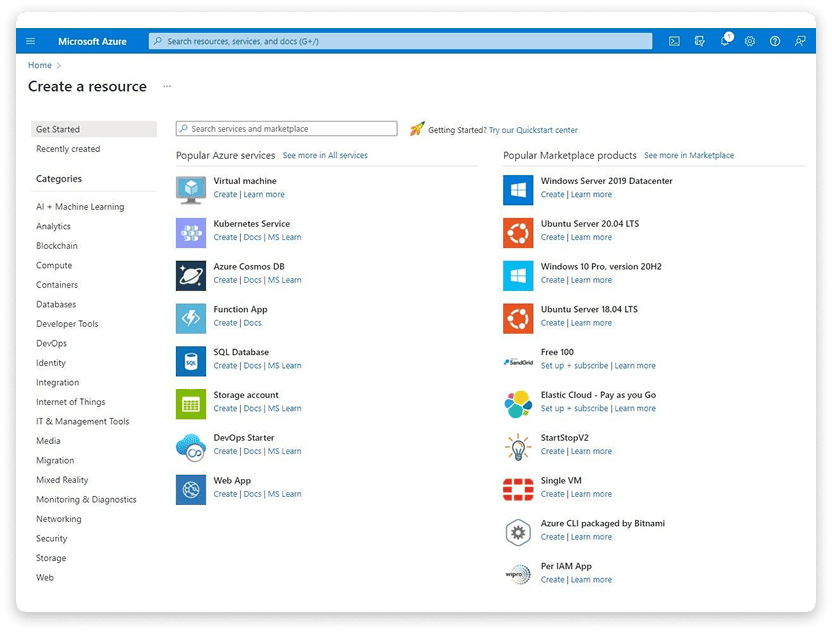
- Enter "Speech" in "Search services and marketplace"
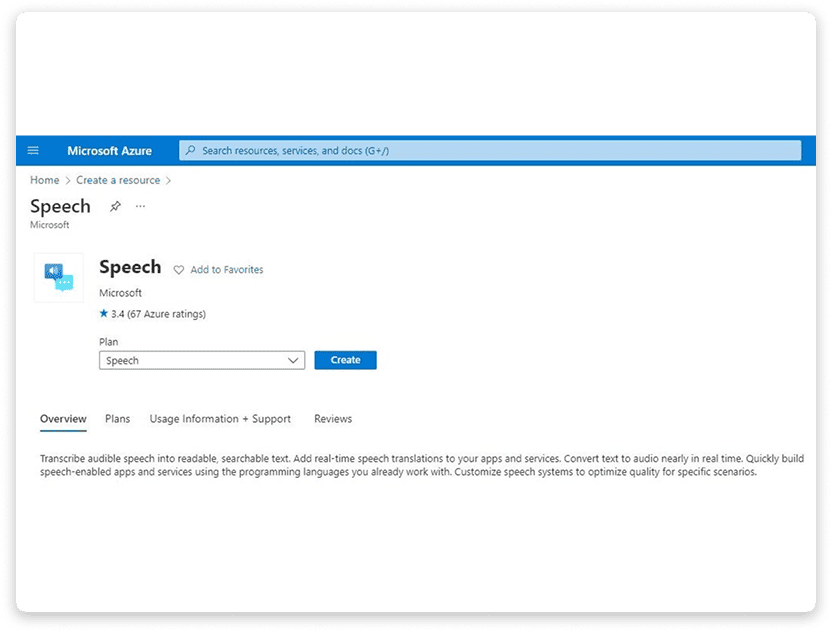
- Confirm with "Create"
- Fill in the service information and confirm the creation
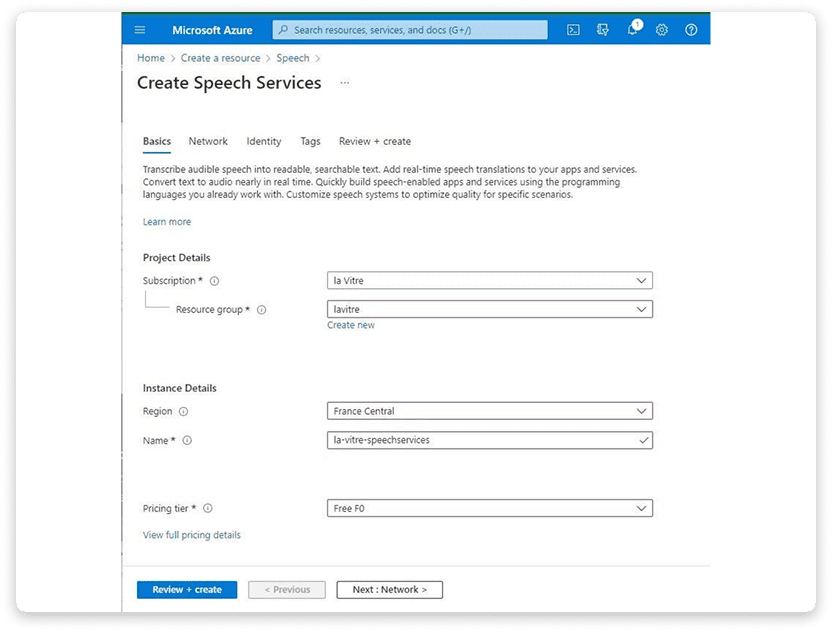
- Once created, open the resource with "Go to resource"
Retrieve the Azure translation keys
- Go back to portal.azure.com
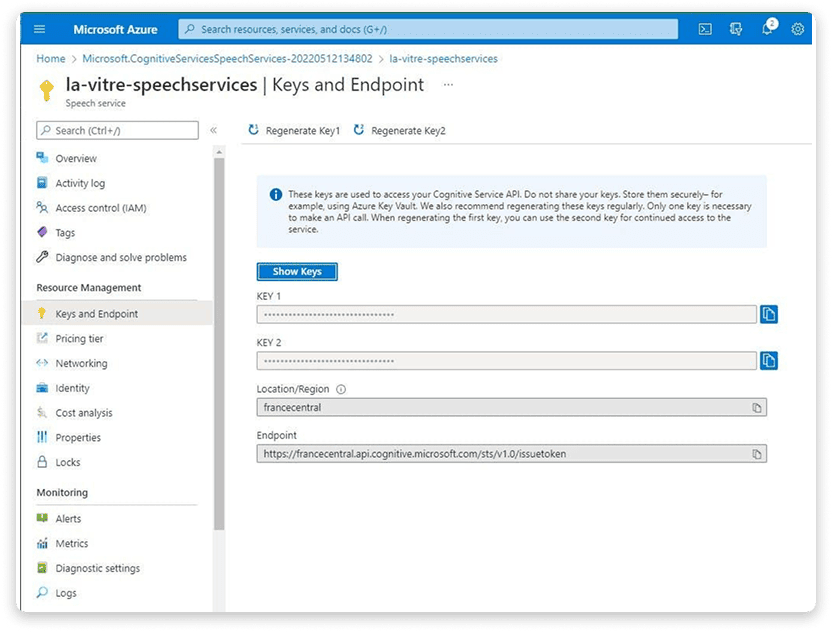
- Open the "Speech Service" that you will use
- Click on "Keys and Endpoint"
Configure on la Vitre
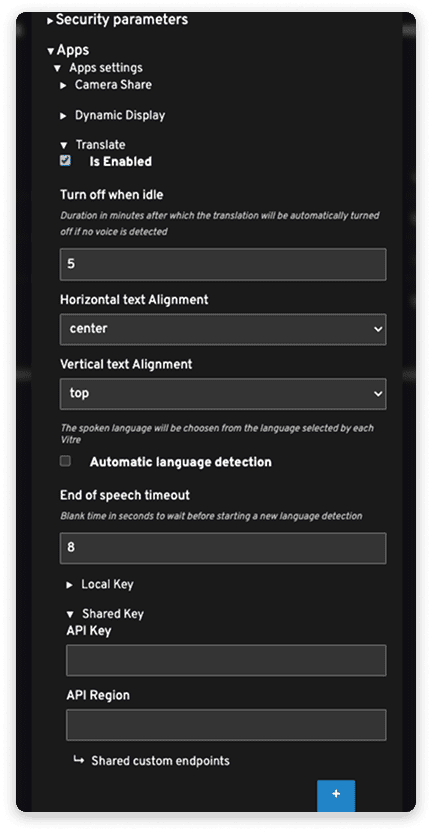
- Open the advanced settings on admin.lavitre.me
- Expand "Apps > Translate"
- Check "Enabled" to activate translation
- Fill in "Shared Key" to share your key. This allows translation on all Vitres in the same space as yours.
- Copy "Key 1" or "Key 2" in the "API Key" field of your la Vitre configuration
- Copy "Location/Region" in the "API Region" field
✨ Missing information?
This Help Center evolves with your needs.Let us know which terms, features, or use cases should be clarified, or contact support for personalized assistance.
Bringing you closer to what matters. We are enriching this resource together.