Apps
✨ The Apps section brings together all applications that can run on la Vitre.
You decide which ones are active, how they behave, and how they connect to your everyday tools.The idea is simple: prepare the display, voice, and integrations so that people can see each other, hear each other, and knock together, without having to think about settings.
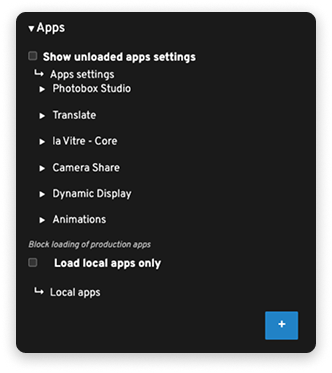
General application display
Show unloaded apps settings: also displays settings for applications that aren't currently loaded on la Vitre. Useful for checking a configuration or preparing an application before activating it.
In standard use, you can leave this box unchecked and only open these settings when you need them.
Load local apps only: blocks loading of remote production applications.
La Vitre then only loads locally present applications. This setting is reserved for very specific cases (tests, isolated environments).
For normal operation, leave Load local apps only disabled.
Camera Share
The Camera Share section allows you to refine the behavior of sharing an additional camera used to share the 180° image of the room for example. Start by clicking + to add another one.
In practice, Camera Share is already set during installation. You only come back to it if light, sharpness, or framing is problematic on the camera dedicated to sharing.
Automatic mode with presets is recommended to let la Vitre adapt to lighting and environment variations.
deviceName: selects the used camera that is automatically recognized.
enabled: activates or deactivates using this camera for sharing.
whiteBalanceMode: defines white balance management (for example continuous).
colorTemperature: adjusts color temperature. You can slightly warm the image in a very cold room or lighten it in a slightly yellow room, so faces remain natural to look at.
focusMode: chooses how focusing is done (for example manual or continuous). In continuous, the camera automatically seeks sharpness on faces.
focusDistance: allows defining a focus distance when a manual mode is used. Reserved for special installations (very distant camera, fixed shot on a specific area).
exposureMode: manages how light is measured (for example continuous).
exposureTime and exposureCompensation: allow refining image brightness if needed.
height and width: define the video stream size used by Camera Share. Default values are sufficient in most cases and ensure a good balance between image quality and fluidity.
Dynamic Display
The Dynamic Display section is used to automatically display content when la Vitre isn't in conversation with another Vitre.
It allows keeping the screen lively and useful, without disturbing exchanges when a remote presence is detected.
The steps here Configure Dynamic Display
Translate
The Translate section manages real-time translation on la Vitre.
It's designed to help two people who don't share the same language to see, hear, and understand each other.
The steps for an Azure key and configuration in advanced settings here Translation - Azure key
la Vitre – Core
The la Vitre – Core section groups integrations with your communication tools, as well as some options related to local video feedback.
Integrations with your applications
Receive real-time notifications in Slack, Google Chat, or Microsoft Teams, for each Vitre.
You see knocks arrive in your channel and are notified of access requests, in addition to the alert on la Vitre.
Practical if you're not in front of la Vitre: you're notified and can join the conversation.
The steps to get webhooks and add them here Webhook for messaging apps
Local video feedback
Automatically disable local video feedback: when this option is checked, la Vitre automatically cuts local video feedback after 30 seconds.
This setting is useful for keeping the screen centered on faces and useful content, without overloading the display.
Photobox Studio
Photobox Studio is a specific application that allows transforming la Vitre into a photo-taking or photo-animation space with a second smartphone, only if you're equipped with a Crystal Box.
Enabled: Activates or deactivates Photobox Studio on la Vitre.
If you'd like more information about the Crystal Box, don't hesitate to contact us.
Animations
By enabling this application, you add a festive atmosphere to your Vitre. In the "three dots" menu simply click on "animation", a ribbon appears on screen: touch the screen to cut this ribbon and trigger the animation followed by confetti rain for 30 seconds. Useful during your events, when inaugurating a new space or presenting a new service, etc.
If you'd like other animations on your Vitres, contact our teams to discuss it, we do custom developments.
Recorder
Recorder lets you record locally (video + audio) a session held on la Vitre.
Once the application is enabled, a Recorder icon appears on la Vitre and you can start a recording for a predefined duration.
For configuration, detailed operation, and use cases, see the dedicated page Recorder
✨ Missing information?
This Help Center evolves with your needs.Let us know which terms, features, or use cases should be clarified, or contact support for personalized assistance.
Bringing you closer to what matters. We are enriching this resource together.