Configure Dynamic Display
✨ When la Vitre is alone in a space or in confidential mode, you can display useful content instead of the blur or black screen.
A looping corporate video, a practical information page, or your home page, for example. Choose content that is simple, clear, and readable from both near and far.The buttons remain visible to write, knock, or exit this mode and start a conversation.
Prepare your content
Host your image or video on a site accessible without authentication. A video can, for example, be unlisted on YouTube.
Make sure the site or web page you choose allows iframe display. If necessary, ask your IT or web team to adjust the security headers (X‑Frame‑Options, Content‑Security‑Policy).
For full-screen display, prefer a portrait format, of good quality, suited to the size and orientation of la Vitre's screen.
For smooth rendering of a video, favor a short loop.
Enable and configure Dynamic Display
Path : Admin portal → Advanced parameters → Apps → Dynamic Display
You can choose between:
- Dynamic display: shows a background content (video or web page) only according to the defined conditions: when other Vitres in the same space switch to confidential mode, or when your Vitre is alone in its space.
- Permanent display: shows a web page as an overlay (superimposed). Whatever the state of your Vitre and the others in the same space, the overlay remains visible, even during a conversation.
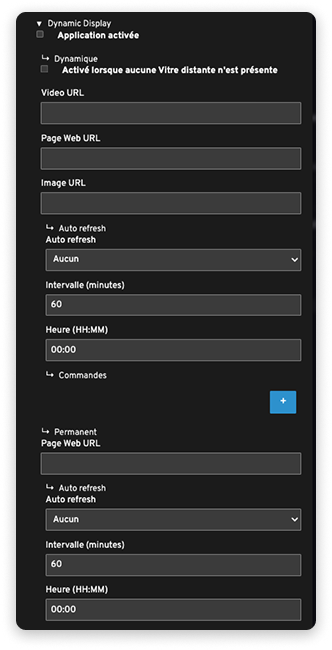
Configure dynamic display
- Open la Vitre's advanced settings, then the Apps section.
- In Dynamic Display, check "Application enabled".
- In the "Dynamic" section, fill in one of the fields:
- Video URL: full address of the video
- Page Web URL: full address of the page
- "Active when no remote Vitres are present": if your Vitre is alone in its space, the content will be shown instead of a black screen.
- "Auto refresh", content refresh:
- Choose a refresh at a specific time, or
- A refresh every X minutes.
- Click on Save.
Configure permanent display (overlay)
- Open la Vitre's advanced settings, then the Apps section.
- In Dynamic Display, check "Application enabled".
- In the "Permanent" section, fill in the "Page Web URL" field to display as an overlay.
- "Auto refresh", content refresh:
- Choose a refresh at a specific time, or
- A refresh every X minutes.
- Click on Save.
Example
Two la Vitre devices, named "Nantes" and "Paris", are connected in the same space. You enable Dynamic Display on "Nantes" and define your content.
When "Paris" switches to confidential mode, the content is displayed on "Nantes". It is also displayed if "Nantes" is alone in its space.
la Vitre remains available with one gesture for an exchange.
✨ Missing information?
This Help Center evolves with your needs.Let us know which terms, features, or use cases should be clarified, or contact support for personalized assistance.
Bringing you closer to what matters. We are enriching this resource together.